

Key Takeaways:
- Bare-metal recovery (BMR) restores an entire Windows system from scratch, including the OS, apps, settings, and data, to the same or different hardware using Veeam Agent for Microsoft Windows.
- Veeam Recovery Media enables fast recovery from critical failures, such as ransomware, OS corruption, or hardware loss, by booting into a dedicated recovery environment, even without the original device.
- Backups must be image-based and include the full system to support BMR. “Entire computer” mode, offsite/cloud copies, and tested restore points are essential for successful recovery.
- Veeam supports flexible restore options, including physical-to-virtual (P2V), dissimilar hardware restores, and direct recovery to Hyper-V, VMware, or Microsoft Azure, all of which include built-in driver injection and encryption.
- Pairing Veeam Agent with Veeam Backup & Replication adds enterprise-grade benefits, such as centralized backup management, granular recovery, immutability, and compliance-ready reporting.
What Is Bare Metal Recovery and Why It Matters for Windows Systems
Bare-metal recovery (BMR) is the process of restoring a fully functioning Windows machine from scratch (including the operating system, applications, settings, and files) to either the same or entirely different hardware. It’s called “bare metal” because the recovery takes place on a system that has no software installed at all — just hardware waiting for a complete rebuild.
In Windows environments, this capability becomes especially important in situations where time is critical: think ransomware attacks, hardware failures, or corrupted system volumes. If an endpoint or server goes down, BMR allows IT teams to bring that machine back to a ready-to-use state without needing to reinstall Windows or manually configure drivers and software.
Veeam Agent for Microsoft Windows takes this concept even further. It allows administrators to perform image-based backups of entire systems and later restore them directly to bare metal. Whether the goal is to recover a physical server, a laptop, or a workstation, the agent streamlines the process by giving you flexibility to restore to the same hardware, dissimilar hardware, or even migrate to new infrastructure. This kind of versatility is especially useful in hybrid environments where not all workloads live in the cloud.
When to Use Bare-Metal Recovery with Veeam Agent for Windows
- Ransomware Recovery: When a device has been compromised by ransomware and restoring from a previous backup is the safest path forward, BMR lets you rebuild the entire system — OS, files, and settings.
- Critical Hardware Failure: If a laptop, desktop, or server motherboard dies, you can restore the entire machine to new or dissimilar hardware without needing to reinstall Windows manually.
- OS Corruption or Boot Failure: When the Windows operating system becomes unbootable due to registry damage, failed patching, or system file corruption, BMR helps recover to a fully working state quickly.
- Remote Site Recovery: In branch offices or remote locations with no on-site IT support, BMR images can be deployed to new hardware to restore operations without manual configuration.
- Data Center Migration: Use BMR to move workloads from aging physical servers to new infrastructure, virtual machines, or cloud environments — with minimal reconfiguration.
- Test Environment Replication: Create replicas of production systems to run in isolated test environments, using BMR to clone exact configurations and data for validation or QA.
- Disaster Recovery Drills: Run full system recovery tests to validate your disaster recovery readiness and document RTO (recovery time objective) performance in real-world scenarios.
Preparing for Bare-Metal Recovery: What You Need in Place
To make BMR work, the right preparations must be in place well before disaster strikes. This section walks you through exactly what’s required to set up Veeam Agent for Microsoft Windows for reliable, fast, and secure bare-metal recovery.
Build a Backup Strategy That Supports Bare-Metal Recovery
With Veeam Agent for Microsoft Windows, the strategic priority is to think beyond “files” and plan for full-system resilience:
- Design for continuity, not just recovery. A solid bare metal recovery plan ensures operations keep moving even after a complete hardware failure or ransomware incident.
- Integrate immutability and isolation. Protect at least one backup copy in a location attackers can’t alter or delete.
- Diversify recovery options. Plan for restores to the same hardware, different hardware, or virtual/cloud environments depending on the scenario.
- Validate before you need it. Incorporate regular cleanroom testing into your recovery playbook so every backup is proven usable.
Create Veeam Recovery Media
BMR requires a separate bootable environment. Veeam Agent for Windows makes this easy by allowing you to create Veeam Recovery Media for your system in just a few clicks. It contains all the data required to run Microsoft Windows recovery. When creating your media:
- Choose a USB drive or ISO image and store it securely
- Include network and storage drivers specific to your hardware
- Test the recovery media on the actual target system or equivalent hardware
If your system ever becomes unbootable, this media is what allows you to launch into recovery mode and access your backups.
Plan for Off-Site and Cloud Backup Access
If your recovery scenario involves hardware failure, theft, or ransomware, you may not have access to the original local backup. That’s why it’s important to have:
- A secondary backup copy stored offsite or in a cloud repository via Veeam Data Cloud Vault or Veeam Cloud Connect
- Credentials and network access tested in advance (especially for firewalls, VPNs, or proxies)
Veeam Recovery Media supports direct access to cloud-based backups, as long as the network is reachable, and credentials are known.
Automate and Monitor Backup Health
Regularly scheduled backups and automated health checks help you avoid unwelcome surprises at recovery time. For BMR readiness:
- Use daily or weekly backup schedules based on your RPO (recovery point objective)
- Enable backup file health checks to validate recoverability
- If you’re managing multiple endpoints, use Veeam Backup & Replication for centralized policy enforcement, alerting, and reporting
A failed or outdated backup won’t help in a BMR scenario. Proactive monitoring is your safety net.
Document the Recovery Process
Even with the right tools, recovery can stall without a clear plan. It’s good practice to document:
- Where recovery media is stored and how to use it
- How to access backup files: local, remote, or cloud
- Any custom post-recovery steps like rejoining a domain or applying configuration settings
For IT teams supporting multiple systems or remote endpoints, having this documentation on hand reduces recovery time and avoids confusion.
What are the requirements for the target machine during recovery?
When performing BMR, the target machine (original hardware or different device/environment) must meet certain requirements.
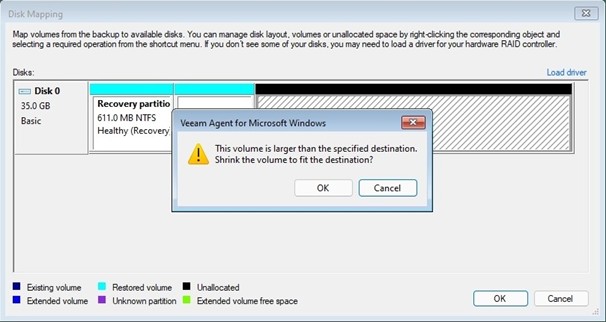
| Sufficient Disk Space | The target machine must have equal or greater disk capacity than the source machine. If the target machine has less capacity, the recovery media allows resizing of volumes during the restore (see below). Note that the volumes still need to be large enough to store all the data being restored. |
| Compatible Hardware or Drivers | If restoring to different hardware, collect all drivers for storage controllers, network adapters, and other critical components. Veeam Recovery Media can inject necessary drivers during recovery but having them on hand can prevent compatibility issues. |
| Recovery Media | The target system must be capable of booting from the Veeam Recovery Media, whether it’s via USB, ISO, or optical disk. Configuring the BIOS or UEFI to boot from the selected media maybe be necessary. |
| Hardware Architecture Match | The target hardware should match or be compatible with the source system’s architecture (e.g. 64-bit systems require 64-bit compatible hardware) to prevent boot or performance issues post-recovery. |
| Network Connectivity (optional) | For recovery scenarios that pull backup data from network locations or Veeam repositories, the target machine requires functional network connectivity |
If the target machine has less disk space, you can use the Veeam Recovery media to shrink the source volumes. This allows you to recover your backup to a smaller disk than the source disk size.
How to Perform a Bare Metal Restore: Step-by-Step Using Veeam Agent
BMR allows you to restore a full operating system onto new or existing hardware without needing the original device. With Veeam Agent for Microsoft Windows, this process is straightforward, secure, and customizable. Let’s walk through each step of performing BMR.
1. Creating a Recovery Image
During initial setup, the agent allows you to create a Veeam Recovery Media: a bootable ISO/USB containing recovery tools.
This image includes all necessary drivers and tools to boot into a minimal Windows environment, even if the main OS is inaccessible.
2. Configuring the Backup
The agent is configured to backup:
- The entire system volume (for full-image backup)
- Specific volumes or partitions
- Application-aware processing (like VSS snapshots for SQL Server, Exchange)
Once created, backups can be sent to:
- Veeam Backup & Replication repositories
- Veeam Cloud Connect
- Local or network-attached storage (NAS)
3. Initiating the Bare-Metal Restore
If a system fails (e.g., hardware failure, disk corruption, ransomware, OS crash), you boot from the Veeam Recovery Media.
This launches a WinRE-based environment with the Bare Metal Recovery wizard.
4. Selecting the Restore Point
- You can browse all available backup restore points stored on your target repository or storage.
- Supports flexible recovery, including:
– Restore to same hardware
– Restore to dissimilar hardware (driver injection supported)
– Restore to a virtual machine (for P2V conversion)
5. Restoration Process
The wizard restores:
- Boot configuration data (BCD)
- System reserved partitions
- OS and data volumes
After a restore, the system is fully operational, including applications and user settings.
6. Post-Restore Reconfiguration (if needed)
In case of hardware changes, additional driver setup or license reactivation (e.g., Windows Activation) may be necessary.
A detailed step-by-step guide on how to perform BMR can be found in our Help Center.
What if I want to restore a physical machine to a virtual environment or cloud?
Restoring a physical machine to a virtual environment, commonly called P2V (Physical to Virtual) recovery, is fully supported with Veeam Agent for Microsoft Windows, offering flexibility for disaster recovery, system failures, hardware upgrades, or cloud migration scenarios.
Using Veeam Backup & Replication, you can perform a Direct Restore to Microsoft Hyper-V or VMware vSphere, as well as to the public cloud.
Here’s how it works:
To VMware or Hyper-V:
- Launch the “Restore to…” wizard in the Veeam console.
- Select the backup of the physical machine.
- Choose a destination host, cluster, resource pool, and datastore.
- Adjust virtual hardware settings (CPU, RAM, disk type) as needed.
The restored VM is created from the physical backup with full operating system, applications, and configurations intact.
To Microsoft Azure:
- Use Veeam’s Direct Restore to Microsoft Azure feature.
- Use Veeam Backup & Replication to initiate the restore.
- Customize storage type, VM size, and network settings.
Supports restoring even domain controllers, SQL Servers, or other critical workloads for hybrid cloud strategies.
Key considerations:
- Driver compatibility: Veeam handles the hypervisor conversion process, injecting the necessary drivers to boot the VM successfully.
- Licensing: Post-recovery, you may need to reactivate Windows or reassign licenses, depending on your environment.
- Networking: After restore, update IP addressing and DNS settings if moving across network segments or to cloud environments.
- Performance tuning: Allocate appropriate compute and storage resources in the target environment to match workload demand.
Why Bare-Metal Recovery with Veeam Agent for Windows Matters: Key Benefits
Bare-metal recovery helps restoring normal operations quickly, consistently, and securely when your Windows system experiences total failure. Whether the issue is ransomware, hardware malfunction, or OS corruption, BMR gives organizations a critical lifeline. Here’s how Veeam Agent for Microsoft Windows makes that recovery reliable and more secure:
1. Full System Recovery to Dissimilar Hardware
With Veeam Agent, you’re not locked into recovering to the exact same device or hardware. The recovery media includes hardware-independent restore capabilities, allowing you to:
- Restore to new or different physical hardware
- Rebuild a workstation or server on virtual infrastructure (like Hyper-V or VMware)
- Avoid compatibility issues with driver injection during restore
This flexibility reduces downtime, especially when the original machine is no longer usable.
2. Restore from Cloud or Remote Repositories
Veeam Agent supports recovery from multiple types of backup repositories, not just local ones. You can perform BMR from:
- A local USB device or NAS device
- A remote backup repository managed by Veeam Backup & Replication
- A Veeam Cloud Connect service provider
3. Reliable Recovery with Minimal Configuration
BMR using Veeam Recovery Media is designed to be straightforward:
- Boot from the recovery media or connect to your backup repository
- Select the recovery point and target location
4. Built-In Security and Data Integrity
Recovery is about trust. Veeam provides backup and recovery integrity by supporting:
- Immutability (when used with hardened repositories or object storage) to protect backups from tampering
- End-to-end data encryption, both in transit and at rest
- Role-based access control (RBAC) for limiting who can create and recover backup data
5. Granular Recovery Options for Added Flexibility
While BMR restores everything, you’re not limited to all-or-nothing recovery. With Veeam Agent for Windows, you can also:
- Mount the backup and recover individual files or folders
- Restore specific volumes or partitions without touching the full image
- Use instant file-level recovery directly from BMR images
6. Native Integration with Veeam Backup & Replication
When used alongside Veeam Backup & Replication, the agent unlocks powerful enterprise-level functionality:
- Centralized policy management for endpoint backups
- Automated job deployment across multiple Windows devices
- Monitoring, reporting, and SLA tracking for compliance and audit needs
Why Is Having Bare Metal Recovery Capability Important for Organizations?
Bare metal recovery is a critical capability for any organization that is looking to reduce downtime and restore full system functionality after a failure or a cyber incident. Through Veeam Agent, you get more than just a fast recovery. You gain flexibility and control over where and how your systems are restored. We provide comprehensive protection across physical, virtual, and cloud environments, so you’re always ready for what’s next.
