- Veeam Support Knowledge Base
- Installing package Transport Error: Error 1935.An error occurred during the installation of assembly component
Installing package Transport Error: Error 1935.An error occurred during the installation of assembly component
| KB ID: | 1689 |
| Product: | Veeam Backup & Replication | 12 | 12.1 | 12.2 | 12.3 | 12.3.1 | 12.3.2 | 13 | 13.1 |
| Published: | 2012-11-12 |
| Last Modified: | 2024-10-25 |

Cheers for trusting us with the spot in your mailbox!
Now you’re less likely to miss what’s been brewing in our knowledge base with this weekly digest

Oops! Something went wrong.
Please, try again later.
Challenge
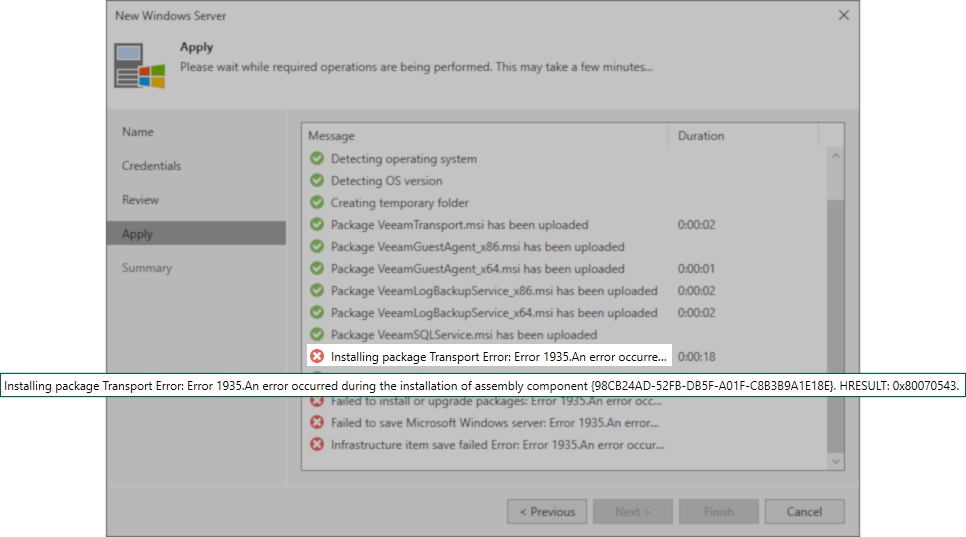
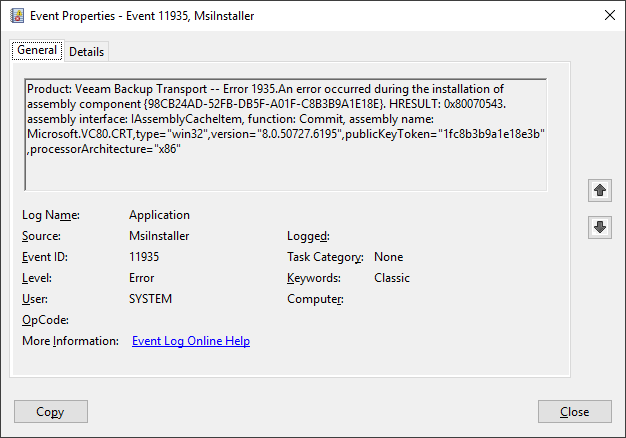
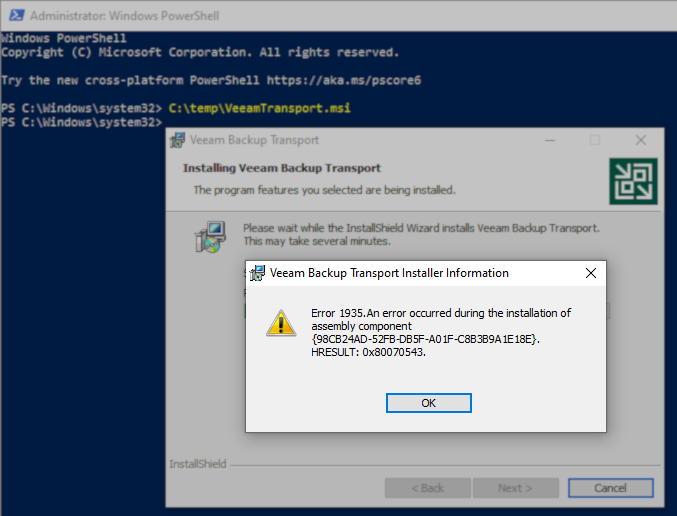
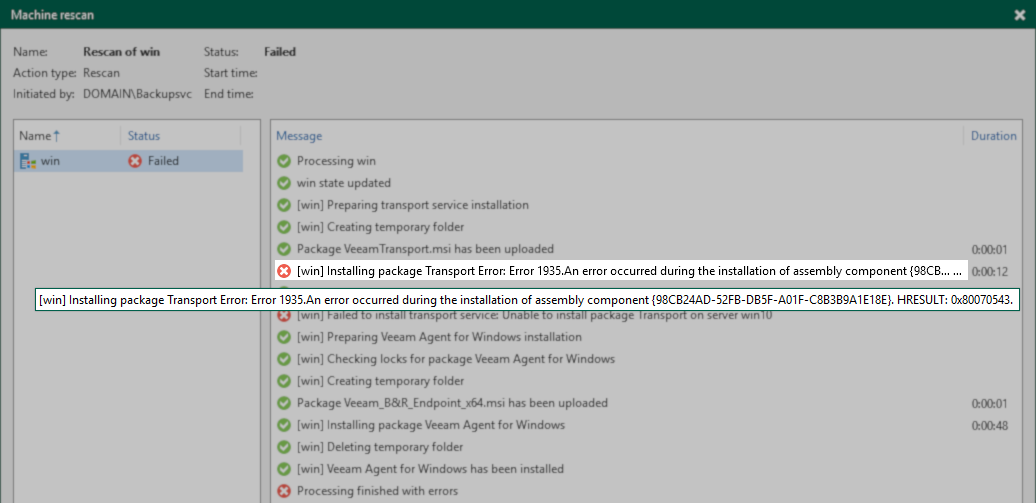
When Veeam Backup & Replication attempts to install the Veeam Transport package (VeeamTransport.msiC:\Program Files\Veeam\Backup and Replication\Backup\Packages\VeeamTransport.msi) the package fails to install, and the following errors may be displayed in the UI:
Installing package Transport Error: Error 1935.An error occurred during the installation of assembly component {98CB24AD-52FB-DB5F-A01F-C8B3B9A1E18E}. HRESULT: 0x80070543.
Failed to install or upgrade packages: Error 1935.An error occurred during the installation of assembly component {98CB24AD-52FB-DB5F-A01F-C8B3B9A1E18E}. HRESULT: 0x80070543.
Failed to save Microsoft Windows server: Error 1935.An error occurred during the installation of assembly component {98CB24AD-52FB-DB5F-A01F-C8B3B9A1E18E}. HRESULT: 0x80070543.
Infrastructure item save failed Error: Error 1935.An error occurred during the installation of assembly component {98CB24AD-52FB-DB5F-A01F-C8B3B9A1E18E}. HRESULT: 0x80070543.
Cause
The MsiInstaller fails to process the VeeamTransport installer.
At this time, there are two leading causes:
- Distributed COM (DCOM) Configuration Issue
- AntiVirus/Security Software Interference
Solution
- Ensure that no Antivirus or Security software is interfering with the installation.
The VeeamTransport.msi file will be uploaded to the following folder in the remote Windows machine:
C:\Windows\Veeam\Backup\Upload\ - Check that the account being used to communicate with the remote machine is a member of the Local Administrators group on the affected machine.
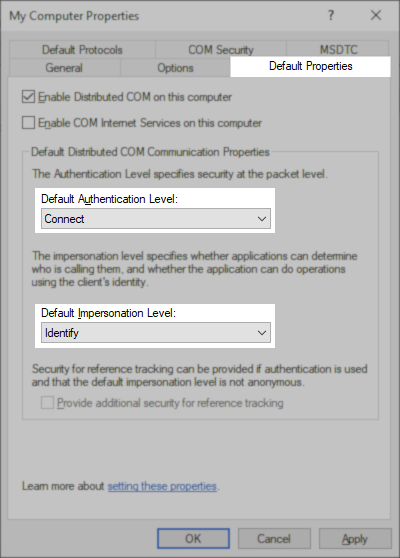
- Check the DCOM communication properties:
- Run: dcomcnfg.exe
- In the console tree, expand Component Services and then expand Computers.
- Right-click on My Computer and click Properties.
- Within the My Computer Properties window, switch to the Default Properties tab.
- Confirm settings are system default:
- Default Authentication Level — Connect.
- Default Impersonation Level — Identify
- Save settings and close DCOM Manager.
If this KB article did not resolve your issue or you need further assistance with Veeam software, please create a Veeam Support Case.
To submit feedback regarding this article, please click this link: Send Article Feedback
To report a typo on this page, highlight the typo with your mouse and press CTRL + Enter.
