Malware and Ransomware Detection in M365
| KB ID: | 4838 |
| Product: | Veeam Data Cloud for Microsoft 365 |
| Published: | 2026-03-31 |
| Last Modified: | 2026-03-31 |


Purpose
This article describes how to locate, review, and interpret Malware and Ransomware threat detections surfaced by Veeam Data Cloud (VDC) Advanced Threat Detection for Microsoft 365 workloads.
When Veeam Data Cloud backs up Microsoft 365 data, it automatically analyzes each backup for security threats. It then flags infected files (malware) and suspicious encryption patterns (ransomware). Detected threats are surfaced in the Threats section of the Microsoft 365 workload view in the VDC portal.
How Threat Detection Works
| Threat Type | Detection Method | Data Source | What Is Detected |
|
Malware | Deterministic
(rule-based) | Microsoft's built-in malware detection | Known malware signatures in OneDrive, Teams, and SharePoint files flagged during a backup session. |
| Ransomware | Machine Learning
(Random Cut Forest) | Backup file statistics (entropy, extension changes, modification patterns) | Anomalous encryption patterns, unusual file extension changes, and entropy spikes deviating from the established baseline per workload. |
Solution
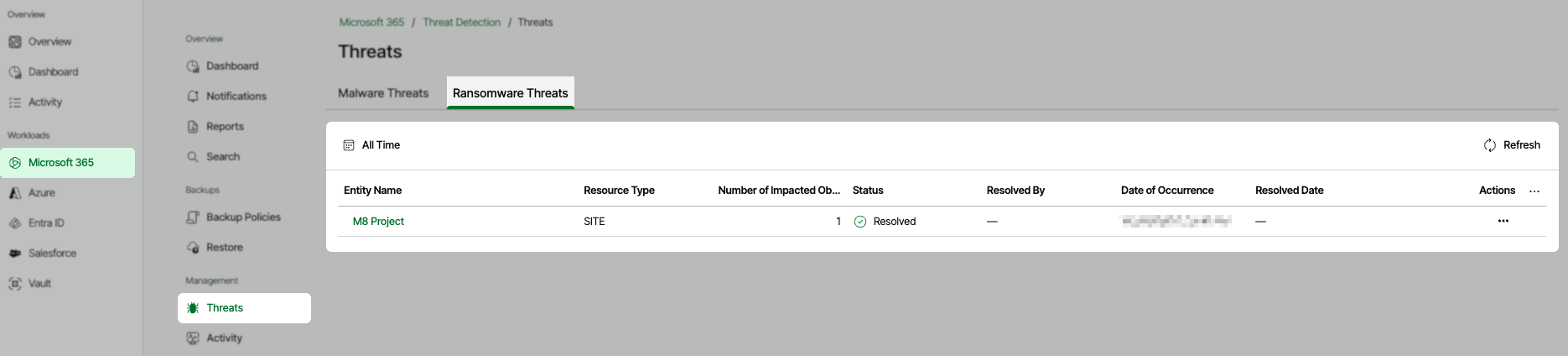
Navigate to the Threats View
In the Veeam Data Cloud (VDC) portal, select Microsoft 365 from the left navigation panel, and in the Management section, click Threats.
The threats page contains two tabs:
- Malware Threats — A list of users whose OneDrive, Teams, or SharePoint files were flagged as containing malware during a backup session.
- Ransomware Threats — A list of resources where anomalous encryption activity was detected.

Investigate a Malware Threat
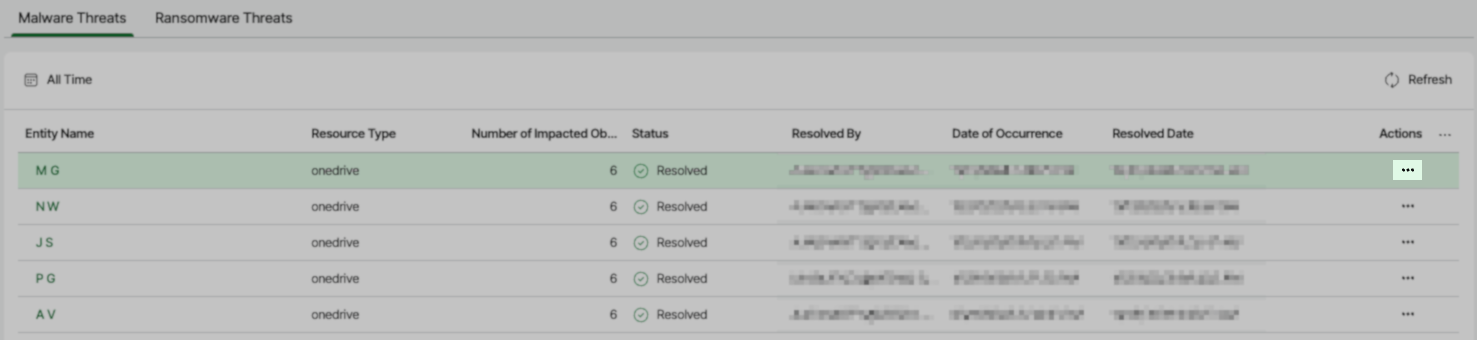
Click on any row in the Malware Threats tab, click the ⋯ action menu, then select View Details to open the Malware Threat Details panel.
Understanding the Malware Threat Fields
- Entity Name: The Microsoft 365 object name of the infected files.
- Resource Type: The Microsoft 365 resource type where the threat was found (e.g., OneDrive, SharePoint).
- Number of Impacted Objects: Total count of files flagged as malware within the backup session.
- Status: The current lifecycle state of the threat, which could be Active or Resolved.
- Resolved By: The user who resolved the threat in the Veeam Data Cloud platform. Keep in mind, the resolution of a threat happens off-platform.
- Date of Occurrence: The timestamp of the backup session during which infected files were detected.
Note: This represents the date of detection, not the date of actual infection. - Resolved Date: The timestamp when the user clicked "Resolved" in the Veeam Data Cloud platform.
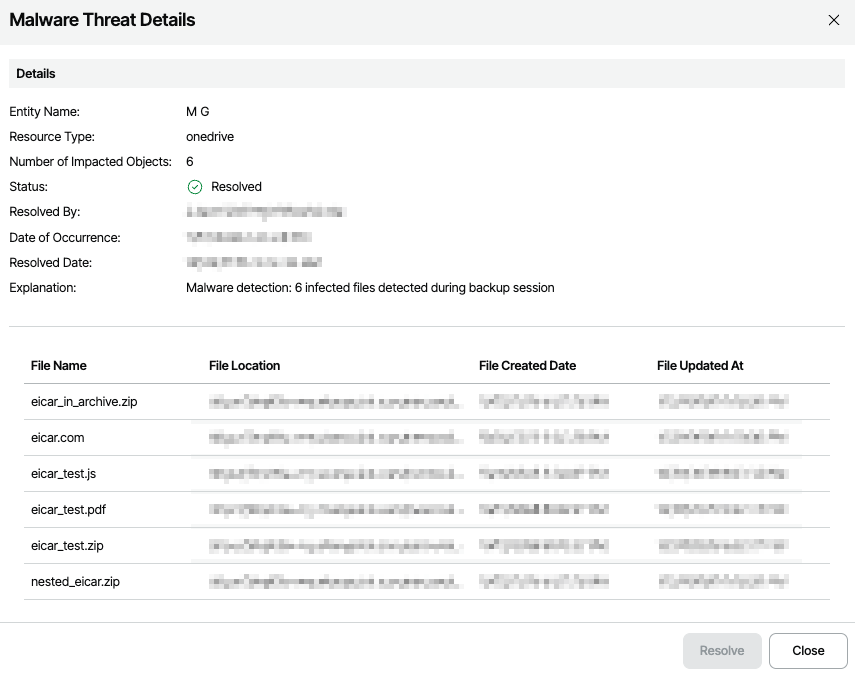
Understanding the Malware Threat Details Fields
- Explanation: A plain-language summary of the detection event.
- File Name: Name of the infected file.
- File Location: Full URL to the file.
- File Created Date: Timestamp of when the file was created.
- File Updated At: Timestamp for when the file was last modified.
- Resolve Button: Updates the status of the threat in the Veeam Data Cloud platform to "Resolved".
Investigate a Ransomware Threat
Click the Ransomware Threats tab to see detections based on anomalous backup behavior. Ransomware detections are scoped at the site or resource level rather than the individual user level.
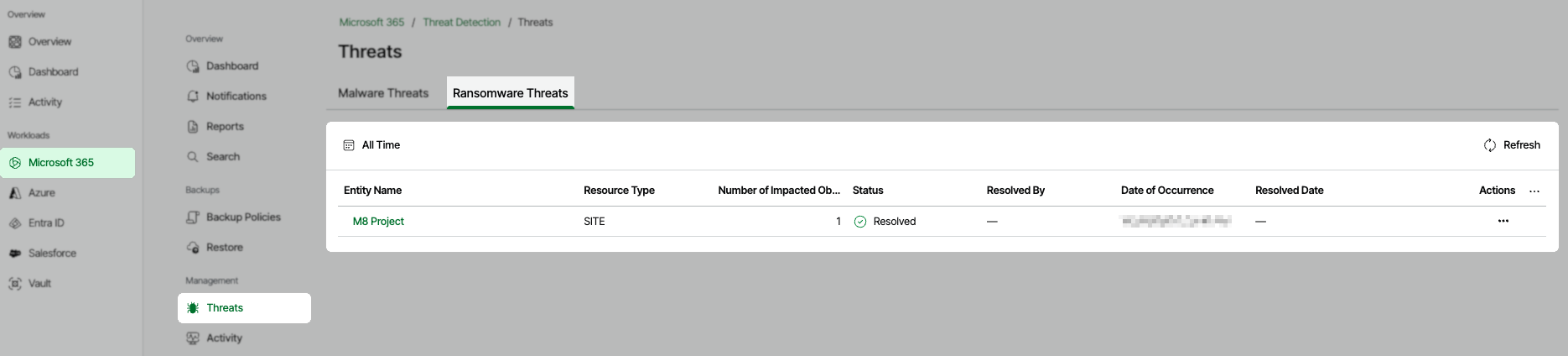
Understanding the Ransomware Threat Fields
- Entity Name: The Microsoft 365 object name of the infected files.
- Resource Type: The Microsoft 365 resource type where the threat was found (e.g., SITE).
- Number of Impacted Objects: Total count of files flagged as malware within the backup session.
- Status: The current lifecycle state of the threat, which could be Active or Resolved.
- Resolved By: The user who resolved the threat in the Veeam Data Cloud platform. Keep in mind, the resolution of a threat happens off-platform.
- Date of Occurrence: The timestamp of the backup session during which infected files were detected.
Note: This represents the date of detection, not the date of actual infection. - Resolved Date: The timestamp when the user clicked "Resolved" in the Veeam Data Cloud platform.
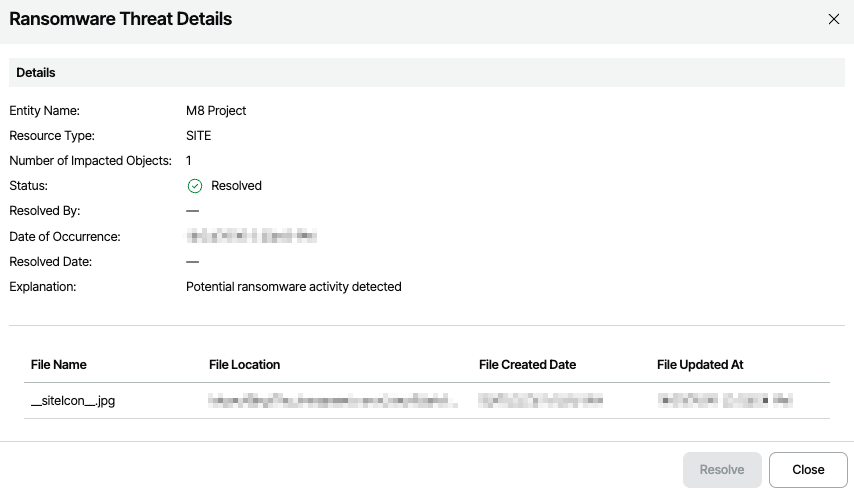
Understanding the Ransomware Threat Details Fields
- Explanation: A plain-language summary of the detection event.
- File Name: Name of the infected file.
- File Location: Full URL to the file.
- File Created Date: Timestamp of when the file was created.
- File Updated At: Timestamp for when the file was last modified.
- Resolve Button: Updates the status of the threat in the Veeam Data Cloud platform to "Resolved".
More Information
Considerations and Limitations
-
Opt-in required: Threat Detection must be explicitly enabled per tenant. It is not active by default due to customer consent requirements for AI-powered features.
-
Microsoft 365 workloads only (current release): Threat Detection currently supports Microsoft 365 (i.e., OneDrive, Teams, and SharePoint).
-
Malware detection relies on Microsoft's built-in malware detection signals: If Microsoft does not flag a file as malware, the Veeam Data Cloud platform will not independently detect it.
-
Ransomware detection requires a 45-day baseline: New workloads or tenants will not have full anomaly detection until the machine learning (ML) model has established a behavioral baseline. During the ramp-up period, low-confidence anomalies may not be surfaced.
-
Ransomware detection is probabilistic: The Random Cut Forest ML model flags statistically anomalous patterns. All detections are labelled as "Potential ransomware activity" and are reviewed by Veeam operators before being marked Active.
-
File content is never accessed: Both malware and ransomware detection operate exclusively on metadata and behavioral statistics. Backup file content is never read, transmitted, or analyzed by the threat detection service.
-
False positives may occur: Legitimate bulk file operations (e.g., large migrations, mass rename events, encryption of files by authorized software) may occasionally trigger a ransomware detection. Veeam operators review these events before escalating to Active status.
-
Data residency: All threat detection data, including file metadata and detection results, is stored in the same Azure region as your Veeam Data Cloud deployment. No data crosses regional boundaries unless explicitly requested by the customer.
If this KB article did not resolve your issue or you need further assistance with Veeam software, please create a Veeam Support Case.
To submit feedback regarding this article, please click this link: Send Article Feedback
To report a typo on this page, highlight the typo with your mouse and press CTRL + Enter.
