- Veeam Support Knowledge Base
- Veeam Agent for Microsoft Windows Job Displays the Warning: "Disk is running low on free space"
Veeam Agent for Microsoft Windows Job Displays the Warning: "Disk is running low on free space"
| KB ID: | 3123 |
| Product: | Veeam Agent for Microsoft Windows | 2.1 | 2.2 | 3.0.2 | 4.0 | 5.0 | 6.0 | 6.1 | 6.2 | 6.3 | 6.3.1 | 6.3.2 | 6.3.3 | 13 | 13.1 |
| Published: | 2020-03-12 |
| Last Modified: | 2022-04-11 |

Cheers for trusting us with the spot in your mailbox!
Now you’re less likely to miss what’s been brewing in our knowledge base with this weekly digest

Oops! Something went wrong.
Please, try again later.
Challenge
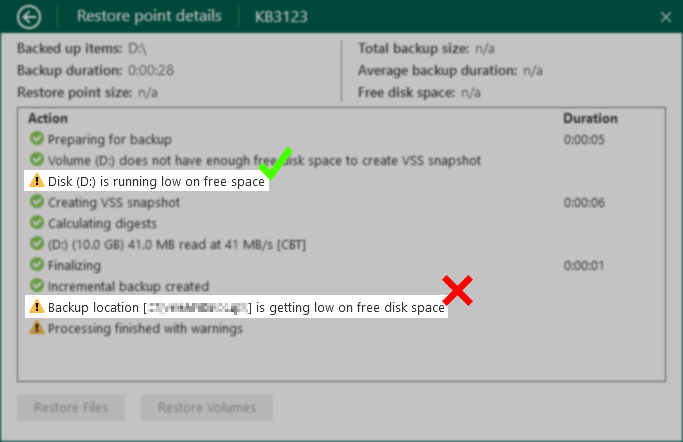
Disk <drive name> <drive letter> is running low on free space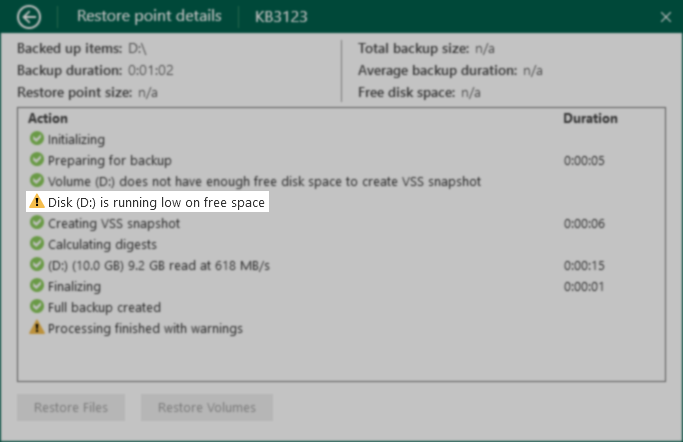
Log Example
Info     [EpFreeSpaceHelper] Volume ['New Volume (D:)', isSystem=False] length is 10718543872 bytes. Free space required: 1073741824 bytes
Error    Volume New Volume (D:) does not have enough free disk space to create VSS snapshot
Info     [EpFreeSpaceHelper] Volume ['New Volume (D:)', isSystem=False] length is 10718543872 bytes. Free space required: 1073741824 bytes
Warning  You are running low disk space on New Volume (D:)
Cause
Veeam Agent for Microsoft Windows checks each volume that is part of the backup job to confirm that a sufficient amount of free space is available. A warning message will be displayed if a minimum amount of free space is unavailable.
- If the available free space is greater than the 1073MB but less than 2146MB, the following message will be displayed:
Disk is running low on free space. - If the available free space is less than 1073MB, the following message will also be displayed, and the job may fail.
Volume does not have enough free disk space to create VSS snapshot.
Solution
Recommended: Increase Free Space
- Review the volume contents to determine if files can be moved or deleted to increase free space.
- If the machine is a Virtual Machine, make the disk larger and expand the volume using Disk Management.
Workaround: Disable Free Space Warning
With this registry setting in place the notice will still occur, but it will instead be a green informational message.
- Create the following registry value on the machine that is displaying the warning.
Key Location: HKLM\SOFTWARE\Veeam\Veeam EndPoint Backup
Value Name: DisableVolumeFreeSpaceCheckWarning
Value Type: DWORD (32-Bit) Value
Value Data: 1
PowerShell:
New-ItemProperty -Path 'HKLM:\SOFTWARE\Veeam\Veeam EndPoint Backup' -Name 'DisableVolumeFreeSpaceCheckWarning' -Value "1" -PropertyType DWORD -Force- Restart the Veeam Agent for Microsoft Windows service.
PowerShell:
Restart-Service "Veeam Agent for Microsoft Windows"More Information
The message about free space will be marked as a warning for all volumes larger than 2048MB (2GB), volumes small than 2GB will still display the message, but it will be a green informational notice.
Free Space Requirements
| Volume Size (MB) | Free Space Requirement (MB) |
|---|---|
| less than 524 | 52 |
| 525 to 1073 | 355 |
| 1074 to 2146 | 525 |
| 2147 and more | 1073 |
If this KB article did not resolve your issue or you need further assistance with Veeam software, please create a Veeam Support Case.
To submit feedback regarding this article, please click this link: Send Article Feedback
To report a typo on this page, highlight the typo with your mouse and press CTRL + Enter.
