Unable to Generate Reports Due to Error “Veeam ONE Caching Service Maintenance”

KB ID: 4829
Product: Veeam ONE | 13
Published: 2026-03-06
Last Modified: 2026-03-06
mailbox
Get weekly article updates
By subscribing, you are agreeing to have your personal information managed in accordance with the terms of Veeam's Privacy Notice.

Cheers for trusting us with the spot in your mailbox!

Now you’re less likely to miss what’s been brewing in our knowledge base with this weekly digest

error icon

Oops! Something went wrong.

Please, try again later.

Challenge

When attempting to generate reports in Veeam ONE the report fails to load and instead for following error is displayed:

Veeam ONE Caching Service Maintenance
The caching service database is being prepared for the maintenance window.
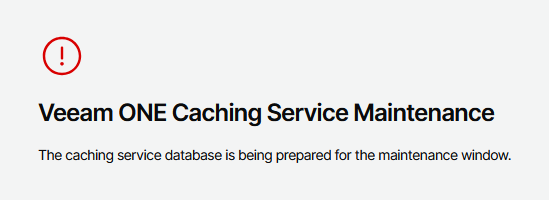
A message displays a red exclamation point icon with the text "Veeam ONE Caching Service Maintenance." Below, it says, "The caching service database is being prepared for the maintenance window."

Often, when this error is shown, the following error will also be found within the Reporting Database Connection settings page:

Veeam.Reporter.CachingService.Collector.Auxiliary.ReporterStateProvider not initialized. Status: 500 Response: 
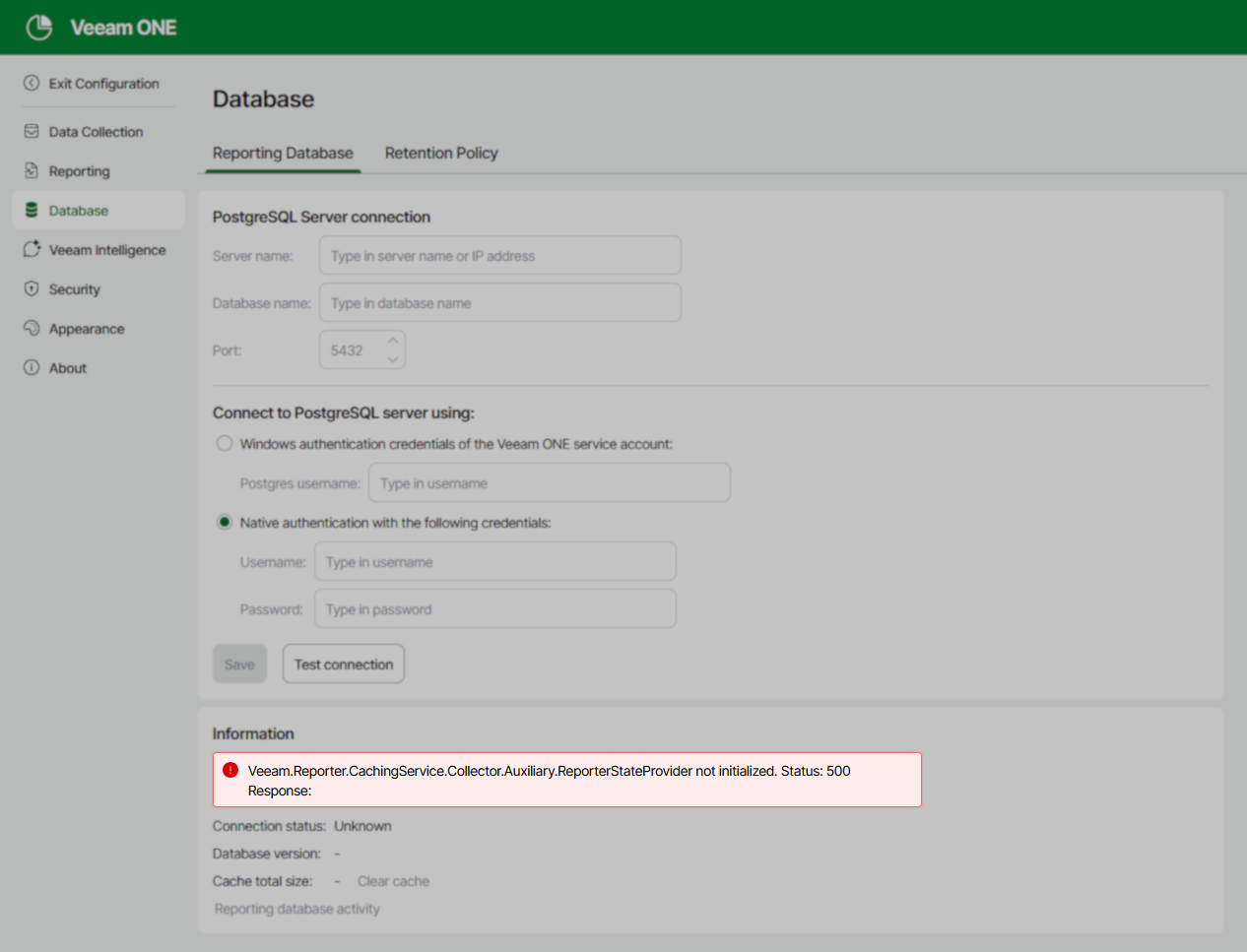
The Veeam ONE interface is open to the "Database" section under "Reporting." The PostgreSQL Server connection fields are empty. An error message with a red exclamation icon states: "Veeam.Reporter.CachingService.Collector.Auxiliary.ReporterStateProvider not initialized. Status: 500 Response:" The information panel below shows unknown connection status, no database version, and cache total size is not available.

Cause

These issues occur when the Veeam ONE Caching Service cannot connect to the PostgreSQL instance hosting the Reporting Database.

Solution

Part 1: Identify Underlying Error

To begin troubleshooting, identify the connection issue the Veeam ONE Caching Service is experiencing.

  1. Open the Services management panel (services.msc).
  2. Locate the Veeam ONE Caching Service and restart it.
    The service is restarted to ensure that the latest entry in the service's log file is the attempt to connect to the PostgreSQL instance.
  3. Open the following log file:
    C:\ProgramData\Veeam\Veeam ONE\Logs\CachingService\Service.log
    
  4. Go to the bottom of the Service.log file (Ctrl+End).
  5. Search Upward for the string: "DB test failed:"
    You will find one of these results:
    • DB test failed: Failed to connect to 127.0.0.1:5432
      Meaning: The PostgreSQL instance located on 127.0.0.1 (localhost) is not accepting connections, likely because the postgresql-x64-17 service is not started.
    • DB test failed: 28000: SSPI authentication failed for user "postgres"
      Meaning: The PostgreSQL instance is configured to use Windows-based authentication, and the Service Account used by the  Veeam ONE Caching Service is not present in the pg_ident.conf file and therefore has no access.
    • DB test failed: The password is incorrect
      Meaning: The PostgreSQL instance is configured to use native password-based authentication, and the Veeam ONE Caching Service is attempting to connect with the wrong password.

Part 2: Resolving the Connection Issue

Expand the section below that matches the error you found in the Service.log file:
DB test failed: Failed to connect to 127.0.0.1:5432

Note: These instructions assume the default Veeam ONE Installer-deployed PostgreSQL instance is in use. If you are using a customer-deployed PostgreSQL instance, please review these instructions with your SQL Admin.

  1. Open the Services management panel (services.msc).
  2. Locate the postgresql-x64-17 service, and Start it.
  3. After the PostgreSQL service has started, restart the Veeam ONE Caching Service.
  4. Review the Veeam ONE Caching Service log file:
    C:\ProgramData\Veeam\Veeam ONE\Logs\CachingService\Service.log
    
  5. Go to the bottom of the log file and verify that the service started and correctly initiated a connection to the PostgreSQL instance.

    Note: If the Service.log now displays one of the other errors mentioned in the previous section, review the expandable section for that error to learn how to resolve the issue.

Example of the lines that will be listed in Service.log when the Veeam ONE Caching Service has successfully connected to the PostgreSQL instance:

DatabaseConnectionService -   -   -   - : Database connection service started
DatabaseConnectionService -   -   -   - : Test connection with DB
DatabaseConnectionService -   -   -   - : DB test result: Ok
DB test failed: 28000: SSPI authentication failed for user "postgres"

As explained in the summary, this error means that the PostgreSQL instance has been configured to process inbound connections using Windows-based authentication (SSPI). The Veeam ONE Caching Service will have a user specified as its "Log On As," and that user must be listed within PostgreSQL's configuration to accept connections using that account.

Step 1: Identify Veeam ONE Caching Service's Service Account

  1. Open the Services management panel (services.msc).
  2. Locate the Veeam ONE Caching Service service.
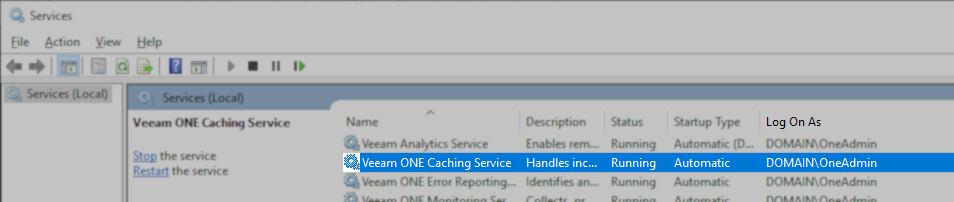
  3. Take note of the user listed in the "Log On As" column.
The Windows Services Manager is open, showing the "Veeam ONE Caching Service" running with the "Log On As" column displaying "DOMAIN\OneAdmin." Other Veeam ONE services are also listed as running under the same account.

Step 2: Update PostgreSQL Configuration

  1. Open the following PostgreSQL configuration file:
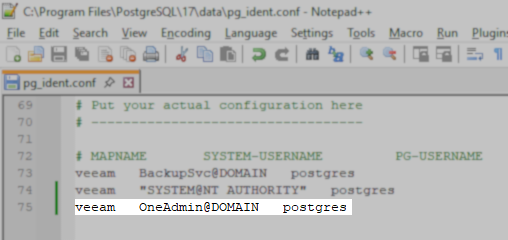
    C:\Program Files\PostgreSQL\17\data\pg_ident.conf
    
  2. Go to the bottom of the file and review the usernames listed there.
  3. Ensure that the service account used by the Veeam ONE Caching Service is listed.

    Note: Copy and paste one of the existing lines, then modify the username. Remember to enter the username in user@domain format.
A Notepad++ window displays the pg_ident.conf file for PostgreSQL. The file shows mapping rules, including a line mapping "veeam" to "OneAdmin@DOMAIN" as the "postgres" user.

Step 3: Restart Caching Service and Verify Connection Success

  1. After updating the pg_ident.conf file, restart the Veeam ONE Caching Service.
  2. Review the Veeam ONE Caching Service log file:
    C:\ProgramData\Veeam\Veeam ONE\Logs\CachingService\Service.log
    
  3. Go to the bottom of the log file and verify that the service started and correctly initiated a connection to the PostgreSQL instance.

    Note: If the Service.log now displays one of the other errors mentioned in the previous section, review the expandable section for that error to learn how to resolve the issue.

Example of the lines that will be listed in Service.log when the Veeam ONE Caching Service has successfully connected to the PostgreSQL instance:

DatabaseConnectionService -   -   -   - : Database connection service started
DatabaseConnectionService -   -   -   - : Test connection with DB
DatabaseConnectionService -   -   -   - : DB test result: Ok
DB test failed: The password is incorrect

As explained in the summary, this error means that the PostgreSQL instance has been configured to process inbound connections using native password-based authentication. This error indicates that the password the Veeam ONE Caching Service is attempting to use to connect to the PostgreSQL instance is incorrect.

Notes

  • To resolve this, you must update the password used by the Veeam ONE Caching Service. However, it is only possible to change the password being used when a connection is successful. To work around this, the instructions below will walk you through configuring the PostgreSQL instance to automatically trust all local connections. This will cause connections from the Veeam ONE Caching Service to work, but it is not a solution. It is intended only to allow you the ability to update the password used by Veeam ONE, and the bypass configuration must be removed as soon as possible.
  • These instructions assume the default Veeam ONE Installer-deployed PostgreSQL instance is in use. If you are using a customer-deployed PostgreSQL instance, please review these instructions with your SQL Admin.

Step 0: Verify You Know the postgres Password

Note: If you already know you don't know the password, reset it using the instructions in KB4818.

  1. Open an Administrative PowerShell Terminal.
  2. Navigate to the PostgreSQL bin folder.
cd 'C:\Program Files\PostgreSQL\17\bin\'
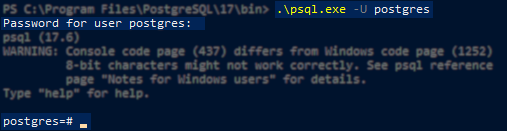
  1. Run the following command and when prompted, enter the postgres user's password:
.\psql.exe -U postgres
  1. If the password you have entered is correct, the terminal will change to display the prompt postgres=#
A Windows PowerShell window shows a successful login to PostgreSQL using the command .psql.exe -U postgres. The prompt asks for the password, and after entering it, the postgres=# prompt appears, indicating successful authentication.

Step 1: Modify PostgreSQL Configuration to Allow All Local Connections

Revert pg_hba.conf Changes When Done

This procedure involves modifying the PostgreSQL instance to allow local passwordless access.

These PostgreSQL configuration changes must be reverted after the database connection settings in the Veeam ONE Web Client are updated.

  1. Open the pg_hba.conf file. Its default location is:
    C:\Program Files\PostgreSQL\17\data\pg_hba.conf
    
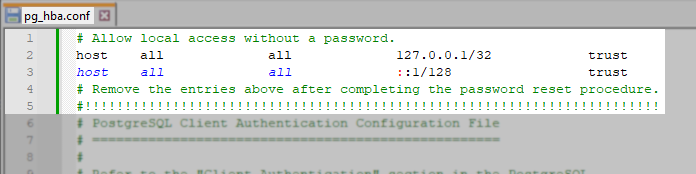
  2. At the very beginning of the file, above everything else, paste the following lines to configure the PostgreSQL instance to allow any local connection to connect as the 'postgres' superuser without requiring any authentication.
# Allow local access without a password.
host all all 127.0.0.1/32 trust
host all all ::1/128 trust
# Remove the entries above after completing the password reset procedure.
#!!!!!!!!!!!!!!!!!!!!!!!!!!!!!!!!!!!!!!!!!!!!!!!!!!!!!!!!!!!!!!!!!!!!!!!!
A text editor displays the pg_hba.conf file for PostgreSQL. The highlighted section shows configuration lines allowing local access without a password for host 127.0.0.1/32 and ::1/128 using "trust" authentication. A comment instructs to remove these entries after completing the password reset procedure.

Step 2: Update the Database Connection Credentials

  1. Open the Services management panel (services.msc).
  2. Restart the Veeam ONE Caching Service service.
  3. Open the Veeam ONE Web Client.
  4. In the top right corner of the Veeam ONE Web Client window, click Configuration ().
  5. In the configuration menu on the left, click Database.
  6. On the Reporting Database tab, update the password specified under the Native authentication section.
  7. Click Save to store the new password.
  8. Remove the lines that you added to the pg_hba.conf file in the last section.
  9. Open the Services management panel and restart the Veeam ONE Caching Service.
  10. Review the Veeam ONE Caching Service log file:
    C:\ProgramData\Veeam\Veeam ONE\Logs\CachingService\Service.log
    
  11. Go to the bottom of the log file and verify that the service started and correctly initiated a connection to the PostgreSQL instance.

Example of the lines that will be listed in Service.log when the Veeam ONE Caching Service has successfully connected to the PostgreSQL instance:

DatabaseConnectionService -   -   -   - : Database connection service started
DatabaseConnectionService -   -   -   - : Test connection with DB
DatabaseConnectionService -   -   -   - : DB test result: Ok

More Information

For more information about PostgreSQL Connection and Authorization Information review KB4818.

If this KB article did not resolve your issue or you need further assistance with Veeam software, please create a Veeam Support Case.

To submit feedback regarding this article, please click this link: Send Article Feedback
To report a typo on this page, highlight the typo with your mouse and press CTRL + Enter.

Spelling error in text

Thank you!

Thank you!

Your feedback has been received and will be reviewed.

Oops! Something went wrong.

Please, try again later.

You have selected too large block!

Please try select less.

KB Feedback/Suggestion

This form is only for KB Feedback/Suggestions, if you need help with the software open a support case

By submitting, you are agreeing to have your personal information managed in accordance with the terms of Veeam's Privacy Notice.
Verify your email to continue your product download
We've sent a verification code to:
  • Incorrect verification code. Please try again.
An email with a verification code was just sent to
Didn't receive the code? Click to resend in sec
Didn't receive the code? Click to resend
Thank you!

Thank you!

Your feedback has been received and will be reviewed.

error icon

Oops! Something went wrong.

Please, try again later.