PostgreSQL Connection and Authorization Information
| KB ID: | 4818 |
| Product: |
Veeam Backup & Replication | 12 | 12.1 | 12.2 | 12.3 | 12.3.1 | 12.3.2 | 13 | 13.1 Veeam Backup for Microsoft 365 | 8 | 8.1 | 8.2 | 8.3 | 8.4 | 8.5 | 8.6 Veeam ONE | 13 | 13.1 |
| Published: | 2026-02-23 |
| Last Modified: | 2026-08-20 |


This article provides general information regarding PostgreSQL configuration and connectivity. The details are based on and tested exclusively with Windows-based PostgreSQL instances installed by Veeam products such as Veeam Backup & Replication, Veeam ONE, and Veeam Backup for Microsoft 365.
The information is offered on a best-effort basis. For comprehensive guidance on configuring and managing PostgreSQL, please refer to the PostgreSQL documentation.
Purpose
This article documents the connection settings and mechanisms of the PostgreSQL instances deployed and used by Veeam products (i.e., Veeam Backup & Replication, Veeam ONE, and Veeam Backup for Microsoft 365).
This document includes information about:
- How to identify the connection settings of the PostgreSQL instance.
- How to troubleshoot connectivity issues.
- How to reset the superuser account's password if it is lost.
- The default PostgreSQL connection configuration of each product.
Solution
Understanding PostgreSQL Connection Configuration
When troubleshooting a connectivity or authentication issue, you must begin by reviewing the following three key configuration files, which control connections to the PostgreSQL instance.
- postgresql.conf
- pg_hba.conf
- pg_ident.conf
These files can be found in:
C:\Program Files\PostgreSQL\##\data\
The ## value is relative to the PostgreSQL version installed.
postgresql.conf
This file controls the overall configuration of the PostgreSQL instance. Among other things, the critical configuration it contains, listen_addresses, specifies where the PostgreSQL instance will listen for connections from.
Example
pg_hba.conf
This file controls which hosts are allowed to connect, how clients are authenticated, which PostgreSQL user names they can use, and which databases they can access.
The default pg_hba.conf file will be different depending on which authentication options were selected during the deployment or upgrade of each product. Review the More Information section at the bottom of this article to view example default configuration files.
Notes:
- For Windows-based PostgreSQL deployments, changes to pg_hba.conf file are immediately applied to subsequent new connections.
- The order of the records is significant, as the pg_hba.conf records are examined sequentially for each connection attempt.
Examples
The pg_hba.conf entries use the following per-line format:
# TYPE DATABASE USER ADDRESS METHOD
- Example entry for local-only access using SSPI authentication:
host    all             all             127.0.0.1/32            sspi map=veeam
host    all             all             ::1/128                 sspi map=veeam
- Example entry for access from any IP using SSPI authentication only for the postgres user:
host    all             postgres        0.0.0.0/0               sspi map=veeam
host    all             postgres        ::/0                    sspi map=veeam
- Example entry for local-only access using native authentication (password-based):
host    all             all             127.0.0.1/32            scram-sha-256
host    all             all             ::1/128                 scram-sha-256
- Example entry for access from any IP using native authentication (password-based):
host    all             all             0.0.0.0/0               scram-sha-256
host    all             all             ::/0                    scram-sha-256
pg_ident.conf
This file is used in conjunction with SSPI authentication to declare the mapname, username, and postgresql-username.
The pg_ident.conf file must contain map entries if any entry within the pg_hba.conf specifies an entry with sspi as the authentication method. For all Veeam products, the map name 'veeam' is used.
Example
In the example below, Administrator@DOMAIN was the user account that was used to run the installer during initial deployment.
The "SYSTEM@NT AUTHORITY" account is added to the pg_ident.conf to ensure that the LOCALSYSTEM account, which is used by most Veeam services, can communicate with the PostgreSQL instance.
Accessing the Veeam Deployed PostgreSQL Instance
PostgreSQL instances can be accessed using the third-party application pgAdmin. This tool provides a GUI for interacting with and managing the PostgreSQL instance, much as Microsoft SQL Management Studio is used for Microsoft SQL Server instances.
Before attempting to connect pgAdmin to the PostgreSQL instance, review the configuration of the three PostgreSQL configuration files described in the previous section. Those configuration files will make it clear where you can connect from (postgresql.conf + pg_hba.conf) and which accounts (pg_hba.conf + pg_ident.conf) have access.
Notes:
- For Veeam Backup & Replication and Veeam ONE deployments where the installer deployed PostgreSQL with Windows authentication, the default superuser 'postgres' will have a blank password. In those deployments, where Windows authentication (sspi) is used, the pg_hba.conf will be configured so that the only available authentication method is sspi. This exclusive sspi authentication means that if the account you are running pgAdmin as is not listed in the pg_ident.conf, your connection attempt will fail with the error, "SSPI authentication failed for user."
pgAdmin may prompt for the 'postgres' user's password. Simply leave the entry blank and click OK to connect. - Veeam Backup for Microsoft 365 is the only product that by default configures PostgreSQL to accept external connections. This is necessary because each Veeam Backup for Microsoft 365 Proxy accesses the PostgreSQL instance to use the repository cache database. For this reason, when the Veeam Backup for Microsoft 365 Installer deploys PostgreSQL with Windows authentication, it places the entries controlling access to the 'postgres' user at the very top of the pg_hba.conf file, ensuring those two lines are enforced before all other rules in the pg_hba.conf. Those two lines make it so that any attempt to connect as the user 'postgres' must be performed using sspi authentication.
Connection and Authentication Errors
Software Errors
General Connection Errors
The following errors indicate that either the PostgreSQL service is not running or an attempt was made to connect to a remote PostgreSQL instance that is not configured to accept remote connections.
-
Unable to connect to server: connection timeout expired
-
No connection could be made because the target machine actively refused it
SSPI Authentication Errors
The following errors indicate that the connection to the PostgreSQL instance matched an entry in the pg_hba file that specified that the sspi (Windows-based) authentication should be used. However, the Windows account being used to initiate the connection does not match the entries in the pg_ident file.
-
SSPI authentication failed for user "postgres"
-
SSPI authentication failed for user "domain\user"
Review the Failed SSPI Connection Example in the next section for an example of what the PostgreSQL instance logs contain when this occurs, and how to resolve it.
Native Authentication Errors
The following errors indicate that the connection to the PostgreSQL instance matches an entry in the pg_hba file that specifies that native password-based authentication should be used. However, the password provided was incorrect.
-
No password has been provided but the backend requires one (in SASL/SCRAM-SHA-256)
-
password authentication failed for user "postgres"
Review the Failed Native Authentication Connection Example in the next section for an example of what the PostgreSQL instance logs contain when this occurs, and advice on how to resolve it.
PostgreSQL Log Errors
The PostgreSQL diagnostic log files can be found in:
C:\Program Files\PostgreSQL\##\data\log\
The ## value is relative to the PostgreSQL version installed.
Failed SSPI Connection Example
LOG:  no match in usermap "veeam" for user "postgres" authenticated as "backupsvc@DOMAIN"
FATAL:  SSPI authentication failed for user "postgres"
DETAIL:  Connection matched file "C:/Program Files/PostgreSQL/17/data/pg_hba.conf" line 117: "host    all             all             ::1/128                 sspi map=veeam"
In this example, the third line indicates which rule in the pg_hba matched the incoming connection, and the first line indicates that the pg_ident file contained no usermap entry for the user "backupsvc@DOMAIN".
To rectify this situation, either the connection must be initiated by a user listed in the pg_ident file, or the user shown in the error must be added to the pg_ident file.
Failed Native Authentication Connection Example
FATAL:  password authentication failed for user "postgres"
DETAIL:  Connection matched file "C:/Program Files/PostgreSQL/17/data/pg_hba.conf" line 120: "host    all             all             ::1/128                 scram-sha-256"
In this example, the second line indicates which rule in the pg_hba matched with the incoming connection, and the first line indicates that the password provided was incorrect for the user 'postgres'.
To rectify this situation, the password used by the software to initiate the connection must be updated.
If the password for the 'postgres' superuser has been lost, it can be reset using the instructions in the next section.
How to Reset 'postgres' User Password
If the option "Native authentication with the following credentials:" was selected during the initial install of a Veeam product, the PostgreSQL instance will use native password-based authentication, and the 'postgres' superuser's password will be set by the user who ran the install/upgrade. If that password is lost, there is no way to recover it. Instead, the 'postgres' superuser's password must be manually updated, and then the software using that PostgreSQL instance must be reconfigured to use that new password.
Veeam ONE Note: During an upgrade of Veeam ONE from version 12 to version 13, the upgrade process will prompt the user to deploy a new PostgreSQL instance, which will be used by the reporting database. During this step, the user performing the upgrade may keep the default option of using Windows authentication or select native authentication.
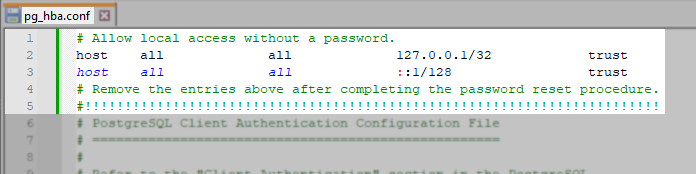
This procedure involves modifying the pg_hba.conf file to allow local passwordless access to the PostgreSQL instance.
Change to the pg_hba.conf file must be reverted after the 'postgres' superuser's password is reset.
- On the machine where PostgreSQL is installed, open the pg_hba.conf file. Its default location is:
C:\Program Files\PostgreSQL\##\data\pg_hba.conf
The ## value is relative to the PostgreSQL version installed. - At the very beginning of the file, above everything else, paste the following lines to configure the PostgreSQL instance to allow any local connection to connect as the 'postgres' superuser without requiring any authentication.
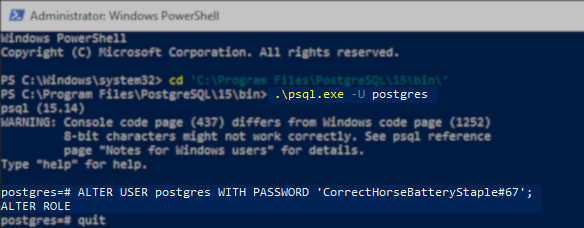
- Open an Administrative PowerShell Terminal and navigate to the bin folder within the PostgreSQL install folder.
C:\Program Files\PostgreSQL\##\bin\
The ## value is relative to the PostgreSQL version installed. - Run the following command to connect to the local PostgreSQL instance as the 'postgres' user:
- Update the password in single quotes within the query below. Then, within the 'postgres=#' prompt, run that query to update the 'postgres' superuser's password:
- Close the terminal.
- Remove the lines from step 2 that you added to pg_hba.conf file.
- Review the following product user guide pages for information on updating the credentials used by the software to access the PostgreSQL instance.
More Information
Default PostgreSQL Configuration by Product
Spelling error in text

KB Feedback/Suggestion
This form is only for KB Feedback/Suggestions, if you need help with the software open a support case