- Veeam Support Knowledge Base
- How to setup SAN access for use with Veeam Backup & Replication.
How to setup Direct SAN Access for use with Veeam Backup & Replication.
| KB ID: | 1446 |
| Product: | Veeam Backup & Replication | 12 | 12.1 | 12.2 | 12.3 | 12.3.1 | 12.3.2 | 13 | 13.1 |
| Published: | 2011-12-14 |
| Last Modified: | 2024-12-05 |

Cheers for trusting us with the spot in your mailbox!
Now you’re less likely to miss what’s been brewing in our knowledge base with this weekly digest

Oops! Something went wrong.
Please, try again later.
Purpose
This article documents how to set up Direct SAN Access for use with Veeam Backup & Replication.
The Direct SAN access transport mode is recommended for VMs whose disks are located on shared VMFS SAN LUNs that are connected to ESXi hosts over FC, FCoE, iSCSI, and on shared SAS storage.
In the Direct SAN access transport mode, Veeam Backup & Replication leverages VMware VADP to transport VM data directly from and to FC, FCoE, or iSCSI storage over the SAN. VM data travels over the SAN, bypassing ESXi hosts and the LAN. The Direct SAN access transport method provides the fastest data transfer speed and produces no load on the production network.
Note: For storage connected using NFS, review Veeam Backup & Replication User Guide > Transport Modes > Direct NFS Access.
Solution
Once a VMFS volume is presented to the Veeam VMware Backup Proxy it should always remain in an offline state and never be initialized. If by user action the volumes are ever initialized production data will be lost as the volume's partition table will be changed to GPT or MBR.
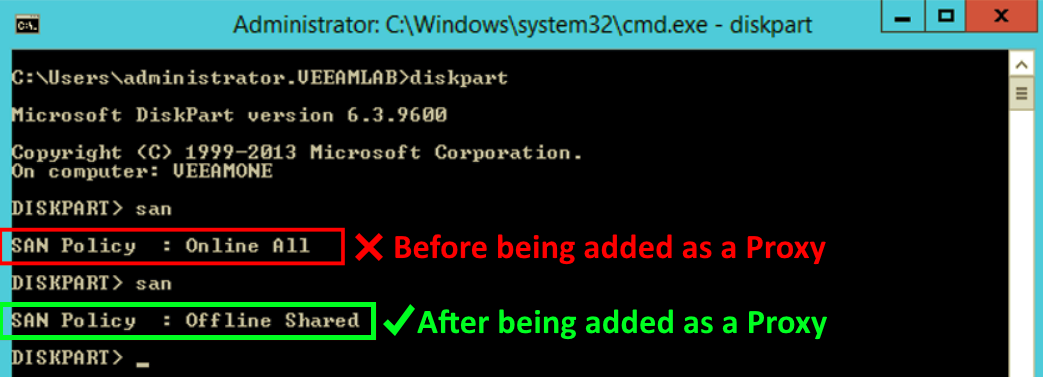
Veeam Backup & Replication prevents the Windows OS from initializing the volume automatically by changing the SAN Policy to "Offline Shared" when a server is added as a VMware Backup Proxy.
If a single server is used as both a VMware Backup Proxy using Direct SAN transport mode, and a Veeam Repository using volumes presented via iSCSI and/or FC, care must be taken when managing disks.
The instructions below describe how to set up SAN access for use with Veeam Backup & Replication.
- Confirm the Windows Server to which the volumes will be presented is already added as a Proxy within Veeam Backup & Replication.
- Connect the storage using iSCSI or FC so that the volumes appear in Disk Management.
This step may require adjusting settings for FC zoning and iSCSI whitelisting.
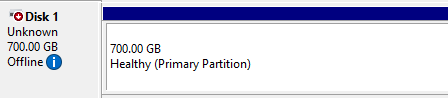
It is advisable that prior to connecting the FC cable, one ensure their HBA drivers are up to date. - Once connected, VMFS LUNs should appear in the Windows Disk Management snap-in. They should be non-initialized without drive letters, as Windows is not compatible with the VMware File System. The volume may appear as having an Offline state and should be left that way.
More Information
If this KB article did not resolve your issue or you need further assistance with Veeam software, please create a Veeam Support Case.
To submit feedback regarding this article, please click this link: Send Article Feedback
To report a typo on this page, highlight the typo with your mouse and press CTRL + Enter.
