#1 Global Leader in Data Resilience

How to Review Password Requirements of Veeam Software Appliance

KB ID: 4740
Product: Veeam Backup & Replication | 13
Published: 2025-09-03
Last Modified: 2025-09-03
mailbox
Get weekly article updates
By subscribing, you are agreeing to have your personal information managed in accordance with the terms of Veeam's Privacy Notice.

Cheers for trusting us with the spot in your mailbox!

Now you’re less likely to miss what’s been brewing in our knowledge base with this weekly digest

error icon

Oops! Something went wrong.

Please, try again later.

Purpose

This article documents how to review the specific password requirements for a Veeam Software Appliance.

Solution

The Veeam Software Appliance adopts the DISA STIG password requirement standard. These password requirements may change between releases and as part of OS updates.

View Current Password Requirements

  1. Log in to the Veeam Host Management Console (port 10443) using a Host Admin account (e.g., veeamadmin).
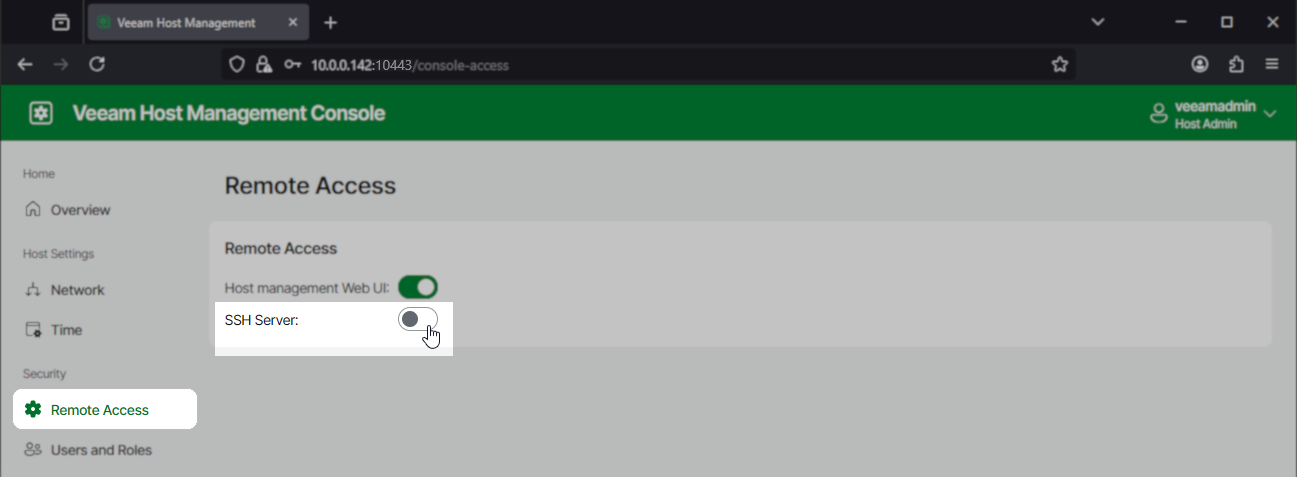
  1. Switch to the Remote Access section.
  2. Click the toggle for SSH Server.
screenshot showing the Veeam Host Management Console's Remote Access section with a mouse cursor however over the toggle to enable SSH Server
  1. If the Security Officer role is enabled, you'll see a pop-up stating, "Request has been submitted to Security Officer."
    If the Security Officer role was disabled during initial deployment, skip to Step 6.
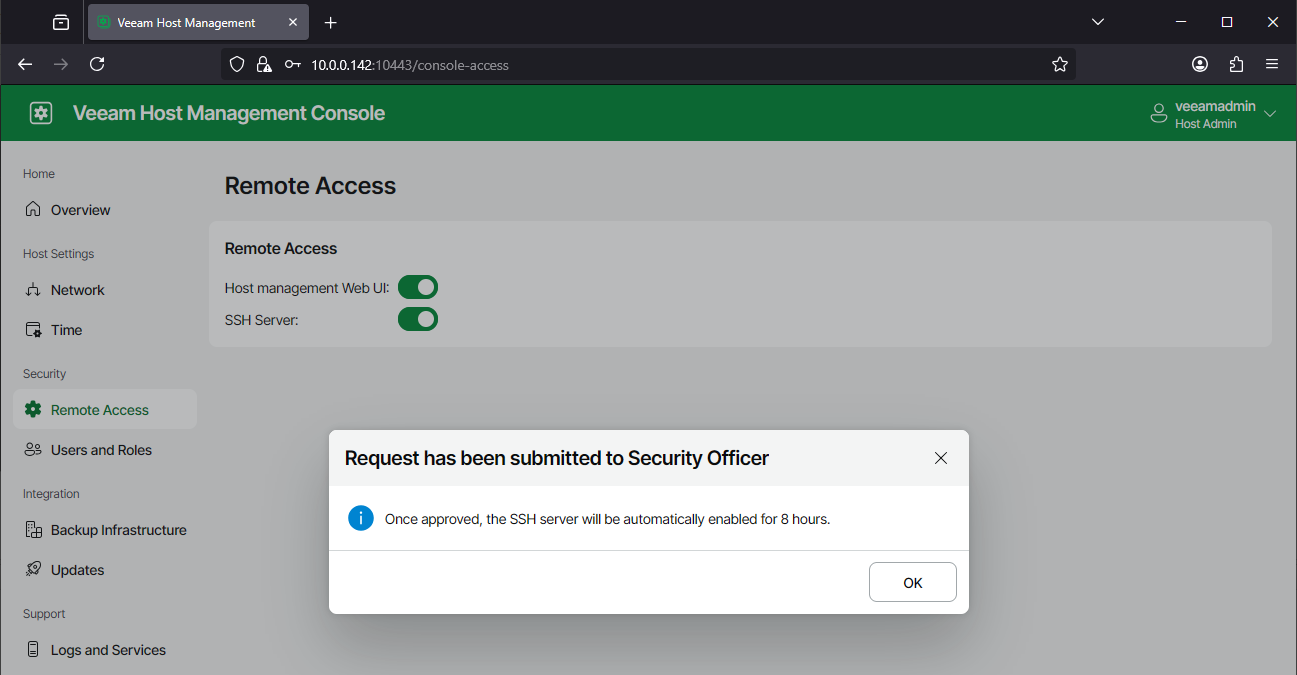
Screenshot showing the pop-up that reads "Request has been submitted to Security Officer" "Once approved, the SSH server will be automatically enabled for 8 hours."
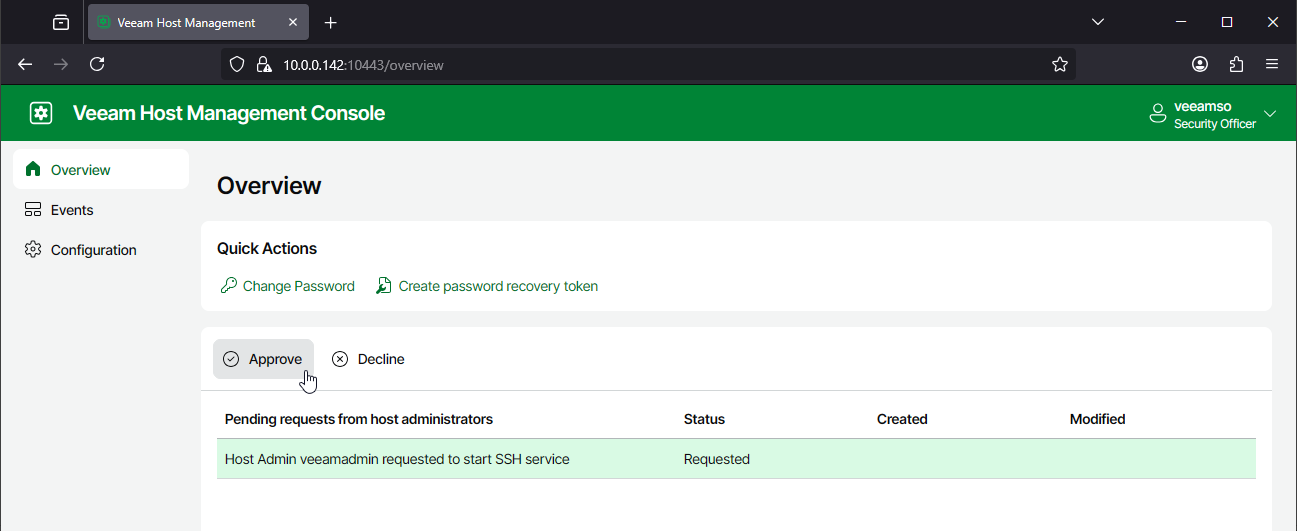
  1. Have the Security Officer log in and approve the SSH request.
    "Host Admin veeamadmin requested to start SSH service."
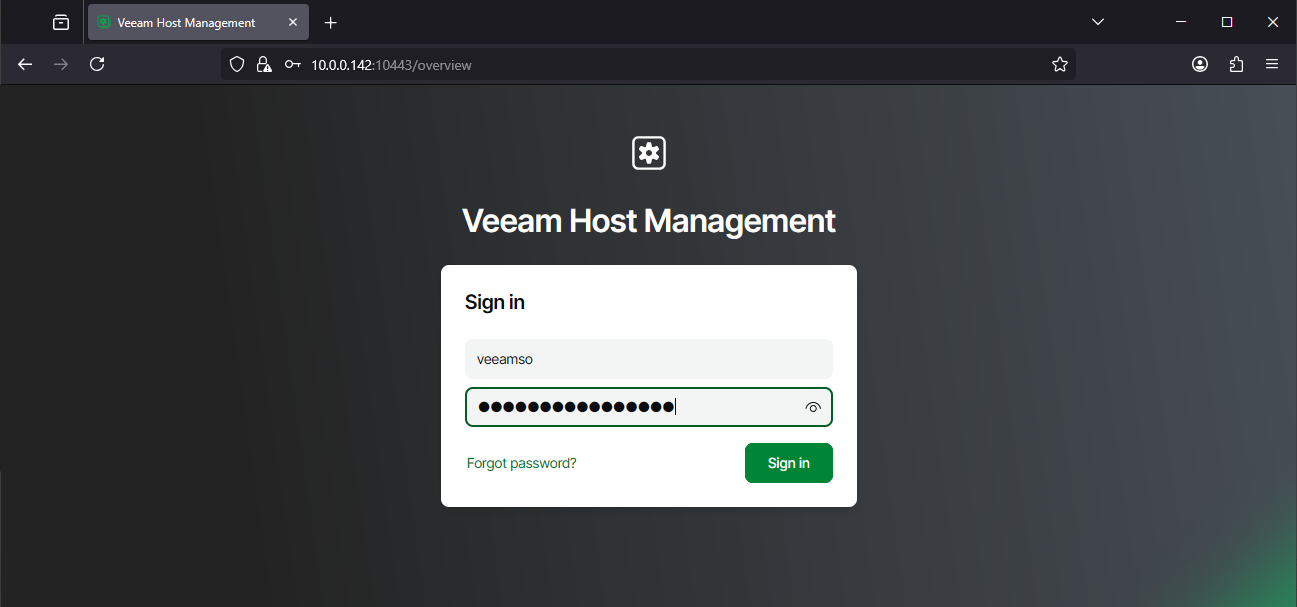
Screenshot of Veeam Host Management login screen showing the veeamso account logging in
Screenshot of Veeam Host Management Console with the Pending request from host administrators list, the recent SSH service start request is highlighted and a mouse cursor is howevering over the Approve button.
  1. With the SSH service now started on the Veeam Software Appliance, connect to it using an SSH client.
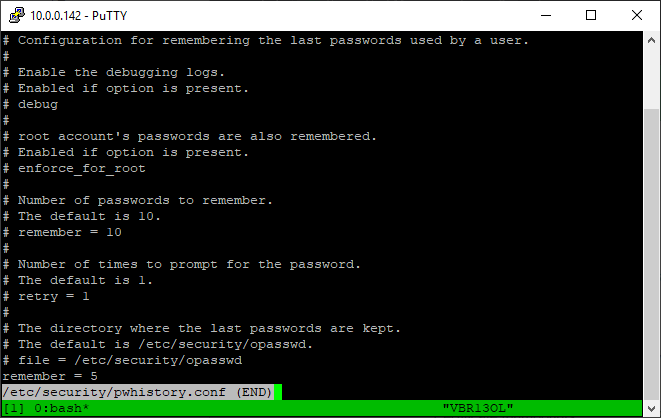
  2. Review the following files:
    • /etc/security/pwhistory.conf
    • /etc/security/pwquality.conf
a putty session showing the results of the command 'less /etc/security/pwhistory.conf'

More Information

As of 2025-09-03, the default content of those files is as follows:

pwhistory.conf

# Configuration for remembering the last passwords used by a user.
#
# Enable the debugging logs.
# Enabled if option is present.
# debug
#
# root account's passwords are also remembered.
# Enabled if option is present.
# enforce_for_root
#
# Number of passwords to remember.
# The default is 10.
# remember = 10
#
# Number of times to prompt for the password.
# The default is 1.
# retry = 1
#
# The directory where the last passwords are kept.
# The default is /etc/security/opasswd.
# file = /etc/security/opasswd
remember = 5
pwquality.conf
# Configuration for systemwide password quality limits
# Defaults:
#
# Number of characters in the new password that must not be present in the
# old password.
# difok = 1
#
# Minimum acceptable size for the new password (plus one if
# credits are not disabled which is the default). (See pam_cracklib manual.)
# Cannot be set to lower value than 6.
# minlen = 8
#
# The maximum credit for having digits in the new password. If less than 0
# it is the minimum number of digits in the new password.
# dcredit = 0
#
# The maximum credit for having uppercase characters in the new password.
# If less than 0 it is the minimum number of uppercase characters in the new
# password.
# ucredit = 0
#
# The maximum credit for having lowercase characters in the new password.
# If less than 0 it is the minimum number of lowercase characters in the new
# password.
# lcredit = 0
#
# The maximum credit for having other characters in the new password.
# If less than 0 it is the minimum number of other characters in the new
# password.
# ocredit = 0
#
# The minimum number of required classes of characters for the new
# password (digits, uppercase, lowercase, others).
# minclass = 0
#
# The maximum number of allowed consecutive same characters in the new password.
# The check is disabled if the value is 0.
# maxrepeat = 0
#
# The maximum number of allowed consecutive characters of the same class in the
# new password.
# The check is disabled if the value is 0.
# maxclassrepeat = 0
#
# Whether to check for the words from the passwd entry GECOS string of the user.
# The check is enabled if the value is not 0.
# gecoscheck = 0
#
# Whether to check for the words from the cracklib dictionary.
# The check is enabled if the value is not 0.
# dictcheck = 1
#
# Whether to check if it contains the user name in some form.
# The check is enabled if the value is not 0.
# usercheck = 1
#
# Length of substrings from the username to check for in the password
# The check is enabled if the value is greater than 0 and usercheck is enabled.
# usersubstr = 0
#
# Whether the check is enforced by the PAM module and possibly other
# applications.
# The new password is rejected if it fails the check and the value is not 0.
# enforcing = 1
#
# Path to the cracklib dictionaries. Default is to use the cracklib default.
# dictpath =
#
# Prompt user at most N times before returning with error. The default is 1.
retry = 3
#
# Enforces pwquality checks on the root user password.
# Enabled if the option is present.
# enforce_for_root
#
# Skip testing the password quality for users that are not present in the
# /etc/passwd file.
# Enabled if the option is present.
# local_users_only
# Per : Set dcredit = -1 in /etc/security/pwquality.conf
dcredit = -1
# Per : Set dictcheck = 1 in /etc/security/pwquality.conf
dictcheck = 1
# Per : Set difok = 8 in /etc/security/pwquality.conf
difok = 8
enforce_for_root
# Per : Set lcredit = -1 in /etc/security/pwquality.conf
lcredit = -1
# Per : Set maxclassrepeat = 4 in /etc/security/pwquality.conf
maxclassrepeat = 4
# Per : Set maxrepeat = 3 in /etc/security/pwquality.conf
maxrepeat = 3
# Per : Set minclass = 4 in /etc/security/pwquality.conf
minclass = 4
# Per : Set minlen = 15 in /etc/security/pwquality.conf
minlen = 15
# Per : Set ocredit = -1 in /etc/security/pwquality.conf
ocredit = -1
# Per : Set ucredit = -1 in /etc/security/pwquality.conf
ucredit = -1

If this KB article did not resolve your issue or you need further assistance with Veeam software, please create a Veeam Support Case.

To submit feedback regarding this article, please click this link: Send Article Feedback
To report a typo on this page, highlight the typo with your mouse and press CTRL + Enter.

Spelling error in text

Thank you!

Thank you!

Your feedback has been received and will be reviewed.

Oops! Something went wrong.

Please, try again later.

You have selected too large block!

Please try select less.

KB Feedback/Suggestion

This form is only for KB Feedback/Suggestions, if you need help with the software open a support case

By submitting, you are agreeing to have your personal information managed in accordance with the terms of Veeam's Privacy Notice.
Verify your email to continue your product download
We've sent a verification code to:
  • Incorrect verification code. Please try again.
An email with a verification code was just sent to
Didn't receive the code? Click to resend in sec
Didn't receive the code? Click to resend
Thank you!

Thank you!

Your feedback has been received and will be reviewed.

error icon

Oops! Something went wrong.

Please, try again later.