- Veeam Support Knowledge Base
- How to Test Manually Mounting the Veeam vPower NFS Datastore
How to Test Manually Mounting the Veeam vPower NFS Datastore
| KB ID: | 1284 |
| Product: | Veeam Backup & Replication | 9.5 | 10 | 11 | 12 | 12.1 | 12.2 | 12.3 | 12.3.1 | 12.3.2 | 13 | 13.1 |
| Published: | 2011-10-06 |
| Last Modified: | 2026-02-23 |

Cheers for trusting us with the spot in your mailbox!
Now you’re less likely to miss what’s been brewing in our knowledge base with this weekly digest

Oops! Something went wrong.
Please, try again later.
Purpose
This article documents manually mounting the vPower NFS Datastore using the vSphere Web Client.
The steps of this article are only intended as a troubleshooting step to help investigate and isolate an issue with vPower NFS-based restores failing.
Solution
This article's solution is split into three sections:
Part 1: Information Collection
To add an NFS Datastore to an ESXi host, you will need to specify
- Datastore name
- Folder
- Server
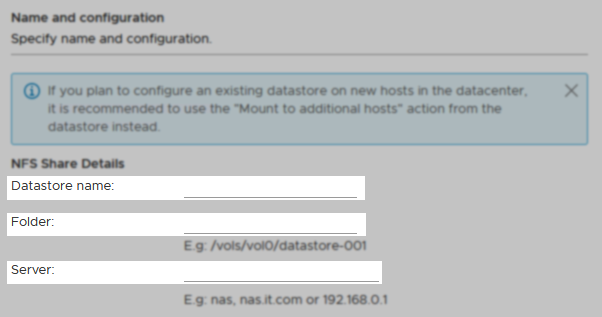
Identify the Server Value
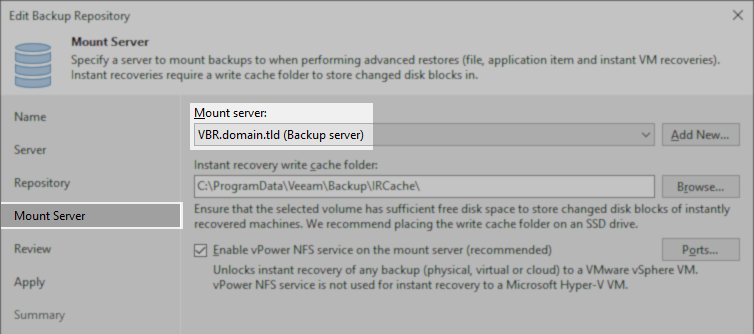
- Edit the repository where the backup files are stored.
- Switch to the Mount Server tab of the repository setting.
- Take note of which server is selected in the drop-down box under Mount server.
- Determine the Mount server's IP address and note it for later.
Identify the Folder Value
- Connect to the server that was identified as the Mount server in the last step.
- Open the Registry Editor (regedit)
- Open the Veeam NFS Shared Folders list:
- Veeam Backup & Replication 12: HKLM\SOFTWARE\WOW6432Node\Veeam\Veeam NFS\Shared Folders\
- Veeam Backup & Replication 13: HKLM\SOFTWARE\Veeam\Veeam NFS\Shared Folders
- Within one of the keys with a GUID value will be a string Value named nfsFolderName
- Take note of the nfsFolderName value's data for later.

Identify the Datastore Name Value
Use the nfsFolderName value without the leading forward slash.
For example, if the nfsFolderName value is set to /VeeamBackup_VBR.LAB, then the Datastore name Veeam Backup & Replication would use will be VeeamBackup_VBR.LAB.
Part 2: Disable vPower NFS IP Authorization
Veeam Backup & Replication restricts access to the vPower NFS Share so that it is only accessible by the ESXi host during restore operations. When testing the manual mounting of the vPower NFS Datastore, the IP Authorization system must be disabled to allow the inbound connection from the ESXi host to the Mount Server.
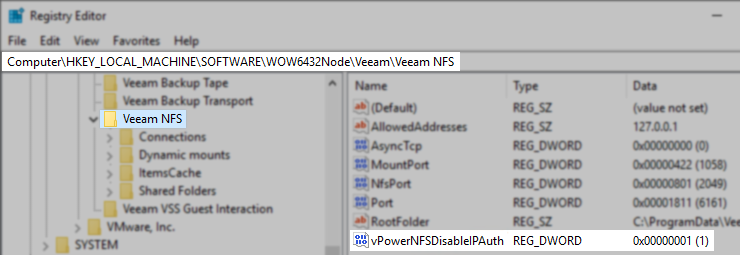
To disable the IP Authorization system, create the following registry value on the Mount Server associated with the repository where the backup files are stored.
Key Location: HKLM\SOFTWARE\WOW6432Node\Veeam\Veeam NFS\
Value Name: vPowerNFSDisableIPAuth
Value Type: DWORD (32-Bit) Value
Value Data: 1
After creating the above registry value, restart the Veeam vPower NFS Service.
This value disables built-in IP authentication for the vPower NFS Share and is only recommended for testing.
Remember to delete the value or set it to 0 after testing.
Part 3: Manually add the VeeamBackup_ datastore
Note: The directions below document how to create an NFS datastore via the vSphere Client connected to a vCenter running vSphere 7.0. If the environment you are working with is running a previous version or does not have a vCenter, consult VMware documentation for creating an NFS datastore.
- Connect to the vCenter via the vSphere Client.
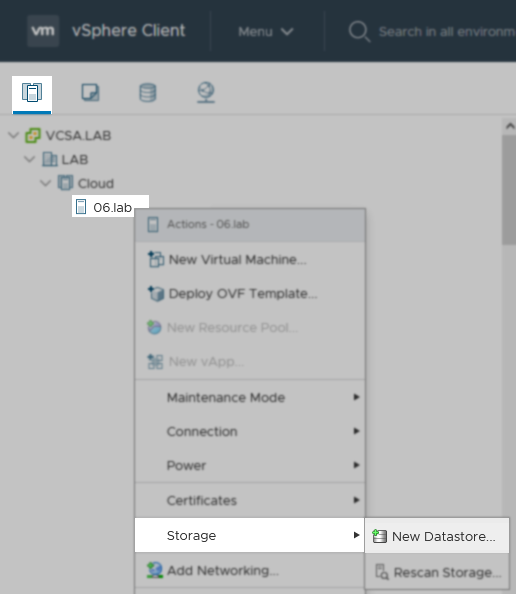
- In the Hosts & Clusters view (ctrl+alt+2), locate the host specified during the restore operation.
- Right-click on the host.
- In the context menu under Storage, select New Datastore.
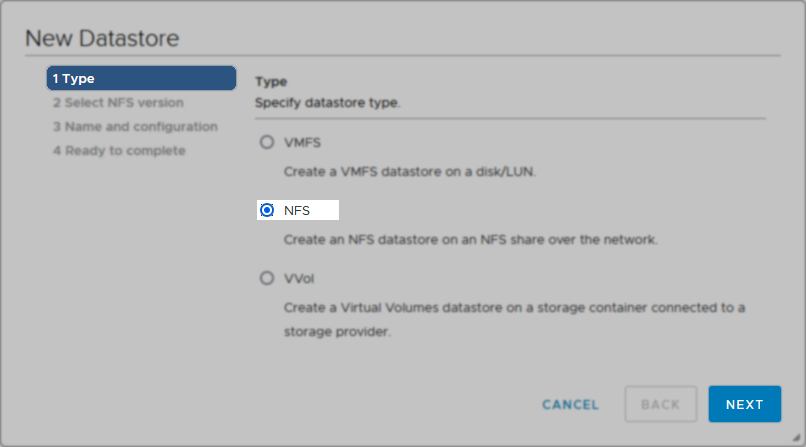
- Select NFS for the datastore type, and click Next.
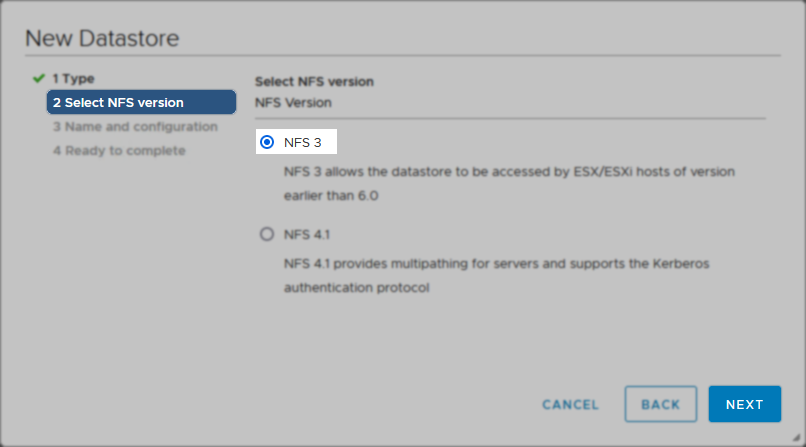
- In the New Datastore wizard that opens, select NFS 3 and click Next.
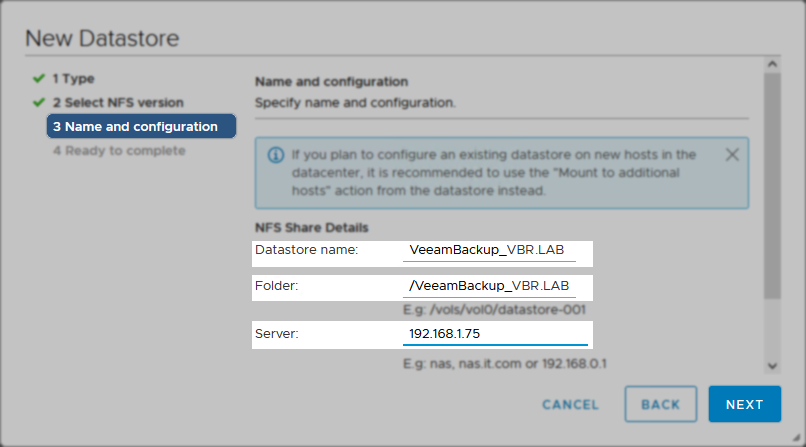
- On the next page, enter the details you collect in Stage 1 of this article and Click Next.
- For the Datastore name, enter the nfsFolderName value without the leading forward slash.
- For the Folder, enter the value of nfsFolderName found in the registry on the Mount server.
- For the Server, enter the Mount Server's IP address.
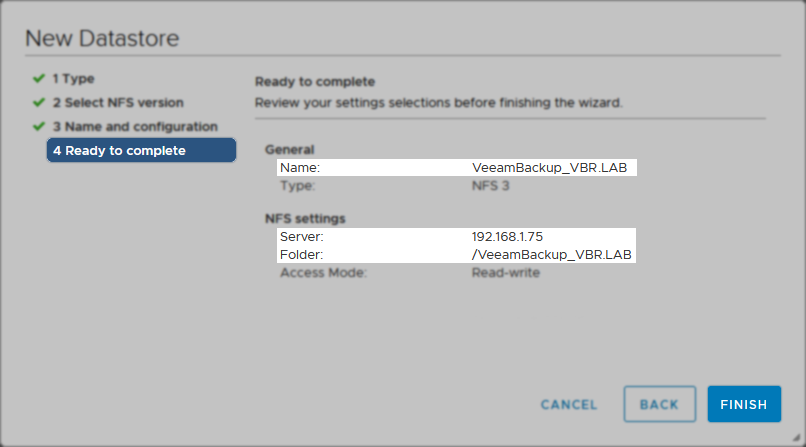
- Review the summary information and click Finish to create the datastore.
More Information
Related Articles
- KB1055: Troubleshooting vPower NFS Datastore Mounting Issues
- KB1094: Veeam vPower NFS Service fails to start
- KB1110: Unable to access the virtual machine configuration: Invalid datastore path
- KB1284: How to Test Manually Mounting the Veeam vPower NFS Datastore
- KB1289: fault.RestrictedVersion.summary
- KB1478: SureBackup fails: Failed to call RPC function - Access is Denied
- KB1690: Unable to Mount VeeamBackup_ Datastore - Specified Key, Name, or Identifier Already Exists
- KB4166: Upgrading/Uninstalling Veeam Backup & Replication fails with "Error 1327. Invalid Drive: [a-z]:\" or "Warning 1327. Invalid Drive [a-z]:\"
- KB4167: Linux Guest File Restore Cannot Connect Backup Datastore to ESXi Host
- KB4363: Datastore Named 'VeeamBackup_' Listed as Inaccessible
- KB4504: SureBackup Job Failure: "The resource 'VeeamBackup_' is in use."
If this KB article did not resolve your issue or you need further assistance with Veeam software, please create a Veeam Support Case.
To submit feedback regarding this article, please click this link: Send Article Feedback
To report a typo on this page, highlight the typo with your mouse and press CTRL + Enter.
Spelling error in text

Thank you!
Your feedback has been received and will be reviewed.
Oops! Something went wrong.
Please, try again later.
You have selected too large block!
Please try select less.
KB Feedback/Suggestion
This form is only for KB Feedback/Suggestions, if you need help with the software open a support case
Thank you!
Your feedback has been received and will be reviewed.
Oops! Something went wrong.
Please, try again later.