- Veeam Support Knowledge Base
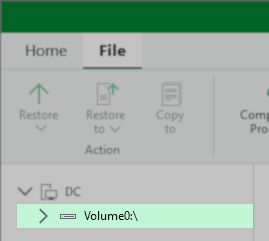
- Drive Letters Missing From Backup Browser During Windows Guest File Level Restore
Drive Letters Missing From Backup Browser During Windows Guest File Level Restore
| KB ID: | 1791 |
| Product: | Veeam Backup & Replication | 9.0 | 9.5 | 10 | 11 | 12 | 12.1 | 12.2 | 12.3 | 12.3.1 | 12.3.2 | 13 | 13.1 |
| Published: | 2013-07-09 |
| Last Modified: | 2026-02-13 |

Cheers for trusting us with the spot in your mailbox!
Now you’re less likely to miss what’s been brewing in our knowledge base with this weekly digest

Oops! Something went wrong.
Please, try again later.
Challenge
Cause
This occurs when the drive containing the Guest OS registry hives was not included in the backup process. The registry hive is used to map disk IDs to drive letters.
The Svc.VeeamMount.log will contain the entry:
Error (1)    Failed to get windows version of mounted backup. MountId: [guid]
Error (1)    Hive [System] file was not found. (System.Exception)SYSTEM registry hive was not found on any of mounted disks.
Solution
To resolve this issue, the registry of the VM's Guest OS that is backed up must be included in the restore point.
The default location of the registry is: C:\Windows\System32\config\
Scenario 1: Job Using Disk Exclusions
If the backup job is configured to use VM disk exclusions, you will need to ensure that the disk representing the C:\ is added to the list of disks to be processed.
Note: If adding the disk containing the C:\ drive is a concern due to its size and content, consider combining Guest OS File Exclusions to control which drives and/or folders are backed up.
Example
If the backup was initially configured to protect SCSI0:1, which corresponds to "D:\", and "C:\" is linked to the disk on SCSI0:0, add SCSI0:0 to the list of disks to be processed.
If you want to take things a step further and minimize the amount of data from the C:\ drive that is backed up, configure a Guest OS File Exclusion rule so that only "D:\" and "C:\Windows\System32\Config\" are included. The job will take a bit longer because it has to identify and exclude every single file on the C:\ drive except the registry hive, but the result will be that the D:\ drive appears correctly in the Guest Files Restore.
Scenario 2: Job Using Guest OS File Exclusions
If the backup job is configured to use Guest OS File Exclusions, add "C:\Windows\System32\config\" to the list of files to be included. The job will take a bit longer because it has to identify and exclude every single file on the C:\ drive that isn't the registry hive, but the result will be that the drives(s) will appear correctly in the Guest Files Restore.
More Information
In a previous iteration of this KB article, the guidance was to resolve this issue by including only the SYSTEM registry hive file, C:\Windows\System32\config\SYSTEM. However, starting in Veeam Backup & Replication 13, all registry hives must be included; hence, the current recommendation is to include the entire C:\Windows\System32\config\ folder.
Jobs that were configured according to previous guidance will display the following error during Guest Files Restore:
Failed to call RPC function 'RegAttachHiveFile': The
configuration registry database is corrupt. Failed to call
RegLoadKey function.
or
The configuration registry database is corrupt.
If this KB article did not resolve your issue or you need further assistance with Veeam software, please create a Veeam Support Case.
To submit feedback regarding this article, please click this link: Send Article Feedback
To report a typo on this page, highlight the typo with your mouse and press CTRL + Enter.
Spelling error in text

Thank you!
Your feedback has been received and will be reviewed.
Oops! Something went wrong.
Please, try again later.
You have selected too large block!
Please try select less.
KB Feedback/Suggestion
This form is only for KB Feedback/Suggestions, if you need help with the software open a support case
Thank you!
Your feedback has been received and will be reviewed.
Oops! Something went wrong.
Please, try again later.