- Veeam Support Knowledge Base
- How To Stop All Veeam Backup & Replication Activities
How To Stop All Veeam Backup & Replication Activities
| KB ID: | 2991 |
| Product: | Veeam Backup & Replication | 9.5 | 10 | 11 | 12 | 12.1 | 12.2 | 12.3 | 12.3.1 | 12.3.2 | 13 | 13.1 |
| Published: | 2019-08-26 |
| Last Modified: | 2024-08-28 |
| Languages: | JP |

Cheers for trusting us with the spot in your mailbox!
Now you’re less likely to miss what’s been brewing in our knowledge base with this weekly digest

Oops! Something went wrong.
Please, try again later.
Purpose
Solution
Stopping Veeam Activity on Veeam Backup Server
- Open the Veeam Backup & Replication Console.
- Disable all Jobs.
Note which jobs were already disabled so you know which ones may not need to be enabled later. - Stop all running tasks. Review the "Running" section under Last 24 Hours.
Optionally, switch the History view and review each of the Nodes for running tasks.
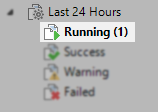
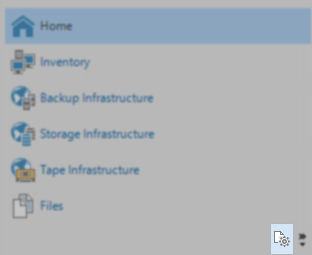
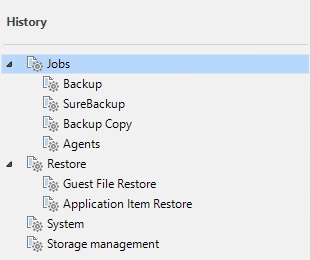
- Close the Veeam Backup & Replication Console.
- Stop all Veeam services on the Veeam Backup Server.
Get-Service Veeam* | Stop-Service -ForceStopping Veeam activity on other Backup Infrastructure Component Servers
Note: Stopping Veeam services on a component server will terminate tasks that the server is involved in. Therefore, we advise that the actions in this section should only be performed after either:
- Ensuring no tasks within Veeam Backup & Replication are currently utilizing the component server.
or - Stopping all Veeam activity on the Veeam Backup Server.
Procedure
(e.g., Backup Proxies, Backup Repositories, WAN Accelerators, Hyper-V hosts)
- For Windows-based Component Servers:
Get-Service Veeam* | Stop-Service -Force- For Linux-based Component Servers:
sudo systemctl stop veeam* --all(Optional) Stopping the Veeam Backup & Replication Configuration Database
This step is optional, and there are very few scenarios where the configuration database needs to be taken offline.
Important Notes:
- This section is only relevant to Veeam Backup & Replication deployments using Microsoft SQL, and not PostgreSQL.
- Some Veeam Backup & Replication services require a connection to the configuration database. If the database is offline, those services will fail to start.
- When upgrading Veeam Backup & Replication, do not take the database offline. The upgrade installer must have access to the configuration database to perform upgrades. Also, after the upgrade completes, the installer will attempt to start the Veeam services, and if the configuration database is offline, the services will not be able to start, and the upgrade will fail.
Procedure
- Identify the location of the Configuration Database by opening the Configuration Database Connection Settings utility.
While the tool is usually used to change which database is used, initially, it will show you the currently configured database connection details. - Modify and execute the following SqlCmd script:
SqlCmd -E -S ServerName\InstanceName -Q "ALTER DATABASE database-name SET OFFLINE"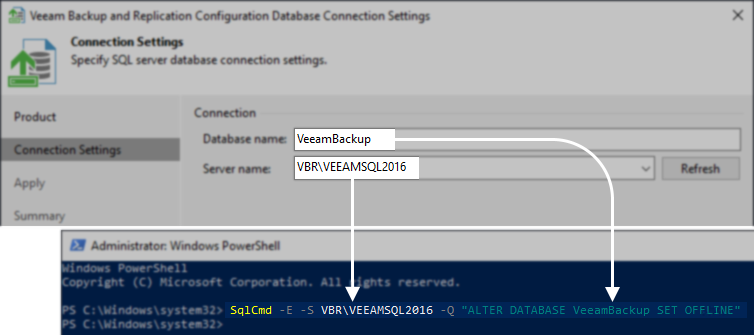
Starting all Veeam Backup & Replication Activity
Reverse the above steps to get everything back into a running state.
Remember:
- If the Configuration Database was taken offline, it must be brought online before any other steps.
- All the CLI commands used to stop the services can be reused by replacing the word "stop" with "start"
- Alternatively, instead of manually starting all the Veeam services, you may reboot the Veeam Backup Server and any related component servers where you stopped services.
If this KB article did not resolve your issue or you need further assistance with Veeam software, please create a Veeam Support Case.
To submit feedback regarding this article, please click this link: Send Article Feedback
To report a typo on this page, highlight the typo with your mouse and press CTRL + Enter.
Spelling error in text

Thank you!
Your feedback has been received and will be reviewed.
Oops! Something went wrong.
Please, try again later.
You have selected too large block!
Please try select less.
KB Feedback/Suggestion
This form is only for KB Feedback/Suggestions, if you need help with the software open a support case
Thank you!
Your feedback has been received and will be reviewed.
Oops! Something went wrong.
Please, try again later.