Veeam Backup for Microsoft 365 Restore Portal Error: "The server has rejected the client credentials"
| KB ID: | 4292 |
| Product: | Veeam Backup for Microsoft 365 | 6.0 | 7.0 | 7a | 8 | 8.1 | 8.2 | 8.3 | 8.4 | 8.5 | 8.6 |
| Published: | 2022-03-24 |
| Last Modified: | 2026-09-17 |


Challenge
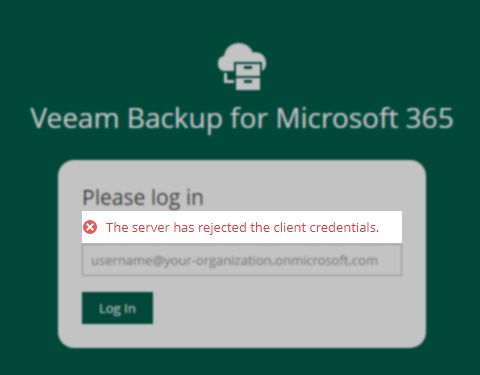
When attempting to login to the Veeam Backup for Microsoft 365 Restore Portal, the following error occurs:
The server has rejected the client credentials.
Solution
At this time, three known scenarios cause this error. Each scenario is described below with its corresponding resolution.
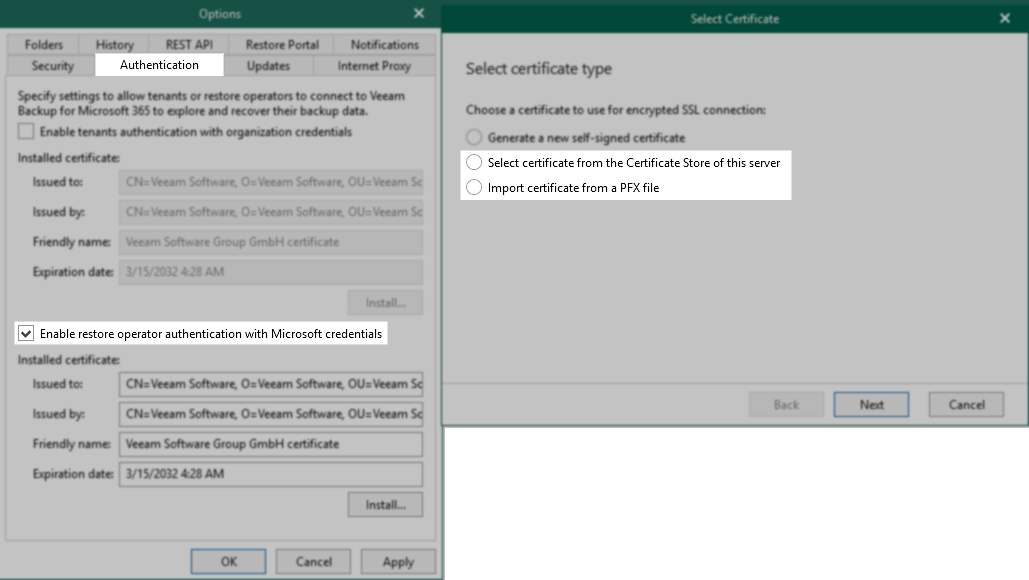
Scenario 1: Restore operator authentication certificate is installed in the wrong certificate store
When the "Enable restore operator authentication with Microsoft credentials" option was configured, a certificate was selected from the certificate store or imported from a PFX file. That certificate is not installed in the location required for its type, so the certificate chain cannot be validated.
The required placement depends on the certificate type:
- Self-signed certificate: The certificate is its own trust anchor. It must be present in the Personal certificate store of the Veeam Backup for Microsoft 365 server with an exportable private key. If the Veeam Backup for Microsoft 365 REST API component is installed on a separate machine, this certificate must also be imported into the Trusted Root Certification Authorities store on that machine.
- Certificate issued by a Certification Authority: The certificate must remain in the Personal certificate store of the Veeam Backup for Microsoft 365 server with its private key. Only the issuing root CA certificate belongs in the Trusted Root Certification Authorities store.
If a certificate issued by a Certification Authority has been installed in the Trusted Root Certification Authorities store, it is treated as a trust anchor, and the following error occurs:
Failed to validate remote certificate.
Failed to validate the certificate chain:
The revocation function was unable to check revocation for the certificate.
Reference: Enabling Restore Operator Authentication
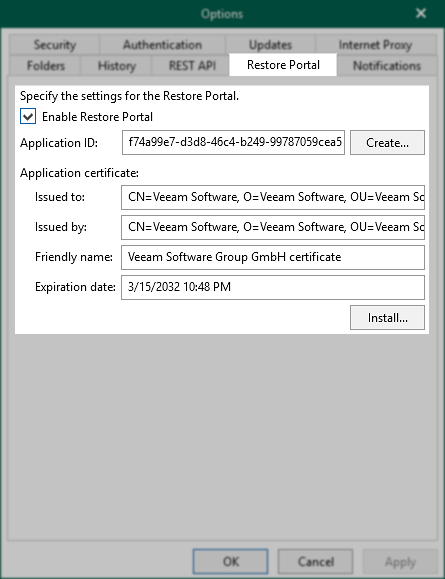
Scenario 2: Updated application certificate has not been added to Microsoft Entra
The application certificate within the Restore Portal settings has been updated, but it has not been added to the application settings of Microsoft Entra.
When the certificate is updated within Veeam Backup for Microsoft 365, it must also be added in the application settings through the Microsoft Entra admin center.
Reference: Restore Portal Settings
Scenario 3: Tenant-side configuration has not been completed
For Backup as a Service for Microsoft 365 usage scenarios, the tenant must complete the configuration steps that assign the permissions required for Restore Portal access.
Ensure that all steps provided in the Restore Portal Configuration for "On Tenant Side" have been completed.
If this KB article did not resolve your issue or you need further assistance with Veeam software, please create a Veeam Support Case.
To submit feedback regarding this article, please click this link: Send Article Feedback
To report a typo on this page, highlight the typo with your mouse and press CTRL + Enter.
