#1 Global Leader in Data Resilience

Cannot find EFI boot manager entry for EFI System Partition

KB ID: 4752
Product: Veeam Backup & Replication | 12.3.2
Veeam Agent for Linux | 6.3.2
Published: 2025-07-22
Last Modified: 2025-10-08
mailbox
Get weekly article updates
By subscribing, you are agreeing to have your personal information managed in accordance with the terms of Veeam's Privacy Notice.

Cheers for trusting us with the spot in your mailbox!

Now you’re less likely to miss what’s been brewing in our knowledge base with this weekly digest

error icon

Oops! Something went wrong.

Please, try again later.

Challenge

Backup

During the backup of some Linux-based machines, the following error occurs:

Cannot find EFI boot manager entry for EFI System Partition GUID

Restore

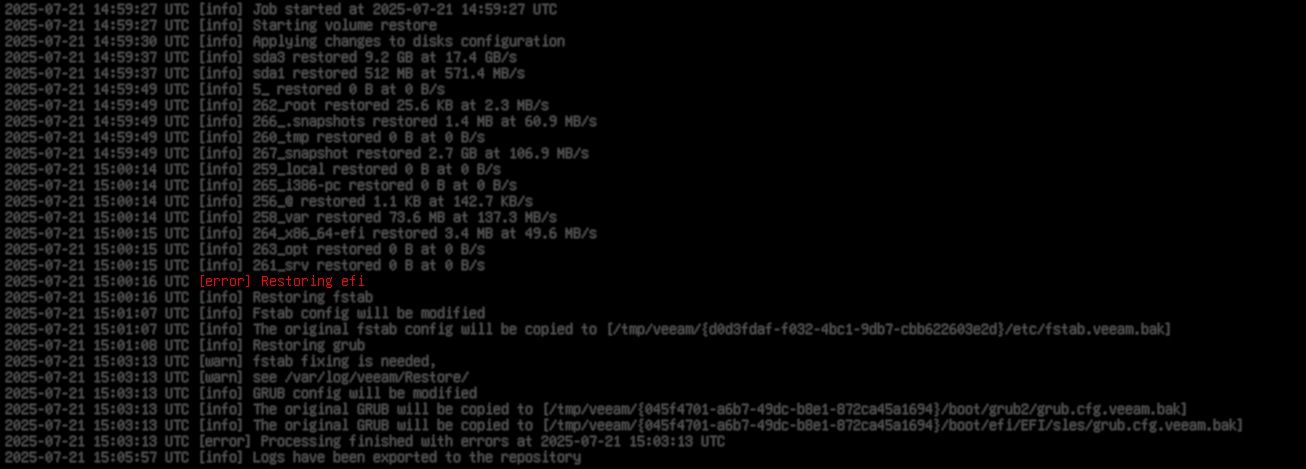
During a Bare Metal Restore (BMR) from a restore point created by a backup that displayed that error, the following error will occur:

[error] Restoring EFI

After the BMR completes, the system will fail to boot because GRUB cannot locate the EFI boot manager.
Cause

This issue occurs due to a change in how Veeam Agent for Linux (VAL) attempts to identify EFI boot manager files. These changes were introduced in Veeam Agent for Linux v6.3.2 to expand support for RHEL 10, which has a different EFI boot manager layout than previous versions. As part of this update, Veeam Agent now searches for EFI boot manager files in lowercase (.efi). However, on some hardware servers, the VFAT filesystem—which is case-insensitive but case-preserving—causes all EFI paths written by the firmware during boot to be automatically uppercased (e.g., \EFI\REDHAT\SHIMX64.EFI). As a result, the backup job may fail to identify these files when they are stored in all caps.

Solution

This solution section includes a section for addressing the issue during the backup restore point creation, and a section detailing how to resolve the post-restore boot failure that occurs when a restore point that had the error is used.

Error During Backup

There are two options to resolve this issue:

Option 1: Create a Duplicate Lowercase Boot Entry

This option involves modifying the production machine to have a duplicate boot manager entry that uses lowercase letters to ensure Veeam Agent for Linux can identify the boot manager entry.

  1. Use the following command to find the existing boot entry:
efibootmgr -v

Example output:

Boot0004* wa_entery HD(1,GPT,876113ba-f1de-416f-a046-98c7e190b53e,0x800,0x100000)/File(\EFI\SLES\SHIM.EFI)

The key details from this are the partition UUID and the EFI file path:

  • 876113ba-f1de-416f-a046-98c7e190b53e
  • \EFI\SLES\SHIM.EFI
     
  1. Use the following command to identify the device where the EFI partition is located, using the partition UUID from the last step:
blkid | grep <partition_uuid>

Example output:

/dev/sda1: UUID="151C-8FD1" BLOCK_SIZE="512" TYPE="vfat" PARTUUID="876113ba-f1de-416f-a046-98c7e190b53e"

The key details from this are the device (disk) and partition number:

  • /dev/sda
  • 1
     
  1. Using the details gathered in the previous steps, create a new duplicate boot entry using lowercase letters:

    Note: The /EFI/ folder may be capitalized, as the issue is that the .efi file itself must be in lowercase.
efibootmgr -c -d /dev/sd? -p ? -L wa_entry -l <path_in_lowercase>

Example command:

efibootmgr -c -d /dev/sda -p 1 -L wa_entry -l /EFI/sles/shim.efi
Option 2: Contact Veeam Support for Patch
Create a Veeam Support case mentioning this article (KB4752) to receive a patch to address this issue.

Post-Restore Boot Failure

To resolve this issue, after the BMR is completed, a new EFI boot record must be manually created.

  1. After performing the BMR and before rebooting, select Exit to Shell from the recovery environment.

    Note: If the system has already been restarted after a BMR was performed, boot from the Veeam Recovery Media ISO again, and after the recovery media boots, select the Exit to Shell option.
  2. Determine the path to the required file from the root of the efi_partition device.
    Typically, this path will be something like: /EFI/<YOUR_DISTR_NAME>/xxx.efi.
    1. Mount efi partition.
    2. List the files in the EFI directory.
      ls /<mount_point_for_efi_part>/EFI/<YOUR_DISTR_NAME>/
      
      • If the folder contains a shimx64.efi or shim.efi file, use that file's path in the next step.
      • If the folder does not contain a shim64.efi or shim.efi file, and instead contains only a grubx64.efi or grub.efi file, use that file's path in the next step.
  3. Create a new EFI Boot Manager entry specifying the disk, partition number, and file path.

    Note: The /EFI/ folder may be capitalized, as the issue is that the .efi file itself must be in lowercase.

    For example:
efibootmgr --create --disk /dev/sda --part 1 --loader /EFI/sles/shim.efi --label "example"
  • --disk /dev/sd?
    The disk on which the EFI partition is located.
  • --part ?
    The number of the efi partition on the disk.
  • --loader /EFI/path/to/file.efi
    The efi file path from Step 2.
  • --label "Label"
    What the entry should be named in the EFI Boot Manager
  1. Reboot the system.

More Information

If issues persist, either during backup or after a Bare Metal Restore, please contact Veeam Support for assistance.

If this KB article did not resolve your issue or you need further assistance with Veeam software, please create a Veeam Support Case.

To submit feedback regarding this article, please click this link: Send Article Feedback
To report a typo on this page, highlight the typo with your mouse and press CTRL + Enter.

Spelling error in text

Thank you!

Thank you!

Your feedback has been received and will be reviewed.

Oops! Something went wrong.

Please, try again later.

You have selected too large block!

Please try select less.

KB Feedback/Suggestion

This form is only for KB Feedback/Suggestions, if you need help with the software open a support case

By submitting, you are agreeing to have your personal information managed in accordance with the terms of Veeam's Privacy Notice.
Verify your email to continue your product download
We've sent a verification code to:
  • Incorrect verification code. Please try again.
An email with a verification code was just sent to
Didn't receive the code? Click to resend in sec
Didn't receive the code? Click to resend
Thank you!

Thank you!

Your feedback has been received and will be reviewed.

error icon

Oops! Something went wrong.

Please, try again later.