File-Level Recovery (FLR) in Veeam Kasten for Kubernetes
| KB ID: | 4759 |
| Product: |
Veeam Backup & Replication Veeam Kasten for Kubernetes |
| Published: | 2025-08-21 |
| Last Modified: | 2025-08-21 |


Purpose
Solution
Key Benefits of FLR
-
Granular Recovery: Retrieve individual files or directories without restoring the entire VM or application disk. This ensures that only the necessary data is recovered, avoiding unnecessary overhead. It is particularly useful for scenarios where restoring the entire application or VM is impractical.
-
Efficiency: Reduces recovery time and storage overhead compared to full restores. By focusing on specific files or directories, FLR minimizes the resources required for recovery. This makes it an ideal solution for quick and targeted data restoration.
-
Ease of Use: Intuitive interface for browsing and selecting files for recovery. The user-friendly design simplifies the recovery process, allowing users to locate and restore files with minimal effort. This ensures a seamless experience even for non-technical users.
Step by Step Guide: File-Level Recovery (FLR) with Veeam Kasten and VBR
Veeam Kasten for Kubernetes integrates with Veeam Backup & Replication (VBR) to enable advanced backup and restore workflows, including file-level recovery. This guide walks you through the process, covering policy creation, backup export, and FLR from VBR.
Prerequisites
- Veeam Kasten for Kubernetes deployed in a Kubernetes cluster.
- Veeam Backup & Replication (VBR) server deployed and configured as a Location Profile within Veeam Kasten.
- Proper permissions to access both Veeam Kasten for Kubernetes and VBR consoles.
- (For VM-based workloads) Access to the OpenShift Console and the relevant Virtual Machines.
- Cluster storage that supports block mode exports
Part 1: Create a Virtual Machine in OpenShift Console
- Log in to the OpenShift Console.
- Go to Virtualization > Virtual Machines to view all VMs (e.g., CentOS or other Linux VMs).
- Confirm the target VM (e.g., vm10) is running and has the QEMU guest agent installed.

Part 2: Create a Backup Policy in Veeam Kasten for Kubernetes
- Open the Kasten dashboard.
- Navigate to Virtual Machines in the side panel to see all VM workloads and their protection status.
- Go to the Policies section in the Veeam Kasten dashboard.
- Click Create Policy.
- Configure the policy:
- Name: Provide a descriptive name.
- Resource Selection: Target the VM by name or label
- Frequency & Retention: Set as needed.
- Actions:
- Select a Location Profile to store the application or VM metadata
- Select Export volume snapshot data to VBR then select the VBR server as the export location for VM disks.

- Click Create to save the policy.
- Enable Guest freeze for the Virtual Machine to restore from.
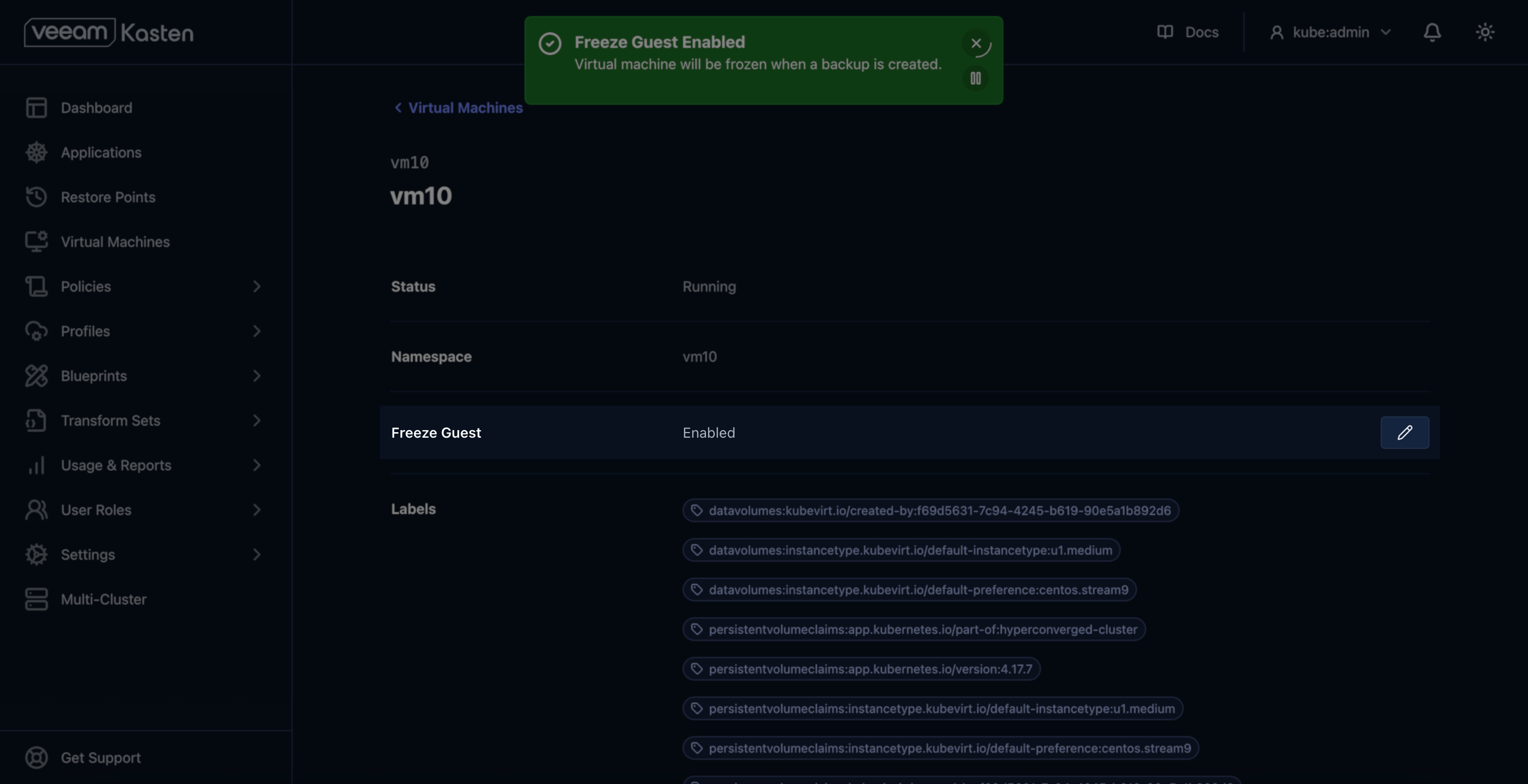
Part 3: Run the Backup Policy
- In the Policies list, locate the new policy.
- Click Run Once to trigger an immediate backup and export.
- Monitor the job status to ensure the backup and export are completed successfully.
Part 4: Verify Export in Veeam Backup & Replication
- Open the Veeam Backup & Replication Console.
- Navigate to the Backups node.
- Locate the exported Kasten VM backup in the list.
- Right-click the desired VM backup and select Restore guest files > Linux and other.
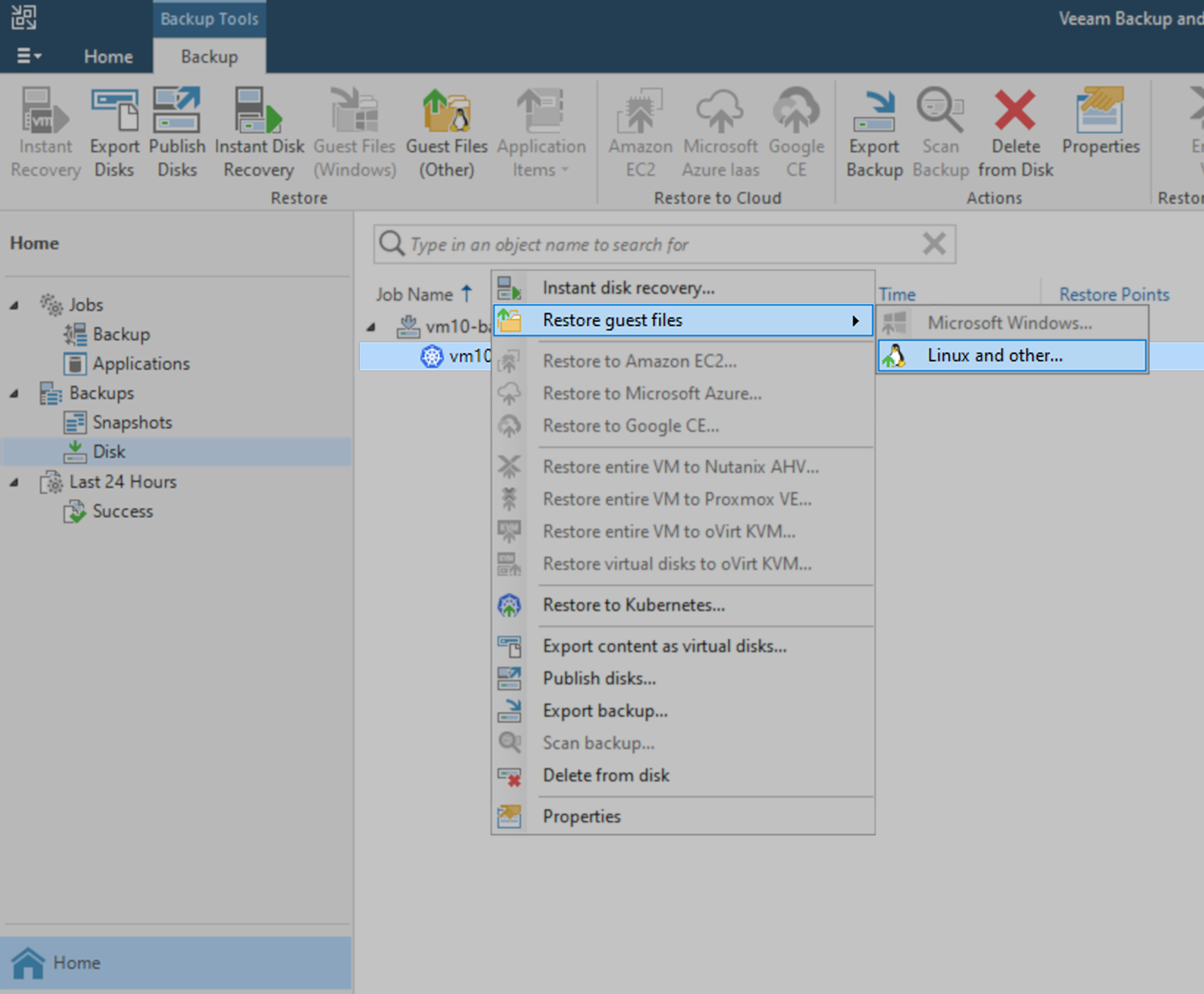
- Select the restore point from which you wish to recover the file
- Specify a helper host for mounting the restore point.
- The wizard mounts the disk backup to the helper VM.
- Use the file browser in VBR to view all directories and files in the restore point.
- Use Copy To to copy a specific file to local machine.
- Or, SSH into the helper VM and use standard Linux tools to copy files from the mounted loop device to the desired location in the VM.

If this KB article did not resolve your issue or you need further assistance with Veeam software, please create a Veeam Support Case.
To submit feedback regarding this article, please click this link: Send Article Feedback
To report a typo on this page, highlight the typo with your mouse and press CTRL + Enter.
Spelling error in text

KB Feedback/Suggestion
This form is only for KB Feedback/Suggestions, if you need help with the software open a support case