Hypervisor Restore Options are Greyed Out in Context Menu

KB ID: 4795
Product: Veeam Backup & Replication | 13
Published: 2025-11-25
Last Modified: 2025-11-25
mailbox
Get weekly article updates
By subscribing, you are agreeing to have your personal information managed in accordance with the terms of Veeam's Privacy Notice.

Cheers for trusting us with the spot in your mailbox!

Now you’re less likely to miss what’s been brewing in our knowledge base with this weekly digest

error icon

Oops! Something went wrong.

Please, try again later.

Challenge

When attempting to restore an entire VM, some hypervisor options are greyed out in the right-click context menu.
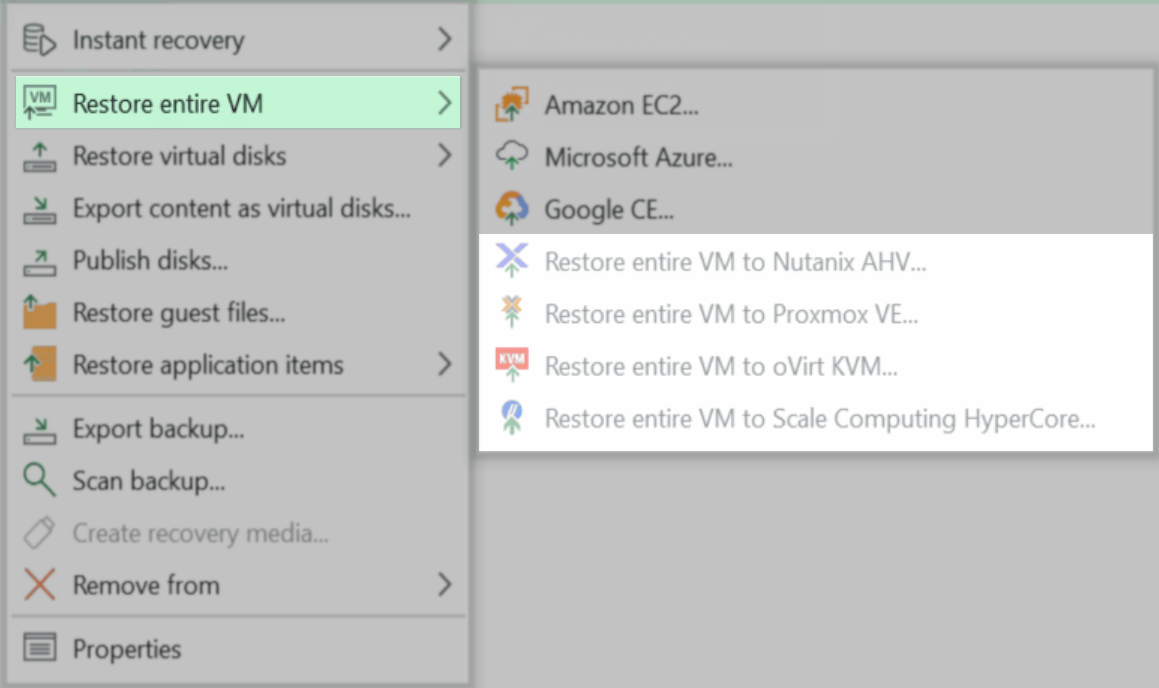
The restore menu in Veeam shows "Restore entire VM" selected, with several restore destination options visible. The options "Restore entire VM to Nutanix AHV," "Restore entire VM to Proxmox VE," "Restore entire VM to oVirt KVM," and "Restore entire VM to Scale Computing HyperCore" are present but greyed out and unavailable for selection. Other restore and export options in the menu are active.

Solution

This issue is currently under investigation and is scheduled to be addressed in a future patch.

For now, there are two workarounds available:

  • Select the machine to be restored, and then use the 'Entire VM' restore option from the ribbon at the top of the console.
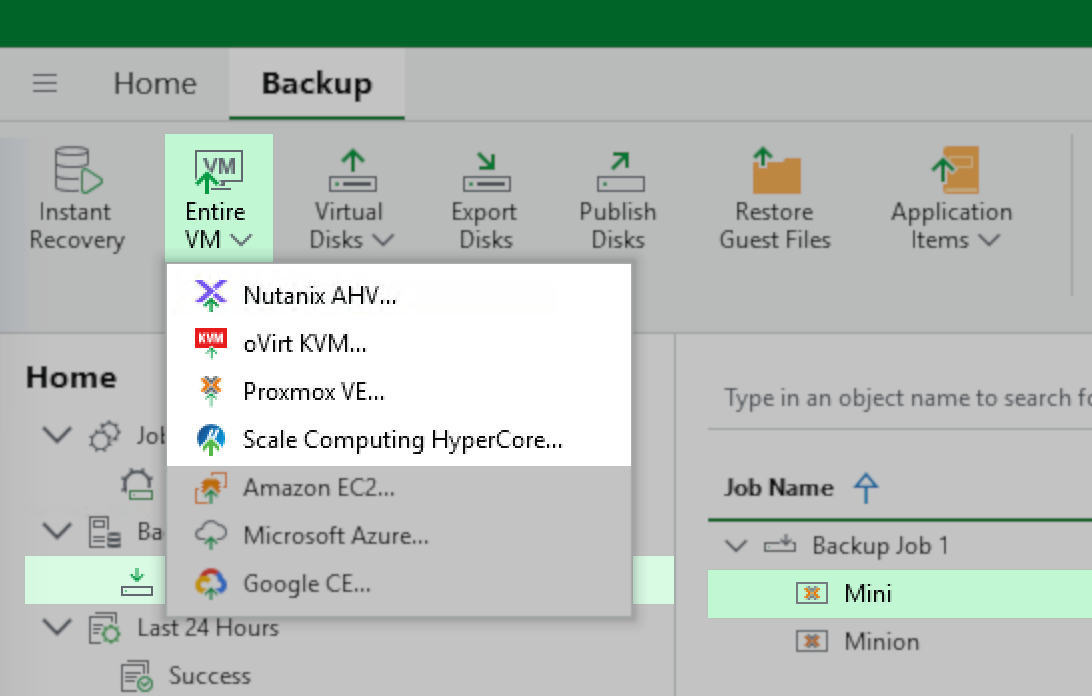
The Veeam Backup ribbon menu is open with the "Entire VM" restore option selected. A dropdown lists available destinations: "oVirt KVM," "Proxmox VE," and "Scale Computing HyperCore," with "Scale Computing HyperCore" highlighted. A tooltip appears, describing "Entire VM Restore" as "Restores the entire VM to Scale Computing HyperCore." Other restore and export options, like "Instant Recovery," "Virtual Disks," "Export Disks," "Publish Disks," and "VM Files," are visible in the ribbon.

or

  • Close and reopen the Veeam Backup & Replication console.
    Doing so should cause the context menu to display the restore options correctly.

If this KB article did not resolve your issue or you need further assistance with Veeam software, please create a Veeam Support Case.

To submit feedback regarding this article, please click this link: Send Article Feedback
To report a typo on this page, highlight the typo with your mouse and press CTRL + Enter.

Spelling error in text

Thank you!

Thank you!

Your feedback has been received and will be reviewed.

Oops! Something went wrong.

Please, try again later.

You have selected too large block!

Please try select less.

KB Feedback/Suggestion

This form is only for KB Feedback/Suggestions, if you need help with the software open a support case

By submitting, you are agreeing to have your personal information managed in accordance with the terms of Veeam's Privacy Notice.
Verify your email to continue your product download
We've sent a verification code to:
  • Incorrect verification code. Please try again.
An email with a verification code was just sent to
Didn't receive the code? Click to resend in sec
Didn't receive the code? Click to resend
Thank you!

Thank you!

Your feedback has been received and will be reviewed.

error icon

Oops! Something went wrong.

Please, try again later.