How to Exclude Machines from Proactive Malware Scanning
| KB ID: | 4803 |
| Product: | Veeam Backup & Replication | 13 |
| Published: | 2025-12-09 |
| Last Modified: | 2026-07-30 |


This article is relevant only to Veeam Backup & Replication 13.0.x builds.
Starting with Veeam Backup & Replication 13.1 the Proactive investigation feature can now be enabled or disabled for individual protected machines using the Veeam Backup & Replication Web UI.
Purpose
This article documents how to exclude specific machines from Proactive Malware Scans (the "Perform signature-based scan when malware event appears" option).
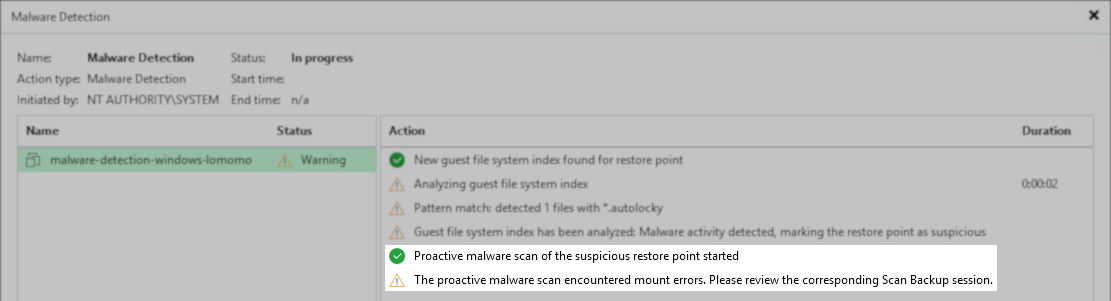
Exclusions are useful when backed-up machines have disks encrypted with BitLocker or other encryption methods, such as crypto_LUKS, VeraCrypt, etc. Disks encrypted using those methods cannot be mounted by the Mount Server, causing the automatic proactive scan to display the following warning:
The proactive malware scan encountered mount errors. Please review the corresponding Scan Backup session.
Solution
Before configuring a Proactive Malware Scan Exclusion, first determine if the issue is caused by an incompatible disk configuration (e.g., disk encryption). The warning shown may also be due to an invalid configuration of the mount server for the mounted restore point.
If the mount error cannot be resolved due to encrypted disks, the only remaining solution is to exclude the VMs with encrypted disks.
To exclude a VM, create or modify the following custom setting:
For Veeam Backup & Replication on Windows
Key Location: HKLM\SOFTWARE\Veeam\Veeam Backup and Replication\
Value Name: MalwareAutoScanExclusions
Value Type: Multi String Value (REG_MULTI_SZ)
Value Data: (add one VM name per line)
Each line will be tested against the VM Name, and if it matches exactly (case insensitive), it will be skipped from Proactive investigation in the future.
For Veeam Software Appliance (Veeam Backup & Replication on Linux)
Configuration file: /etc/veeam/veeam_backup_and_replication.conf
Section: [root]
Value Name: MalwareAutoScanExclusions
Each line will be tested against the VM Name, and if it matches exactly (case insensitive), it will be skipped from Proactive investigation in the future.
For more information on applying custom settings on the Veeam Storage Appliance, please review: KB4779: Applying Custom Settings to Veeam Software Appliance
If this KB article did not resolve your issue or you need further assistance with Veeam software, please create a Veeam Support Case.
To submit feedback regarding this article, please click this link: Send Article Feedback
To report a typo on this page, highlight the typo with your mouse and press CTRL + Enter.
Spelling error in text

KB Feedback/Suggestion
This form is only for KB Feedback/Suggestions, if you need help with the software open a support case