Veeam Agent for Microsoft Windows 13.0.1.120 to 13.0.1.1009 Upgrade Notes
| KB ID: | 4811 |
| Product: | Veeam Agent for Microsoft Windows | 13 |
| Published: | 2026-01-06 |
| Last Modified: | 2026-06-02 |


This article documents notable deviations from the standard Veeam Agent for Microsoft Windows upgrade procedure that occur only when upgrading from Veeam Backup & Replication (VBR) 13.0.1 (build 13.0.1.180) to 13.0.1 Patch 1 (build 13.0.1.1071). This patch to VBR includes a new build of VAW that requires additional actions to ensure it is installed on all machines where VAW 13.0.1.120 is currently deployed.
Notes:
- VAW deployments upgraded from builds older than 13.0.1.120 do not require these additional steps.
- VAW deployments upgraded to build 13.0.2.1102 or newer do not require these additional steps.
Deployment Information
When upgrading an existing deployment of Veeam Agent for Microsoft Windows from build 13.0.1.120 to build 13.0.1.1009, the entire Veeam Agent for Microsoft Windows deployment must be uninstalled first, as opposed to a typical in-place upgrade.
This procedure will be handled automatically for all Windows machines that are managed by a Protection Group or by Veeam Service Provider Console. If [Install backup agent automatically] and [Auto-update backup agent] check boxes are selected in the Options page of the Protection Group settings, the new VAW build will be installed automatically during a rescan of the Protection Group.
However, for machines in a "Pre-Installed" agents Protection Group, the standard in-place upgrade procedure instead requires manual uninstallation and reinstallation of the new VAW build. (See the notes below for information about uninstalling while preserving settings.)
Veeam CBT Requires Two Reboots to Complete Upgrade
For Windows-based machines where the Veeam CBT driver has been deployed, the requirement to fully uninstall Veeam Agent for Microsoft Windows 13.0.1.120 before deploying the new build (13.0.1.1009) also means that, after uninstalling the old build, the machine must be rebooted to complete the removal of the Veeam CBT driver before proceeding with the installation of 13.0.1.1009. Furthermore, after VAW build 13.0.1.1009 is deployed with its new Veeam CBT driver package, the machine must be rebooted a second time to enable the Veeam CBT driver.
This applies to all deployments of Veeam Agent for Microsoft Windows 13.0.1.120, including those machines in all Protection Group types.
Upgrade of VAW for Pre-Installed Protection Groups Requires Manual Uninstall
Attempting to manually deploy Veeam Agent for Microsoft Windows 13.0.1.1009 on a machine where build 13.0.1.120 is currently installed will fail with the following error:
Another version of this product is already installed.
Installation of this version cannot continue. To configure or
remove the existing version of this product, use Add/Remove
Programs on the Control Panel.
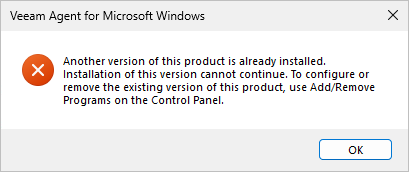
To complete the upgrade procedure, Veeam Agent for Microsoft Windows 13.0.1.120 must be manually uninstalled first.
Use the following command to preserve the existing deployment settings:
After uninstalling Veeam Agent for Microsoft Windows, proceed with installing the new agent using the Pre-installed deployment package.
Reference documentation:
Deploying Veeam Agent for Microsoft Windows Using Generated Setup Files
Note: If the removal was done incorrectly or an error occurred, backups will not function after installing the new agent version. In this case, you will need to reapply the Protection Group configuration file using the command:
Veeam.Agent.Configurator.exe -setvbrsettings
If this KB article did not resolve your issue or you need further assistance with Veeam software, please create a Veeam Support Case.
To submit feedback regarding this article, please click this link: Send Article Feedback
To report a typo on this page, highlight the typo with your mouse and press CTRL + Enter.
Spelling error in text

KB Feedback/Suggestion
This form is only for KB Feedback/Suggestions, if you need help with the software open a support case