External Client App (ECA) for Veeam Data Cloud — Adapting to New Salesforce Security Requirements
| KB ID: | 4812 |
| Product: | Veeam Data Cloud for Salesforce |
| Published: | 2026-03-30 |
| Last Modified: | 2026-06-29 |


Support Statement
Summary of Changes to Salesforce Security Protocols
Salesforce has introduced new security protocols for third-party applications accessing Salesforce organizations. This change affects all third-party products that integrate with Salesforce, requiring those vendors to transition from legacy Connected Apps to External Client Apps (ECAs). As part of this shift, organizations using external products for data backup must update their integrations to comply with these new requirements and prepare for the eventual deprecation of Connected Apps.
Introducing the External Client App (ECA) for Veeam Data Cloud
To meet Salesforce’s new security requirements, Veeam has released the External Client App (ECA) for Veeam Data Cloud managed package. This package enables customers to securely connect Veeam Data Cloud for Salesforce to their Salesforce organizations, in compliance with Salesforce standards. Upon installation, the package creates an External Client App with the necessary permissions for Veeam Data Cloud to perform backups. It also automates client key and secret rotation, simplifying ongoing security management. Installation of this package is required for each Salesforce organization that will be protected with Veeam Data Cloud before it can be added and backed up.
Existing Veeam Data Cloud for Salesforce Customers
For Salesforce organizations added to Veeam Data Cloud for Salesforce before the Salesforce Winter ’26 release, Salesforce will provide a transition period during which the Connected App can continue to be used. However, all customers are encouraged to transition to the External Client App (ECA) for Veeam Data Cloud managed package and re-authorize their Salesforce organizations in Veeam Data Cloud. This approach ensures integration with Salesforce’s latest security protocols and helps prevent any last-minute changes when the Connected App is eventually deprecated.
Additional Security Enhancements for Salesforce Connections
To further align with Salesforce security standards, the following security options are enabled on both the External Client App and the legacy Connected App (the latter for customers who have not yet transitioned to the ECA):
- Proof Key for Code Exchange — Already Enabled
- Refresh Token Rotation — Already Enabled
- Refresh Token 30-Day Idle Timeout — Already Enabled
- Allowlist Ranges for Refresh Tokens — Will be enabled on July 6th, 2026.
After these options take effect, an existing refresh token may no longer be valid under the new rules the next time a Salesforce access token expires. If this occurs, a prompt to re-authorize the Salesforce connection is displayed so that a new, compliant refresh token can be issued.
In addition, once Allowlist Ranges for Refresh Tokens is enabled, customers who have Login IP Ranges configured for the backup user must add the following IP addresses, which are used for token refresh, to the allowed list:
-
EMEA: 4.223.102.146 , 9.223.216.186
-
APJ: 52.253.96.103 , 130.33.216.155
-
AMER: 52.238.211.143 , 20.236.255.222
This change might also require re-authorization of connections to Salesforce organizations.
Recommended action: To avoid missing an expired-connection event, log in to the product as soon as possible and verify that the alert for an expired Salesforce connection token is configured with a valid email address for notifications. For instructions, see Managing Notifications in the Veeam Data Cloud for Salesforce User Guide.
Supported Salesforce Editions
The External Client App (ECA) for Veeam Data Cloud managed package is supported for:
- Salesforce Enterprise
- Unlimited
- Developer
- Professional editions
Note: API access must be enabled for Professional editions.
ECA Configuration Considerations
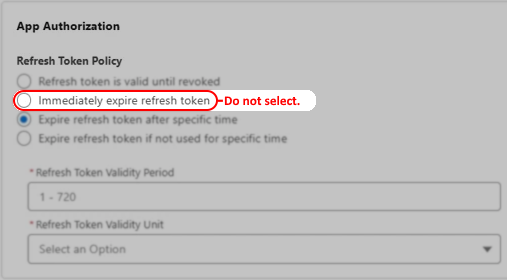
After the managed package is installed, the External Client App can be modified in Salesforce to apply additional security restrictions, such as limiting access to specific user accounts or adjusting the token refresh policy.
However, the Immediately expire refresh token option in OAuth Policies > App Authorization must not be enabled. If this option is selected, Veeam Data Cloud cannot maintain an active connection to the Salesforce organization, and the backup policy will require manual re-authorization each day to run.
Troubleshooting Deployment of External Client App (ECA) for Veeam Data Cloud
If the following error occurs when installing the managed package:
Missing feature: Installing this package requires the following feature and its associated permissions: External Client Applications
Please ensure that:
-
The installing user has the Create, Edit, and Delete External Client Apps permission enabled under System Permissions.
-
The External Client Applications feature is enabled for the organization.
This can be verified by confirming that External Client App Manager appears in Setup. If it does not, navigate to Setup > External Client App > Settings, select the Opt in for external client apps checkbox, and click Save.
If this KB article did not resolve your issue or you need further assistance with Veeam software, please create a Veeam Support Case.
To submit feedback regarding this article, please click this link: Send Article Feedback
To report a typo on this page, highlight the typo with your mouse and press CTRL + Enter.
Spelling error in text

KB Feedback/Suggestion
This form is only for KB Feedback/Suggestions, if you need help with the software open a support case