How to Configure File Version Protection
| KB ID: | 4816 |
| Product: |
Veeam Data Cloud
for Microsoft 365 Veeam Backup for Microsoft 365 | 8.4 | 8.5 | 8.6 |
| Published: | 2026-04-01 |
| Last Modified: | 2026-09-22 |


This article applies only to SharePoint, OneDrive, and Teams file backups — it has no effect on Exchange mailbox data.
New Veeam Backup for Microsoft 365 organizations added after upgrading to v8.4 or higher, and new Veeam Data Cloud for Microsoft 365 tenants, already have the Latest version option applied by default; no action is required. This article is intended for Veeam Backup for Microsoft 365 organizations upgraded from an earlier version, or Veeam Data Cloud for Microsoft 365 tenants that were already being protected before this default took effect, and may want to update their existing configuration.
Purpose
Cause
Due to upcoming application throttling enforcement in Microsoft 365 environments (see KB4821), the risk of throttling during SharePoint, OneDrive, and Teams processing is increasing. By default, the earlier versions of Veeam Data Cloud for Microsoft 365 and Veeam Backup for Microsoft 365 protect all available versions of files, which may result in:
- Higher processing time per backup job
- Increased throttling due to excessive API calls to SharePoint Online
To address this, customers using Veeam Data Cloud for Microsoft 365 and Veeam Backup for Microsoft 365 v8.4 can update their settings to protect only the latest version of each file.
Solution
How File Version Protection Works
Veeam Data Cloud for Microsoft 365 and Veeam Backup for Microsoft 365 8.4 allow for the following options to protect SharePoint, OneDrive, and Teams files:
-
Latest version [New option] — Only the most recent version of each file is protected.
-
If a production file has only major versions, the latest major version is protected.
-
If both major and minor versions are present, only the latest version, major or minor, is protected.
-
If a production file has only minor versions, the latest minor version is protected.
-
-
All versions [Legacy option] — The entire file version history is protected.
Important considerations
- When backing up all versions, subsequent jobs process only items that have changed since the last backup. Versions missing from the repository are excluded until that item changes again.
-
For customers using Veeam Backup for Microsoft 365, after upgrading to v8.4, only the latest file versions will be protected by default for newly added organizations and associated backup jobs. For existing organizations that were protected before the upgrade, the current setting to protect all file versions will remain in place. Veeam strongly recommends changing this setting for those organizations to protect only the latest version.
- For customers using Veeam Data Cloud for Microsoft 365, only the latest file versions will be protected by default for newly added tenants and their backup jobs. For existing tenants that were protected before the upgrade, the current setting to protect all file versions will remain. Veeam strongly recommends changing this setting for those organizations to protect only the latest version.
How To Configure Protecting Only The Latest File Version
For Veeam Data Cloud for Microsoft 365
- In the tenant management view, navigate to your tenant Settings.
- Under Settings, go to Backup Options.
- In the Files Protection section, select Latest Version if you want to only protect the latest versions of your SharePoint, OneDrive, and Teams files.
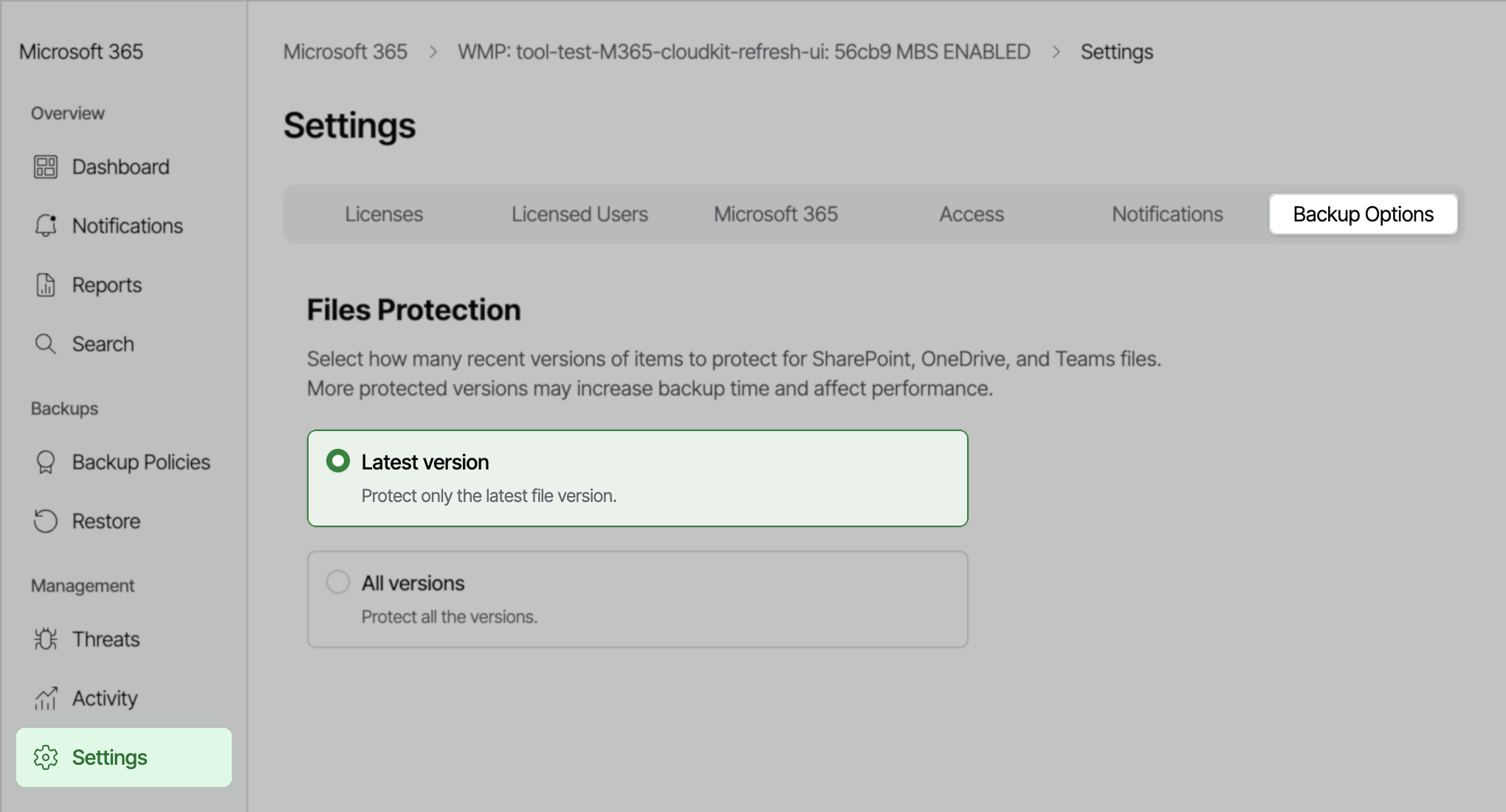
For Veeam Backup for Microsoft 365 8.4+
Ensure the environment is running at least Veeam Backup for Microsoft 365 v8.4.
Method 1: Configure version protection mode using the REST API
-
Use the following to retrieve the current version protection settings:
Replace {organizationId} with your target organization’s GUID.
- Use the following to set protection to the latest version only:
Method 2: Configure version protection mode using PowerShell
The following steps should be performed on the machine where Veeam Backup for Microsoft 365 is installed.
- Open Veeam Backup for Microsoft 365.
- In the main menu ( ☰ ), expand Console, and select PowerShell.
Note: Launching PowerShell from outside Veeam Backup for Microsoft 365 may require manual loading of PowerShell modules. - Run the following command to display all Microsoft organizations that are added to the Veeam Backup for Microsoft 365 infrastructure:
- Run the following command to display the current Version Protection mode for a specific Organization.
Update the Organization name in quotes at the end of line 1.
- Run the following command to set Protection to Latest Version Only:
If this KB article did not resolve your issue or you need further assistance with Veeam software, please create a Veeam Support Case.
To submit feedback regarding this article, please click this link: Send Article Feedback
To report a typo on this page, highlight the typo with your mouse and press CTRL + Enter.
Spelling error in text

KB Feedback/Suggestion
This form is only for KB Feedback/Suggestions, if you need help with the software open a support case