Veeam Operations Fail When the Backup Server Has Limited Internet Access
| KB ID: | 4819 |
| Product: | Veeam Backup & Replication | 13 |
| Published: | 2026-02-24 |
| Last Modified: | 2026-07-14 |


Challenge
When attempting to perform actions in Veeam Backup & Replication that initiate secure connections, those tasks may fail in environments where the Veeam Backup Server or other Windows-based component servers are either isolated from the internet or subject to significant firewall restrictions to outside servers.
Operations that may be affected include, but are not limited to:
- Windows Guest File Level Restore (FLR)
Example: Task fails with "The request has been canceled" - Malware Scan Backup Session (which relies on Windows FLR)
- Veeam Data Cloud Vault connections
Example: Interaction fails with "Rename folder failed" - Adding Hyper-V hosts
- Connecting the Veeam Backup & Replication Console
Cause
When a connection is initiated, Veeam Backup & Replication components use certificates to establish gRPC connections over HTTPS. The Windows feature "Automatically update certificates in the Microsoft Root Certificate Program" checks for revoked certificates via an HTTP request to "ctldl.windowsupdate.com" with a 15-second timeout.
Since Veeam's gRPC connection timeout is also 15 seconds, if certificate verification takes too long then the connection fails.
Solution
At this time, three workarounds exist to resolve this issue:
Option 1: Update Firewalls or Network Access Policies
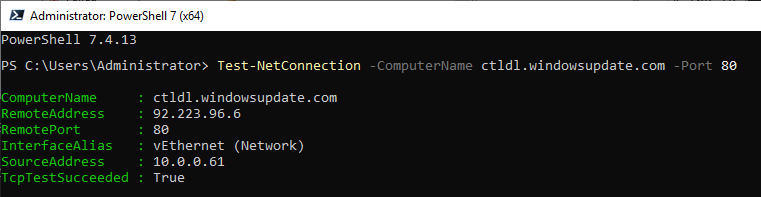
Ensure that both the Veeam Backup Server and other Windows-based component servers have access to "ctldl.windowsupdate.com" over port 80. This allows Windows to successfully complete certificate revocation checks.
Option 2: Allow Access to ctldl.windowsupdate.com via HTTP Proxy
If the server reaches the internet through an HTTP proxy rather than through direct access, configure the proxy so that certificate revocation checks can reach ctldl.windowsupdate.com through it. For configuration steps, see KB4875: How to Configure an HTTP Proxy for Veeam Components on Windows.
Note: The Test-NetConnection command shown above will fail in this scenario because it tests a direct TCP connection and bypasses the HTTP proxy. This is expected; the certificate revocation endpoints remain accessible through the proxy.
Option 3: Disable Automatic Certificate Updates
If access to ctldl.windowsupdate.com cannot be granted, the "Automatically update certificates in the Microsoft Root Certificate Program" setting must be disabled in the Group Policy Editor on each affected component server.
- Open Group Policy Editor
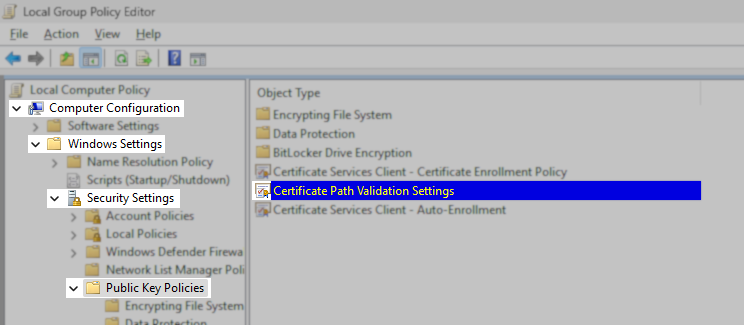
- Navigate to: Computer Configuration > Windows Settings > Security Settings > Public Key Policies
- Open the entry for: "Certificate Path Validation Settings"
- Switch to the "Network Retrieval" tab.
- Enable the option named: "Define these policy settings"
- Disable the option named: "Automatically update certificates in the Microsoft Root Certificate Program"
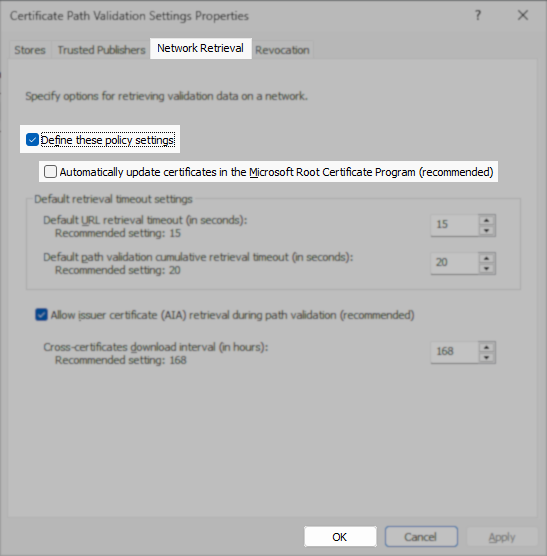
- Click OK, and close the Group Policy Editor
More Information
More information about the Windows feature "Automatically update certificates in the Microsoft Root Certificate Program" can be found here:
If this KB article did not resolve your issue or you need further assistance with Veeam software, please create a Veeam Support Case.
To submit feedback regarding this article, please click this link: Send Article Feedback
To report a typo on this page, highlight the typo with your mouse and press CTRL + Enter.
Spelling error in text

KB Feedback/Suggestion
This form is only for KB Feedback/Suggestions, if you need help with the software open a support case