"4BDN: Connected Salesforce Org already exists"

KB ID: 4824
Product: Veeam Backup for Salesforce
Published: 2026-03-02
Last Modified: 2026-03-02
mailbox
Get weekly article updates
By subscribing, you are agreeing to have your personal information managed in accordance with the terms of Veeam's Privacy Notice.

Cheers for trusting us with the spot in your mailbox!

Now you’re less likely to miss what’s been brewing in our knowledge base with this weekly digest

error icon

Oops! Something went wrong.

Please, try again later.

Challenge

When attempting to add a Salesforce sandbox to an on-premise installation of Veeam Backup for Salesforce, the following error occurs:

 4BDN: Connected Salesforce Org already exists.
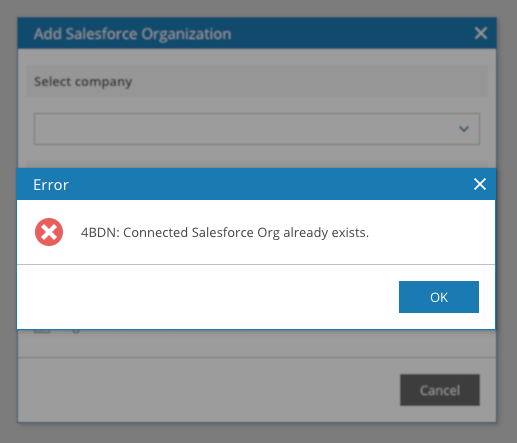
A dialog titled "Add Salesforce Organization" is open, prompting the user to select a company. An error pop-up with a red X icon appears in front, stating: "4BDN: Connected Salesforce Org already exists." There is an OK button to close the error message and a Cancel button in the background.

Cause

This occurs when the sandbox being added has the same name as a Salesforce sandbox that was previously added to Veeam Backup for Salesforce. This often occurs when a sandbox is refreshed.

When a Salesforce sandbox is refreshed, the following occurs:

  • The sandbox organization name stays the same.
  • A new sandbox Organization ID is created.

Because the sandbox name does not change, but the Organization ID does, Veeam Backup for Salesforce cannot continue the existing backup or add the sandbox as a new organization.

Solution

The solution to this issue depends on whether the existing backups of the Salesforce sandbox need to be retained.

The choice is whether to retain the backups or keep the sandbox's existing name.


Option 1: Remove Existing Backups, and Retain Sandbox Name
  1. Log in to the Veeam Backup for Salesforce Console.
  2. Switch to the Configuration page.
  3. Navigate to Salesforce > Salesforce Orgs.
  4. Review the list of Salesforce Orgs and identify which Database Label is associated with the Salesforce sandbox.
The Salesforce application configuration interface displays the "Salesforce Orgs" tab. A list shows an organization "Veeam - Veeam (production)" with its company, instance, and Salesforce edition details. The "Database Label" column is highlighted, showing the label "fult."
Click to enlarge image.
  1. Switch to the Databases Tab.
  2. Select the Connection Label that matches the Database Label from step 4, and click Edit Connection.
  3. In the "Edit Database Connection" window that appears, take note of the Server address, port, and database values.

    Note: You should retain the database connection information in case you want to delete the database containing the old backups to reclaim disk space. In the following steps, you'll remove this entry and won't be able to view these details again.
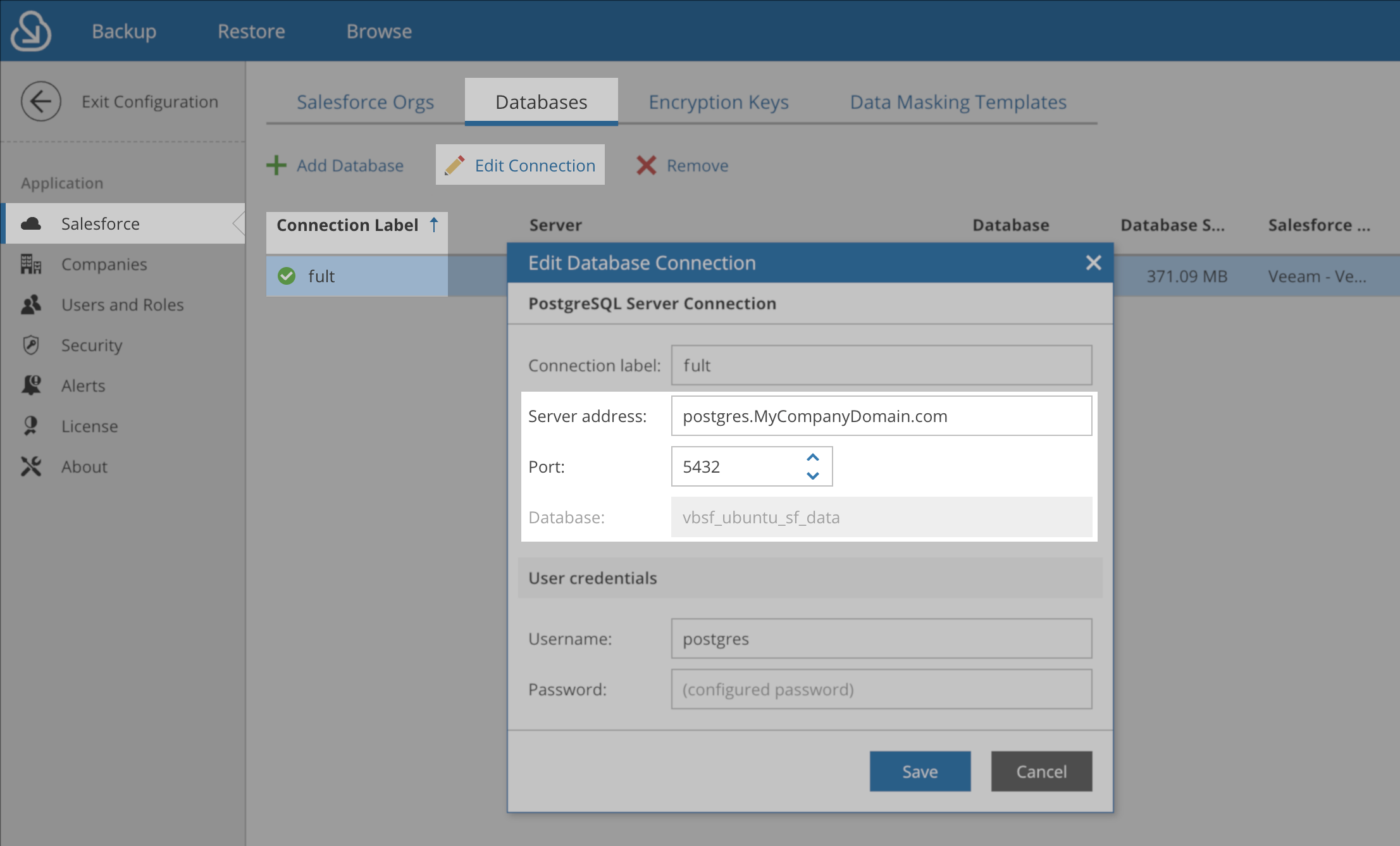
The Salesforce application configuration interface is on the "Databases" tab. The "Edit Database Connection" dialog shows the PostgreSQL server connection details: connection label "fult," server address "postgres.MyCompanyDomain.com," port "5432," and database name (grayed out). User credentials fields for username "postgres" and password are also visible, with "Save" and "Cancel" buttons at the bottom.
  1. Close the "Edit Database Connection" window.
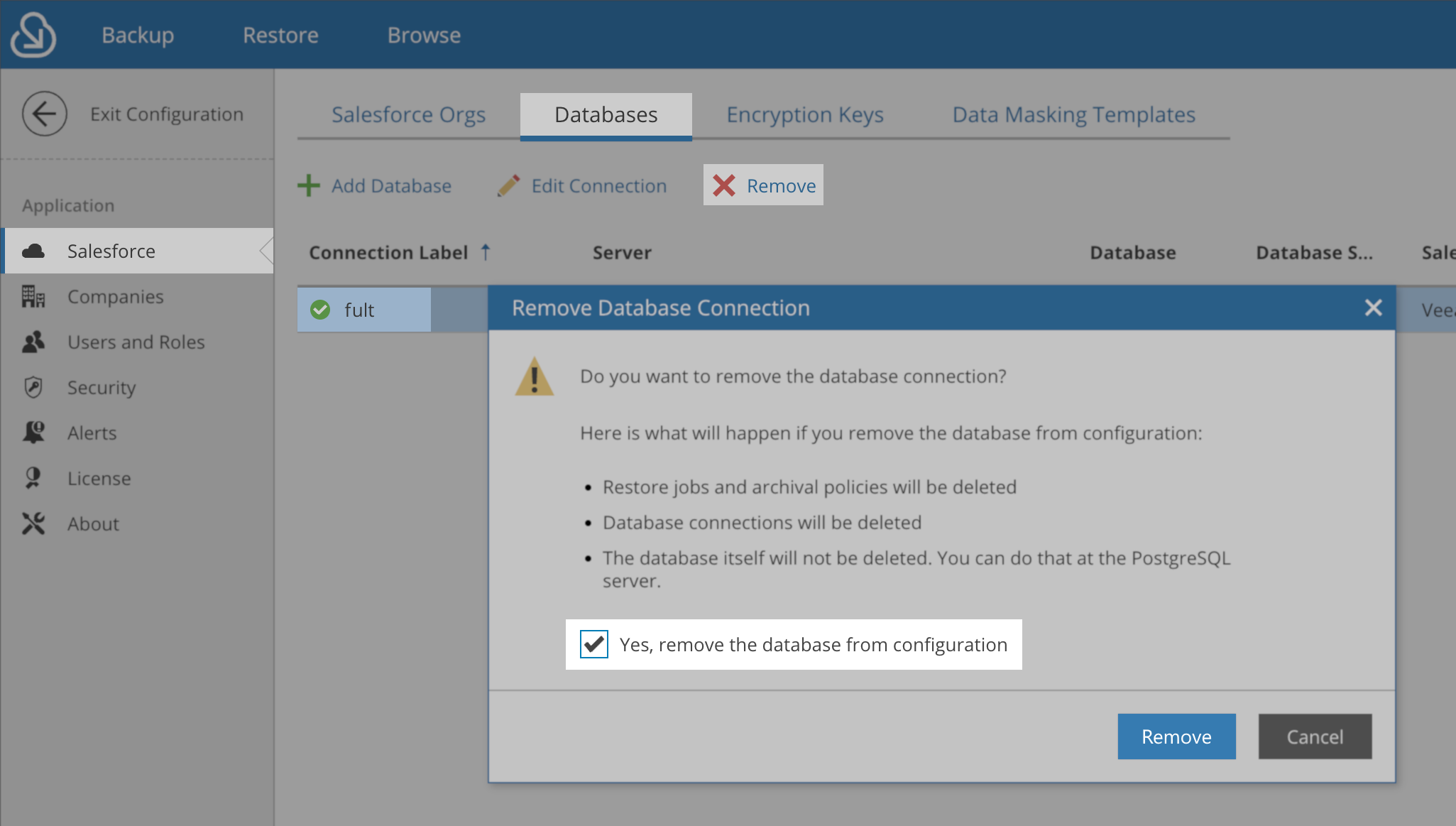
  2. With the Connection Label still selected, click Remove.
  3. In the "Remove Database Connection" window:
    1. Review the information.
    2. Tick the check box to confirm removal.
    3. Click Remove.
The Salesforce application configuration interface is on the "Databases" tab. A confirmation dialog titled "Remove Database Connection" is in the foreground, warning that removing the database connection will delete restore jobs and archival policies, but the database itself will not be deleted. The checkbox "Yes, remove the database from configuration" is checked, and "Remove" and "Cancel" buttons are at the bottom.
  1. With the database connection removed, you can try adding the sandbox again.
Backup Database Management
As indicated in the Database Connection removal dialog, removing the connection in Veeam Backup for Salesforce does not remove the database that contains the backup data from the PostgreSQL instance. If you wish, you can delete the unused database to free up disk space.
Option 2: Retain Existing Backup, and Rename Sandbox
If the existing backups of the Salesforce sandbox must be retained, the Salesforce sandbox name must not match the one associated with the backups. Since it is not possible to rename a Salesforce sandbox, the Salesforce sandbox must be refreshed with a new name.

If this KB article did not resolve your issue or you need further assistance with Veeam software, please create a Veeam Support Case.

To submit feedback regarding this article, please click this link: Send Article Feedback
To report a typo on this page, highlight the typo with your mouse and press CTRL + Enter.

Spelling error in text

Thank you!

Thank you!

Your feedback has been received and will be reviewed.

Oops! Something went wrong.

Please, try again later.

You have selected too large block!

Please try select less.

KB Feedback/Suggestion

This form is only for KB Feedback/Suggestions, if you need help with the software open a support case

By submitting, you are agreeing to have your personal information managed in accordance with the terms of Veeam's Privacy Notice.
Verify your email to continue your product download
We've sent a verification code to:
  • Incorrect verification code. Please try again.
An email with a verification code was just sent to
Didn't receive the code? Click to resend in sec
Didn't receive the code? Click to resend
Thank you!

Thank you!

Your feedback has been received and will be reviewed.

error icon

Oops! Something went wrong.

Please, try again later.