After Veeam ONE 13.1.0.7034 Upgrade: No connection could be made because the target machine actively refused it. (localhost:2743)
| KB ID: | 4912 |
| Product: | Veeam ONE | 13.1 |
| Published: | 2026-09-03 |
| Last Modified: | 2026-09-03 |


C:\Program Files\Veeam\Veeam ONE\ path.Challenge
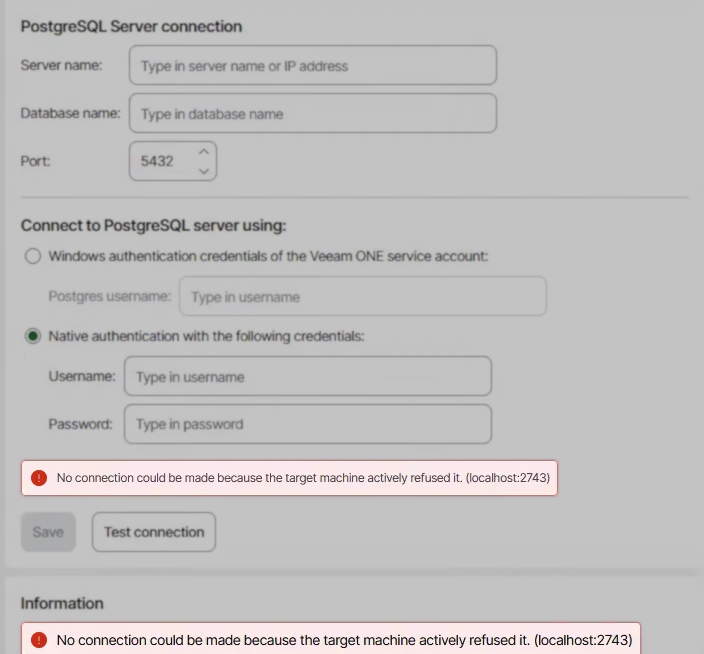
After Veeam ONE is upgraded to version 13.1 (build 13.1.0.7034), reports cannot be generated and the following error occurs:
No connection could be made because the target machine actively refused it. (localhost:2743)
The Veeam ONE Caching Service log contains entries similar to the following:
[ERR] DelayedLogSaver - Failed to save log record <id> of type Veeam.Reporter.CachingService.Repository.Entity.EventLog.JobSessionEventEntity, will retry save it later
System.InvalidOperationException: An exception has been raised that is likely due to a transient failure.
 ---> Npgsql.NpgsqlException (0x80004005): Failed to connect to [::1]:5432
 ---> System.Net.Sockets.SocketException (10061): No connection could be made because the target machine actively refused it.
Cause
This issue occurs because the appsettings.overrides.json file is placed in the default installation folder on the system drive rather than in the Veeam ONE Caching Server folder of the custom installation path. The upgrade updates the Veeam ONE Caching Service files in the custom installation folder correctly, but the configuration file that the service reads is written to the default folder instead.
That file supplies the Veeam ONE Caching Service with the connection settings for the Veeam ONE database. Without it, the Caching Service cannot connect to the database and does not accept connections on TCP port 2743, which is the port the Veeam ONE Web Client uses to request cached report data.
Solution
To resolve this issue, update Veeam ONE to version 13.1 Patch 0 (build 13.1.0.7233) or later. The patch places the appsettings.overrides.json file in the correct folder and restores the Veeam ONE Caching Service connection to the Veeam ONE database.
The patch is documented in KB4762: Release Information for Veeam ONE 13 and Updates.
If this KB article did not resolve your issue or you need further assistance with Veeam software, please create a Veeam Support Case.
To submit feedback regarding this article, please click this link: Send Article Feedback
To report a typo on this page, highlight the typo with your mouse and press CTRL + Enter.
