Veeam ONE 13.1 Upgrade or Installation Fails with: Signature verification failed after retries for 'Newtonsoft.Json.dll'
| KB ID: | 4915 |
| Product: | Veeam ONE | 13 |
| Published: | 2026-10-01 |
| Last Modified: | 2026-10-01 |


Challenge
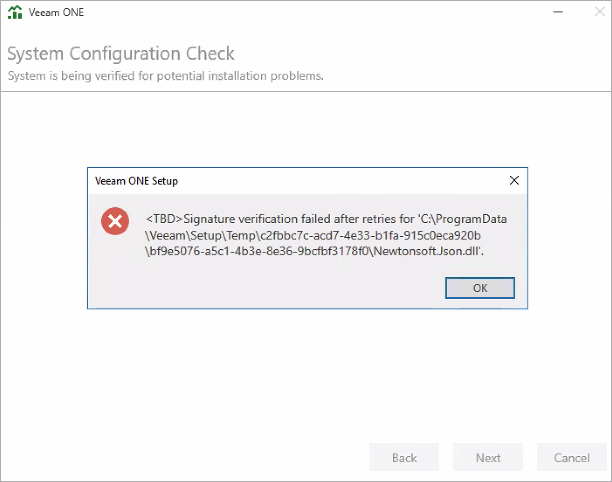
When attempting to upgrade or install Veeam ONE 13, the System Configuration Check stage of the setup wizard fails, and the following error is displayed:
<TBD>Signature verification failed after retries for 'C:\ProgramData\Veeam\Setup\Temp\c2fbbc7c-acd7-4e33-b1fa-915c0eca920b\bf9e5076-a5c1-4b3e-8e36-9bcfbf3178f0\Newtonsoft.Json.dll'.
Cause
This issue occurs because the Veeam ONE setup wizard verifies the digital signature of each file that it stages before installing it, and the Windows Trusted Root Certification Authorities store on the server does not contain the root certificate that the file's signing chain terminates in. The signature check returns 0x800B0109 (CERT_E_UNTRUSTEDROOT), and setup stops.
The Trusted Root Certification Authorities store is kept current by the Microsoft automatic update mechanism, which downloads certificate trust lists from ctldl.windowsupdate.com over TCP port 80. On a server that has no internet access, or where a proxy configuration or firewall rule blocks that address, the store is not updated and the required root certificate is never added.
Confirming the Cause in the Setup Logs
The signature check and its diagnostics are recorded in ReporterServerSetup.log. An entry similar to the following is logged for each verification attempt, and the diagnostics block that follows it reports a missing authroot.stl file when the root certificate trust list has never been downloaded:
***Veeam***  VerifyAll: attempt 5 failed for '...\Newtonsoft.Json.dll' hr=0x800B0109
***Veeam***  --- signature-check diagnostics ---
  authroot.stl.path   = C:\Windows\system32\authroot.stl <GetFileAttributesExW failed, GLE=2>
--- end diagnostics ---
Solution
The root certificate list published through the Microsoft Trusted Root Program is identical across all Windows machines, so the certificate bundle can be generated on any trusted machine with internet access.
Note: If the Veeam ONE server itself has internet access, both commands below can be run on that server, and steps 4 through 6 can be skipped.
- Take a snapshot or checkpoint of the Veeam ONE server before making any changes.
- On a machine that has internet access, open Command Prompt as Administrator.
- Run the following command to download the current Microsoft root certificate bundle:
Note: The roots.sst file is created in the folder that the Command Prompt session is currently in. Note that path for the next step.
- Copy
roots.sstto the Veeam ONE server. - On the Veeam ONE server, open Command Prompt as Administrator.
- Change to the folder that contains
roots.sst. - Run the following command to import the certificates into the Trusted Root Certification Authorities store:
Note: If the command fails with WIN32: 2 ERROR_FILE_NOT_FOUND, the Command Prompt session is not running in the folder that contains roots.sst. Change to that folder, or pass the full path to the file.
- If the failed upgrade left Veeam ONE components that cannot be removed through Control Panel, mount the ISO for the Veeam ONE version that was installed before the upgrade.
- Run the following installers from the mounted ISO to remove the leftover components, where
D:is the drive letter that the ISO is mounted to:D:\Reporter\VeeamONE.Reporter.Server.x64.msiD:\Reporter\VeeamONE.Reporter.WebUI.x64.msi
- Retry the Veeam ONE upgrade or installation.
More Information
Preventing the Issue on Future Upgrades
Windows maintains the Trusted Root Certification Authorities store through the Microsoft automatic update mechanism. To allow the Veeam ONE server to keep the store current on its own, permit outbound access to ctldl.windowsupdate.com over TCP port 80, along with DNS name resolution.
For environments where outbound internet access is not permitted, Microsoft documents a method for redirecting the automatic update mechanism to an internal file or web server that is kept synchronized with Windows Update.
Microsoft References
If this KB article did not resolve your issue or you need further assistance with Veeam software, please create a Veeam Support Case.
To submit feedback regarding this article, please click this link: Send Article Feedback
To report a typo on this page, highlight the typo with your mouse and press CTRL + Enter.
Spelling error in text

KB Feedback/Suggestion
This form is only for KB Feedback/Suggestions, if you need help with the software open a support case