Veeam ONE SAML Login Fails with: An internal error occurred during authentication
| KB ID: | 4941 |
| Product: | Veeam ONE | 13.1 |
| Last Modified: | 2026-11-19 |


Challenge
When Test Login is run for an identity provider in the Veeam ONE Web Client, and the user signs in at the identity provider (IdP), the following error occurs:
Test login for "<display name>" failed. An internal error occurred during authentication. Try again. If the issue persists, contact the technical support team.
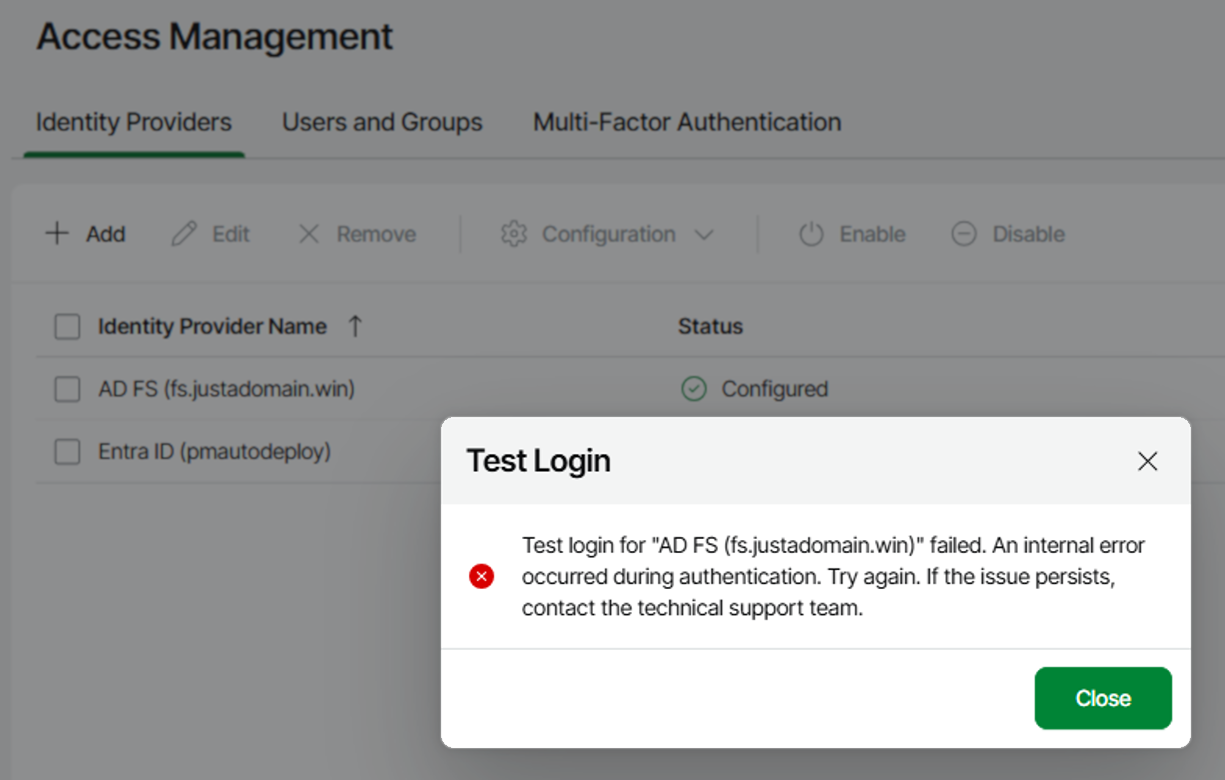
Alternatively, when Log in with SSO is clicked on the Veeam ONE login page and the user signs in at the IdP, the following error occurs:
Failed to log in with "<display name>". An internal error occurred during authentication. Try again. If the issue persists, contact the technical support team.
Cause
Solution
C:\ProgramData\Veeam\Veeam ONE\Logs\Reporter\Veeam.Reporter.log file on the Veeam ONE server shows which of the following causes applies.
The NameID Is Not Issued in the emailAddress Format
Issue Description
Veeam ONE requests the NameID format urn:oasis:names:tc:SAML:1.1:nameid-format:emailAddress. When the IdP is configured to issue a different format, it can return an error status instead of an assertion, and the log contains:
[ERR] Saml2AuthService : SAML assertion failed. Provider: "<Client ID>"
Sustainsys.Saml2.Exceptions.UnsuccessfulSamlOperationException: The Saml2Response must have status success to extract claims.
  Saml2 Status Code: Requester
  Saml2 Second Level Status: urn:oasis:names:tc:SAML:2.0:status:InvalidNameIDPolicy
Resolution
- Configure the IdP to issue the NameID in the
urn:oasis:names:tc:SAML:1.1:nameid-format:emailAddressformat.
If the log shows a different status code, review the IdP event log for the time of the sign-in.
The IdP Signing Certificate Changed
Issue Description
Veeam ONE validates the SAML response with the token signing certificate that was read from the IdP metadata. When the IdP signs the response with a different certificate, the log contains:
[ERR] Saml2AuthService : SAML assertion failed. Provider: "<Client ID>"
Sustainsys.Saml2.Exceptions.InvalidSignatureException: The signature verified correctly with the key contained in the signature, but that key is not trusted.
This happens when the IdP signing certificate is renewed or replaced. It also happens with a new Microsoft Entra ID enterprise application when the identity provider is added in Veeam ONE before the Basic SAML Configuration of the application is saved for the first time, because Microsoft Entra ID creates the signing certificate when that configuration is first saved.
Resolution
- In the Veeam ONE Web Client, go to Configuration > Access Management > Identity Providers.
- Select the identity provider.
- From the Configuration drop-down list, select Resync Configuration.
Veeam ONE reads the IdP metadata again, including the current signing certificate. The identity provider keeps its status, and login works again.
Other Causes
The same error occurs when the SAML response fails another check, for example:
- The identifier configured at the IdP differs from the SP entity ID URL, for example because the port is missing.
- The clocks of the Veeam ONE server and the IdP server are not synchronized.
- The IdP signs with SHA-1, which Veeam ONE does not accept.
- The IdP signs neither the SAML response nor the assertion.
The [ERR] Saml2AuthService entry in the log shows the exact reason.
More Information
If this KB article did not resolve your issue or you need further assistance with Veeam software, please create a Veeam Support Case.
To submit feedback regarding this article, please click this link: Send Article Feedback
To report a typo on this page, highlight the typo with your mouse and press CTRL + Enter.
