Veeam ONE SAML Login Fails with: No matching rules found for the current identity provider user
| KB ID: | 4942 |
| Product: | Veeam ONE | 13.1 |
| Last Modified: | 2026-11-19 |


Challenge
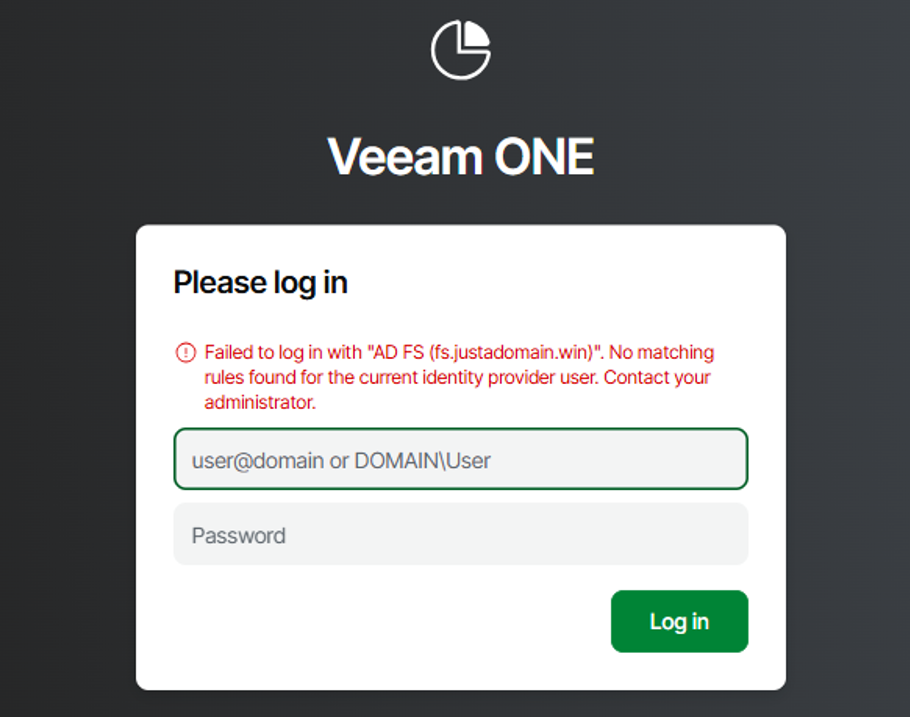
When a user signs in with SSO and the authentication at the identity provider (IdP) succeeds, the Veeam ONE login page shows the following error:
Failed to log in with "<display name>". No matching rules found for the current identity provider user. Contact your administrator.
Cause
This issue occurs because no user or group entry on the Users and Groups tab in Veeam ONE matches the SAML assertion returned by the IdP. Veeam ONE applies the following matching rules:
- The IdP must send groups in a claim named
http://schemas.xmlsoap.org/claims/GrouporGroup, with this exact capitalization. Veeam ONE does not read groups from a claim with any other name, for examplegroup,groupsorhttp://schemas.microsoft.com/ws/2008/06/identity/claims/groups, which is the default group claim name in Microsoft Entra ID. - A user added on the Users and Groups tab must have the same name as the NameID value that the IdP sends. The capitalization of the user name does not matter, and spaces at the beginning or end of the NameID value are ignored.
- A group added on the Users and Groups tab must have the same name as one of the group names that the IdP sends in the group claim. The capitalization of the group name does not matter. For example, a group added as
VeeamONE-Adminsmatches the valueveeamone-admins.
Solution
The C:\ProgramData\Veeam\Veeam ONE\Logs\Reporter\Veeam.Reporter.log file on the Veeam ONE server shows the values that Veeam ONE received from the IdP. For example:
[ERR] WebApiAccessManager : Login through SAML IdP with name "<Client ID>" (display name: "<display name>") failed because there is no suitable matching rules found. NameIdentifier: "user@example.com". Extracted groups: ["GG_VeeamONE_Admins"].
When the IdP sends several groups, the log shows them as one comma-separated value, for example Extracted groups: ["GG_A,GG_B"].
If no user or group is added for this identity provider at all, the log entry ends with: failed because there are no matching rules configured for this provider. In this case, add a user or group for this identity provider on the Users and Groups tab.
Compare the NameIdentifier and Extracted groups values in the log entry with the entries on the Users and Groups tab:
- For a user entry, make sure that the entry matches the
NameIdentifiervalue. In the example above, the user entry must beuser@example.com. - If
Extracted groupsis empty, the IdP did not send the group claim under a name that Veeam ONE reads. Rename the group claim at the IdP tohttp://schemas.xmlsoap.org/claims/GrouporGroup, using the same capitalization. In Microsoft Entra ID, open Attributes & Claims, edit the group claim, select Customize the name of the group claim, and enterGroupas the name andhttp://schemas.xmlsoap.org/claimsas the namespace. - If
Extracted groupslists values, make sure that a group entry matches one of them. In the example above, the group entry must beGG_VeeamONE_Admins. Microsoft Entra ID sends group object IDs by default, or group display names when the group claim uses Cloud-only group display names.
The Cloud-only group display names option applies only to groups created in Microsoft Entra ID. For groups synchronized from Active Directory, Microsoft Entra ID can send sAMAccountName instead. If a user is a member of more than 150 groups, Microsoft Entra ID sends an overage claim instead of the groups, and Extracted groups stays empty. For details, see Configure group claims for applications by using Microsoft Entra ID.
More Information
If this KB article did not resolve your issue or you need further assistance with Veeam software, please create a Veeam Support Case.
To submit feedback regarding this article, please click this link: Send Article Feedback
To report a typo on this page, highlight the typo with your mouse and press CTRL + Enter.
