Failed to connect to the worker service: "Alberta Standard Time" or "British Columbia Standard Time" was not recognized as a valid Windows time zone ID
| KB ID: | 4958 |
| Product: |
Veeam Backup & Replication | 13 | 13.1 Veeam Backup for Nutanix AHV Veeam Backup for Oracle Linux Virtualization Manager and Red Hat Virtualization Veeam Sangfor aSV Plug-In Veeam Plug-In for Xen Veeam Plug-In for Proxmox VE Veeam Plug-in for Scale Computing HyperCore |
| Published: | 2026-10-28 |
| Last Modified: | 2026-10-28 |


Challenge
After the Windows OS time zone of the Veeam Backup Server is changed to Alberta Standard Time, new and existing workers fail with the following error:
Failed to connect to the worker service: "Alberta Standard Time" was not recognized as a valid Windows time zone ID
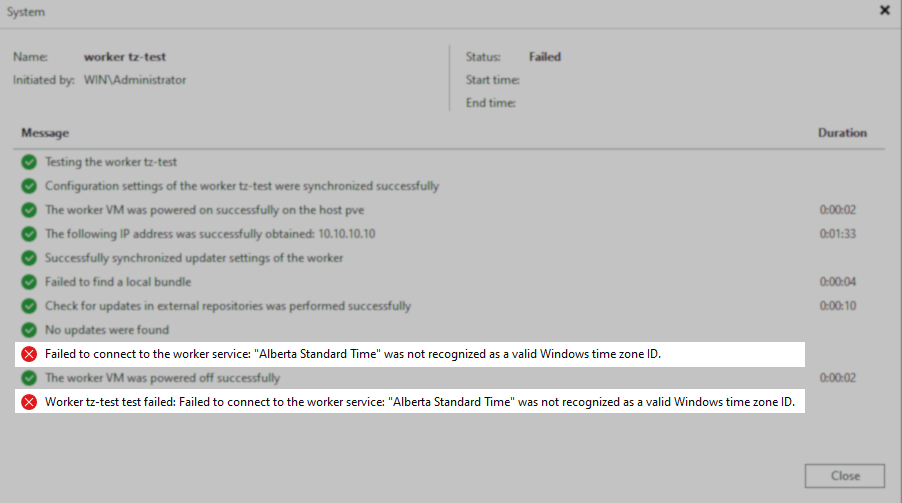
Alternatively, after the Windows OS time zone of the Veeam Backup Server is changed to British Columbia Standard Time, new and existing workers fail with the following error:
Failed to connect to the worker service: "British Columbia Standard Time" was not recognized as a valid Windows time zone ID
Cause
This issue occurs because the worker service does not recognize the Alberta Standard Time and British Columbia Standard Time time zone IDs when they are set as the Windows OS time zone of the Veeam Backup Server. Microsoft introduced these time zones, displayed in Windows Settings as (UTC-06:00) Mountain Time (Alberta) and (UTC-07:00) Pacific Time (British Columbia), because Alberta and British Columbia are no longer changing between standard time and daylight saving time.
All supported versions of Veeam Backup for Nutanix AHV and of the other Veeam plug-ins for third-party hypervisors are affected, because they share the same code base.
Solution
As a temporary workaround, change the Windows OS time zone of the Veeam Backup Server to the fixed-offset time zone that provides the same UTC offset for the affected area, as described in the Microsoft interim guidance. These time zones have different names, geographic mappings, and historical rules, so they should not be treated as permanent replacements.
| Affected Area | Windows Time Zone to Select |
| Alberta | (UTC-06:00) Saskatchewan (Canada Central Standard Time) |
| Yellowknife and Inuvik | (UTC-06:00) Saskatchewan (Canada Central Standard Time) |
| Southeastern British Columbia locations that align with Alberta | (UTC-06:00) Saskatchewan (Canada Central Standard Time) |
| Most of British Columbia | (UTC-07:00) Yukon (Yukon Standard Time) |
- On the Veeam Backup Server, open Settings > Time & language > Date & time.
- Turn off Set time zone automatically, because Windows selects the new time zone automatically when this option is enabled.
- In the Time zone list, select the time zone listed in the table above for the affected area.
If this KB article did not resolve your issue or you need further assistance with Veeam software, please create a Veeam Support Case.
To submit feedback regarding this article, please click this link: Send Article Feedback
To report a typo on this page, highlight the typo with your mouse and press CTRL + Enter.
Spelling error in text

KB Feedback/Suggestion
This form is only for KB Feedback/Suggestions, if you need help with the software open a support case