Restore to Amazon EC2 Fails with: The functionality you requested is not available in this region
| KB ID: | 4967 |
| Product: | Veeam Backup & Replication | 13.1 |
| Published: | 2026-11-09 |
| Last Modified: | 2026-11-09 |


Challenge
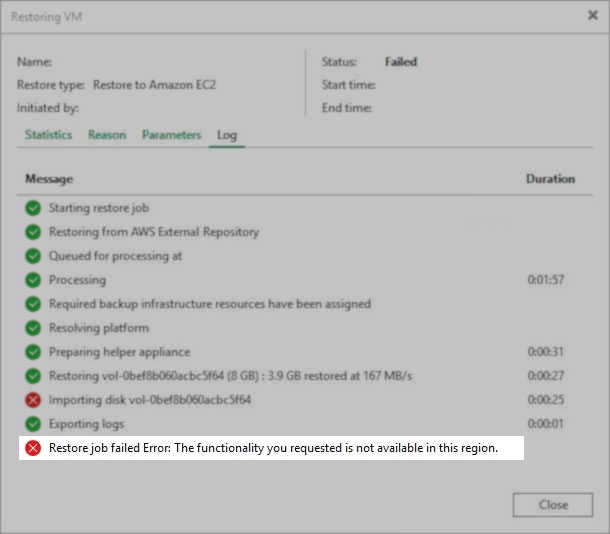
When attempting to restore an AWS-native machine to Amazon EC2 using Veeam Backup & Replication 13.1, the restore session fails after the disk has been uploaded to the temporary Amazon S3 bucket, and the session log displays the following error:
Restore job failed Error: The functionality you requested is not available in this region.
Cause
This issue occurs because the ImportVolume operation Veeam Backup & Replication 13.1 attempts to request is not available in the selected restore region.
When restoring AWS-native machines to Amazon EC2 Veeam Backup & Replication 13.1 uploads the disks to a temporary Amazon S3 bucket and then imports those disks using the AWS ImportVolume operation. However, the ImportVolume operation is only supported in a limited set of regions, which causes the job to fail after the disk upload completes.
Solution
To work around this issue, configure Veeam Backup & Replication to treat the machine being restored as non-AWS-native. This forces the full machine import to be used instead of the disk import.
Windows-based Veeam Backup & Replication
- On the Veeam Backup Server, open Registry Editor.
- Create the following registry value:
Key: HKEY_LOCAL_MACHINE\SOFTWARE\Veeam\Veeam Backup and Replication
Value Name: AwsNativeOibDetermineMode
Value Type: DWORD (32-Bit) Value
Value Data: 2 - Start the restore to Amazon EC2 again.
PowerShell Registry Value Creation
Veeam Software Appliance
- Access the Veeam Host Management Console web UI.
- Select Logs and Services in the left-side navigation panel, and then select Host Configuration.
- Export the following configuration file:
/etc/veeam/veeam_backup_and_replication.conf
- In the
[root]section of the exported file, add the following line:AwsNativeOibDetermineMode=2
- Import the modified configuration file.
- Start the restore to Amazon EC2 again.
Note: For more information about applying custom settings to the Veeam Software Appliance, see KB4779: Applying Custom Settings to Veeam Software Appliance.
If this KB article did not resolve your issue or you need further assistance with Veeam software, please create a Veeam Support Case.
To submit feedback regarding this article, please click this link: Send Article Feedback
To report a typo on this page, highlight the typo with your mouse and press CTRL + Enter.
