Activity Analysis Is Unavailable for Microsoft 365 Connectors in Veeam Intelligent ResOps
| KB ID: | 4971 |
| Product: | Veeam Intelligent ResOps for Microsoft 365 |
| Published: | 2026-11-13 |
| Last Modified: | 2026-11-13 |


Challenge
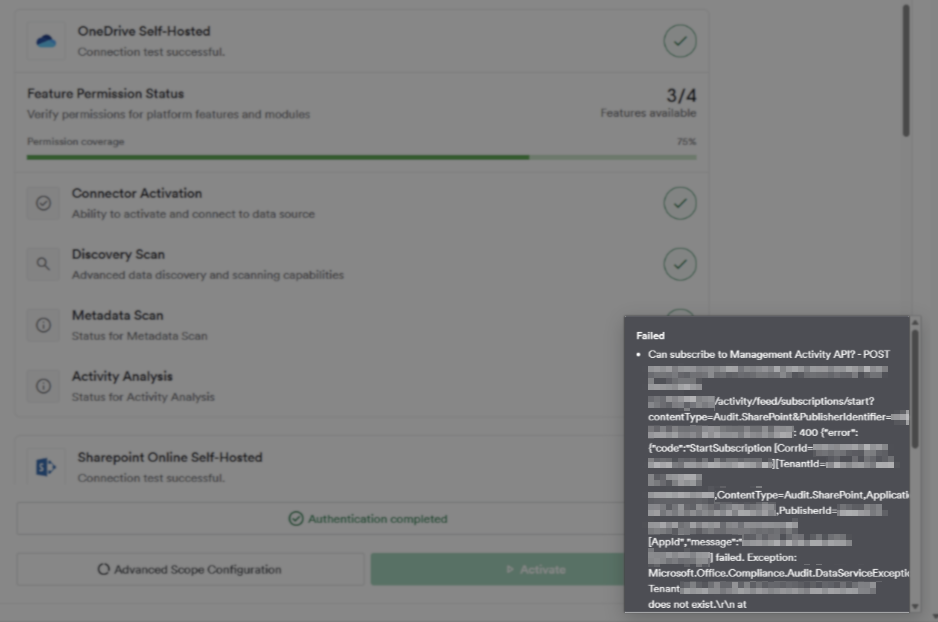
In Veeam Intelligent ResOps for Microsoft 365, Activity Analysis is unavailable for the Microsoft 365 connectors (OneDrive, SharePoint Online, Outlook, and Teams), even though authentication succeeds and the other connection test checks pass. In Integrations > Monitored Data Systems > <data system> > Authentication > Connection Test:
- Feature Permission Status shows 3/4 features available (75% permission coverage).
- Connector Activation, Discovery Scan, and Metadata Scan pass, but Activity Analysis shows an information icon instead of a check mark.
- Activity Analysis syncs for the affected connectors do not collect any activity data.
When hovering over the Activity Analysis status, the following error is displayed:
Failed
* Can subscribe to Management Activity API? - POST https://manage.office.com/api/v1.0/<TenantID>/activity/feed/subscriptions/start?contentType=Audit.SharePoint&PublisherIdentifier=<TenantID>: 400
{"error":{"code":"StartSubscription [CorrId=<CorrelationID>][TenantId=<TenantID>,ContentType=Audit.SharePoint,ApplicationId=<ApplicationID>,PublisherId=<TenantID>][AppId","message":"<ApplicationID>] failed. Exception: Microsoft.Office.Compliance.Audit.DataServiceException: Tenant <TenantID> does not exist.
The same error is displayed for every Microsoft 365 connector in the data system. The Audit.SharePoint content type in the request does not indicate a SharePoint-specific problem.
Cause
This issue occurs because unified audit logging is not enabled on the Microsoft 365 tenant.
Activity Analysis collects Microsoft 365 activity through the Office 365 Management Activity API. Before the first sync, the connector starts a subscription for each audit content type (/activity/feed/subscriptions/start). The API only serves data from the tenant's unified audit log. While auditing is turned off, or the tenant's audit storage has not been provisioned yet, every StartSubscription call is rejected with HTTP 400 and the message Tenant <TenantID> does not exist. Microsoft documents this exact string as the typical response when unified auditing is not enabled (Troubleshooting the Office 365 Management Activity API).
Because the audit log is a tenant-wide setting, the error is identical for all content types and for all Microsoft 365 connectors in the data system.
Solution
To resolve this issue, enable unified audit logging on the Microsoft 365 tenant, wait for Microsoft to provision the audit log, then re-run the connection test and the Activity Analysis sync for each connector.
Enabling auditing requires an account with the Audit Logs role in Exchange Online, such as a Global Administrator or a member of the Organization Management or Compliance Management role group.
Part 1: Enable Auditing
- Sign in to the Microsoft Purview portal.
- Select the Audit solution card. If it is not displayed, select View all solutions, then select Audit in the Core section.
- If auditing is not turned on, a Start recording user and admin activity banner is displayed at the top of the Audit page. Select the banner. No further settings or confirmation prompts are displayed.
Note: If the banner is not displayed, auditing is already enabled on the tenant and the error has a different cause. See More Information. - Refresh the page after a minute. When the banner no longer appears and the audit search form is displayed, auditing is on.
Alternatively, auditing can be turned on using Exchange Online PowerShell:
UnifiedAuditLogIngestionEnabled property is always False, even when auditing is turned on.
Part 2: Wait for the Audit Log to Be Provisioned
Enabling auditing can take up to 60 minutes to take effect. After that, the Management Activity API may continue to return Tenant <TenantID> does not exist for several more hours, in some tenants up to 24 hours, until the tenant's audit storage is provisioned. Connection tests run during this period return the same error.
Part 3: Re-run the Connection Test
- In Veeam Intelligent ResOps, go to Integrations > Monitored Data Systems > <data system> > Authentication > Connection Test and run the test again.
- Confirm that Feature Permission Status shows 4/4 features available and that Activity Analysis has a green check mark.
Part 4: Run Activity Analysis for Each Connector
Activity Analysis is configured and scheduled per connector. Repeat the following steps for every Microsoft 365 connector in the data system (OneDrive, SharePoint Online, Outlook, and Teams):
- Go to Advanced Configuration > <connector> > Activity Analysis.
- Confirm that Enable Activity Analysis is selected. If the setting is changed, click Save.
- Start a sync, or wait for the next scheduled run (Automatic sync · Every 24 hours). While a sync is in progress, the page shows Running for and a Cancel Sync button.
- After the sync completes, confirm that activity data is available for the connector.
Note: Only activity recorded after auditing was turned on is collected; events from before that point are not available in the Microsoft 365 audit log. Exchange, SharePoint, OneDrive, and Teams audit events typically become available 60 to 90 minutes after they occur, so the first sync may return little data.
More Information
Auditing is on by default for Microsoft 365 organizations, except for tenants with Microsoft 365 Business Basic, Business Standard, or Business Premium licenses and unmanaged tenants that use free trials of enterprise licenses. Test and lab tenants are therefore the most common place for this error to occur.
If auditing is already on (the Audit page shows no Start recording user and admin activity banner) and the error persists, check the following:
- Audit provisioning has not completed: If an audit log search in Microsoft Purview returns no events at all, the tenant's audit log is not provisioned yet. Wait up to 24 hours, then run the connection test again.
- Government cloud tenant: If the tenant is hosted in GCC, GCC High, or DoD, the Management Activity API uses a different endpoint than
manage.office.com. Create a support case for assistance.
References
If this KB article did not resolve your issue or you need further assistance with Veeam software, please create a Veeam Support Case.
To submit feedback regarding this article, please click this link: Send Article Feedback
To report a typo on this page, highlight the typo with your mouse and press CTRL + Enter.
