- Veeam Support Knowledge Base
- Using the Diskshadow Utility to Manually Test VSS Operations
Using the Diskshadow Utility to Manually Test VSS Operations

Cheers for trusting us with the spot in your mailbox!
Now you’re less likely to miss what’s been brewing in our knowledge base with this weekly digest

Oops! Something went wrong.
Please, try again later.
Purpose
Cause
Veeam products use the Microsoft Volume Shadow Copy Service (VSS) for various tasks (e.g., ensuring transactional consistency, triggering truncation for Exchange, and guest level backups with Veeam Agent for Microsoft Windows.)
When Veeam backup jobs fail due to a VSS-related issue, it can be helpful to perform testing outside of the Veeam product to help isolate the problem for further investigation. While Windows Server Backup is generally sufficient for isolation tests (and is often preferred by Microsoft Support), it does not support all possible configurations, nor does it directly correlate to how Veeam utilizes VSS. For that reason, Veeam support recommends isolation testing using the Diskshadow command-line utility, which allows for the closest reproduction of the VSS task Veeam products perform.
Solution
All steps and commands documented in this article are to be performed on the machine with the VSS issue.
This procedure is split into the following sections:
Prerequisite
Before performing the Diskshadow test steps below, ensure that all VSS writers are in a "Stable" state.
In an Administrative Command Prompt, run the following command to display a list of registered VSS writers and their state:
vssadmin list writers
Stabilizing the VSS writers may be achieved by simply rebooting the machine. If you cannot reboot the machine, some writers can be stabilized by restarting the specific service associated with the VSS Writer. However, restarting services may impact operations related to that writer. If the writers are still not stable after a restart, further investigation will be needed.
Preparation
To ensure that the VSS shadow copy created during the test simulates the same VSS volume interactions as the Veeam job, the list of volumes added to the shadow copy that the Veeam product request must be collected. These volume identifiers will be used in the Testing section of this article.
Expand the section below which matches the machine you are troubleshooting.
Windows VM in VMware backed up using Veeam Backup & Replication
On the VM that was backed up, navigate to C:\ProgramData\Veeam\Backup and open the most recent VeeamGuestHelper log file.
For VMs where the persistent guest agent option is enabled, instead open the VeeamVssSupport log file.
Within the VeeamGuestHelper / VeeamVSSSupport log file, search for:
The following volumes should be added to the snapshot set.Tip: If you hover over the code block above, there is a copy to clipboard button on the right.
After that line is a list of volumes that were added to the snapshot.
Example:
INFO     The following volumes should be added to the snapshot set.
INFO     {
INFO         [\\?\Volume{3fc833a6-de6e-414d-8848-669030e2ad4f}\]. Mount point: [C:\]
INFO     }
Keep the log file open so you can easily copy/paste each of the volume IDs during the Testing phase of this article.
Windows VM in Hyper-V backed up using Veeam Backup & Replication
Veeam Backup & Replication creates shadow copies of volumes containing virtual machines. For transactionally-consistent backups (Application-Aware Image Processing or Hyper-V Quiescence), the Hyper-V VSS Writer triggers the Hyper-V Volume Shadow Copy Requestor service in each VM to create shadow copies of volumes within the VM. Error messages generated by shadow copy creation failure generally do not indicate whether the problem is isolated to a hypervisor volume or an in-guest volume.
Start by disabling Application-Aware Image Processing and Hyper-V Quiescence within the Backup job to isolate whether the VSS issue is at the VM-Guest level or the Hyper-V host level.
- If the problem does not occur when both options are disabled, the issue would appear to be isolated to in-guest VSS. In such a situation, review the section below about manually identifying volume IDs and perform the VSS test in-guest. If the in-guest VSS test works without issue, review the next bullet point.
- If the snapshot creation continues to fail after disabling both options, fails for crash-consistent backups, or if in-guest shadow copy creation testing does not result in any errors, it may be necessary to test shadow copy creation on the Hyper-V host. However, because Hyper-V backup can be complex, a scripted approach is recommended. Veeam Support can run a scripted test that also collects a significant amount of helpful logging. Contact support to schedule a remote session, and ask about hv_mkshadow.
Warning: Attempting to perform a shadow copy of a volume containing virtual machines will trigger in-guest shadow copy creation on all VMs on that volume unless expressly excluded. This may negatively affect the performance or responsiveness of these VMs and the Hyper-V host. Veeam Backup and the hv_mkshadow script exclude unnecessary VSS writer components from the shadow copy.
Manual Volume ID Collection for in-guest Diskshadow VSS testing
As discussed above, the Hyper-V VSS Writer at the host level triggers the Hyper-V Volume Shadow Copy Requestor to create a shadow copy for all volumes within the VM.
To pull the list of all volume IDs to be used during the Testing phase of this article, run the following command from within the VM Guest OS:
GWMI -namespace root\cimv2 -class win32_volume | FL -property DriveLetter, DeviceIDTip: If you hover over the code block above, there is a copy to clipboard button on the right.
Example output:
PS C:\Windows\system32> GWMI -namespace root\cimv2 -class win32_volume | FL -property DriveLetter, DeviceID
DriveLetter :
DeviceID    : \\?\Volume{0bb2b7d5-7855-4bd4-98cb-156f7b671f70}\
DriveLetter : C:
DeviceID    : \\?\Volume{822b8e64-1c62-44a0-af8b-bbd39b661ba0}\
DriveLetter :
DeviceID    : \\?\Volume{a3586d9f-0490-4c4a-9a07-b7794df95c39}\
Windows Machine backed up using Veeam Agent for Microsoft Windows
On the Windows machine that was backed up, open the following log:
C:\ProgramData\Veeam\Endpoint\<job_name>\Job.Backup.log
Within the Job.Backup.Log file, search for:
The following volumes should be added to the snapshot set.Tip: If you hover over the code block above, there is a copy to clipboard button on the right.
After that line is a list of volumes that were added to the snapshot.
Note: The list of included volumes will vary depending on what was being backed up by the job.
Example:
Info    The following volumes should be added to the snapshot set.
Info    {
Info        [\\?\Volume{0bb2b7d5-7855-4bd4-98cb-156f7b671f70}]. Mount point: []
Info        [\\?\Volume{822b8e64-1c62-44a0-af8b-bbd39b661ba0}]. Mount point: [C:\]
Info    }
Keep the log file open so you can easily copy/paste each of the volume IDs during the testing phase of this article.
Windows machine in Azure backed up using Veeam Plug-In for Microsoft Azure
On the machine that was backed up, navigate to C:\ProgramData\Veeam\Backup and open the most recent VeeamGuestHelper log file.
Within the VeeamGuestHelper log file, search for:
The following volumes should be added to the snapshot set.Tip: If you hover over the code block above, there is a copy to clipboard button on the right.
After that line is a list of volumes that were added to the snapshot.
Example:
INFO The following volumes should be added to the snapshot set.
INFO {
INFO [\\?\Volume{1dcaea71-0000-0000-0000-100000000000}\]. Mount point: [\\?\Volume{1dcaea71-0000-0000-0000-100000000000}\]
INFO [\\?\Volume{1dcaea71-0000-0000-0000-501f00000000}\]. Mount point: [C:\]
INFO }
Keep the log file open so you can easily copy/paste each of the volume IDs during the Testing phase of this article.
Manually Identify VolumeIDs When Veeam Logs Are Not Available.
If log files are not available you will need to pull a list of volume IDs manually. Volumes that are assigned a drive letter may be added to the shadow copy using "add volume C:\", but for volumes that lack a mount point (such as the System Reserved Partition), use the volume GUID obtained through the Shadow Copies utility, mountvol command, or PowerShell cmdlet.
Shadow Copies Utility
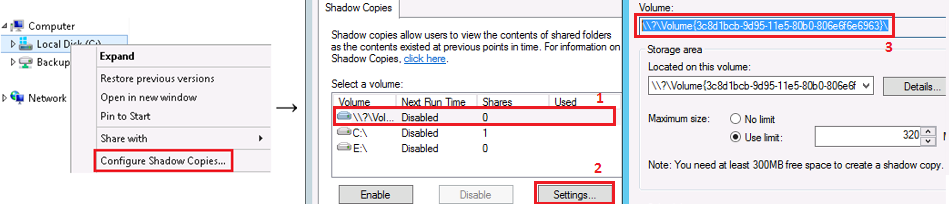
To access the Shadow Copies utility, right-click any volume and choose Configure Shadow Copies.
In the Shadow Copies utility:
- Select the volume displayed as a GUID;
- Click Settings…
- Copy the volume GUID from the settings window and paste it into DiskShadow.
mountvol command
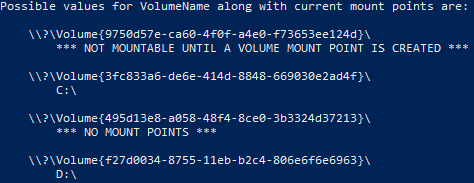
Run “mountvol” from a command prompt. Below the usage information will be a list of current volume GUIDs and their associated mount points (see example below).
Note that the values shown under "Possible values for VolumeName along with current mount points are:" are not an example, but are the actual values available on the machine where the mountvol command was run.
PowerShell
A complete list of Drive Letters and their respective DriveIDs can be pulled using the following command. Note that the Drive Letter/DriveID of optical drives may be present in the list but should not be included in the VSS operation.
GWMI -namespace root\cimv2 -class win32_volume | FL -property DriveLetter, DeviceIDTesting
The following steps are intended to create the closest possible approximation to the VSS shadow copy requested during the Veeam backup job. This test will cause the VSS writers to be notified that a backup has occurred, just as the Veeam backup job would have. However, no actual backup is happening, and no data is being saved to a restore point. Some applications, including Microsoft Exchange, will truncate transaction logs automatically in response to being notified that a backup has occurred. While other applications, such as Microsoft SQL Server, will record that a backup has taken place but will not truncate transaction logs.
This testing method is often referred to as a Full test. It fully reproduces the VSS shadow copy process used by most Veeam Backup & Replication backup jobs and all Veeam Agent for Microsoft Windows backup jobs. However, if the VM was backed up by a Veeam Backup & Replication backup job that was configured in copy-only mode, skip steps 7 and 9.
- Open an Administrative Command Prompt or PowerShell window.
- Launch Diskshadow with logging enabled
diskshadow /l C:\Windows\temp\diskshadowoutput.txt
- Enable verbose mode
set verbose on
- Set context to volatile so that the Shadow copy is deleted when Diskshadow is closed.
set context volatile
- Add each of the volumes you identified in the Preparation phase of this article.
add volume \\?\Volume{xxxxxxxx-xxxx-xxxx-xxxxxxxxxxxxxxxxx}\ add volume \\?\Volume{xxxxxxxx-xxxx-xxxx-xxxxxxxxxxxxxxxxx}\ - (Optional) In some cases, a specific VSS may need to be verified as taking part in the VSS operation. If you are working with Veeam Support, the engineer handling your case may provide information about a particular writer to verify.
In such situations, the following command is required:
Replacing VSS_writer_name with the actual VSS writer name.
writer verify VSS_writer_name
- Enter the following command to cause the VSS writers to be notified that a backup is occurring.
begin backup
- Initiate Shadow Copy creation and observe the outcome.
create
- If the shadow copy is created successfully, the final step is to send the following command to notify the writers that a backup has occurred. As noted previously, when some VSS writers (e.g., Exchange) are notified that a backup has been completed, a transaction log truncation will begin.
end backup
Example
Windows PowerShell
Copyright (C) Microsoft Corporation. All rights reserved.
PS C:\Windows\system32> diskshadow /l C:\Windows\temp\diskshadowoutput.txt
Microsoft DiskShadow version 1.0
Copyright (C) 2013 Microsoft Corporation
On computer:  SQL,  3/4/2022 10:55:45 AM
DISKSHADOW> set verbose on
DISKSHADOW> set context volatile
DISKSHADOW> add volume \\?\Volume{822b8e64-1c62-44a0-af8b-bbd39b661ba0}\
DISKSHADOW> begin backup
DISKSHADOW> create
##OUTPUT TRUNCATED FOR KB EXAMPLE##
Querying all shadow copies with the shadow copy set ID {cda37a0e-723e-40c2-bc83-9be648b9bfdd}
        * Shadow copy ID = {8fa1e7e5-96dc-4728-8fb9-9ace70ae45a3}               %VSS_SHADOW_1%
                - Shadow copy set: {cda37a0e-723e-40c2-bc83-9be648b9bfdd}       %VSS_SHADOW_SET%
                - Original count of shadow copies = 1
                - Original volume name: \\?\Volume{822b8e64-1c62-44a0-af8b-bbd39b661ba0}\ [C:\]
                - Creation time: 3/4/2022 12:22:32 PM
                - Shadow copy device name: \\?\GLOBALROOT\Device\HarddiskVolumeShadowCopy1
                - Originating machine: SQL.domain.tld
                - Service machine: SQL.domain.tld
                - Not exposed
                - Provider ID: {b5946137-7b9f-4925-af80-51abd60b20d5}
                - Attributes:  Auto_Release Differential
Number of shadow copies listed: 1
DISKSHADOW> end backup
DISKSHADOW> exit
Review Results
Typically, if shadow copy creation fails via both Diskshadow and Veeam products, that indicates that the problem is isolated to shadow copy creation. Troubleshoot the errors reported by Diskshadow and any events appearing in Event Viewer.
If the shadow copy creation is failing, it may also be helpful to review KB3164: How to collect VSS trace for details on collecting additional VSS logging.
Some issues may be isolated to a single volume. To identify which volume is responsible for an error, perform the test again, add only one volume to the snapshot set, create the shadow copy, and then exit or reset Diskshadow before starting over with the next volume. Perform the test with each volume until only a specific volume fails.
Troubleshooting shadow copy creation or transaction log truncation may require the assistance of Microsoft technical support.
Example Errors
This first example is an instance where the Volume Shadow Copy service fails, hangs, or is shut down midway through the creation process. The words “RPC server” in the error can be misleading, as the issue is not with the RPC service, but is related to the Shadow Copy service failing to receive and process the request sent to it.
COM call "m_pVssBackup->StartSnapshotSet" failed.
The last operation failed.
- Returned HRESULT: 800706ba
- Error text: The RPC server is unavailable.
The following example shows a more common issue; insufficient free space on a volume of the machine.
The last operation failed.
- Returned HRESULT: 8004231f
- Error text: VSS_E_INSUFFICIENT_STORAGE
For more information about this error, review KB1794.
These messages will usually immediately follow the list of included writers and should be the last output returned in the Diskshadow process.
If this KB article did not resolve your issue or you need further assistance with Veeam software, please create a Veeam Support Case.
To submit feedback regarding this article, please click this link: Send Article Feedback
To report a typo on this page, highlight the typo with your mouse and press CTRL + Enter.
