- Veeam Support Knowledge Base
- Installer Error: "This installation cannot be updated automatically." or "Unable to proceed with the setup"
Installer Error: "This installation cannot be updated automatically." or "Unable to proceed with the setup"
| KB ID: | 2157 |
| Product: |
Veeam Backup & Replication Veeam ONE Veeam Service Provider Console Veeam Recovery Orchestrator Veeam Cloud Connect |
| Published: | 2016-08-25 |
| Last Modified: | 2026-05-13 |

Cheers for trusting us with the spot in your mailbox!
Now you’re less likely to miss what’s been brewing in our knowledge base with this weekly digest

Oops! Something went wrong.
Please, try again later.
Challenge
When attempting to update Veeam software, the following error occurs:
This installation cannot be updated automatically.
Please contact Veeam customer support for assistance with
manual update.
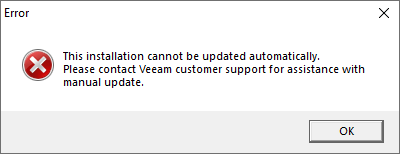
Alternatively, the following error occurs:
An error has occurred: Unable to proceed with the setup: invalid
system configuration detected.
Please contact Veeam Support.

Cause
These errors may occur for any of the following reasons:
- The update installer is corrupt.
- Files on the disk are corrupt.
- The certificates used for file validation are not installed or up to date.
The update installer checks both its digital signature and those of the existing files to ensure their integrity before allowing the update to proceed.
All product files are signed using certificates. Some Windows installations do not have the root certificate authority as a trusted root certificate or have non-current certificates. This issue is typically observed on servers with locked-down security settings, servers without internet access, or servers that do not have the latest updates installed.
Solution
Check for Install Media Corruption
Please verify that the downloaded file is not corrupted by checking its hash against the one provided by Veeam. If the downloaded file's hash does not match the one listed on the Veeam website, redownload the file.
The following PowerShell command can be used to get the hash of a file.
Get-FileHash <file> -Algorithm SHA1Verify Presence of Required Trusted Certificates
Review the list of Trusted Certificates and ensure that all listed are installed.
More Information
%programdata%\Veeam\Setup\
If this KB article did not resolve your issue or you need further assistance with Veeam software, please create a Veeam Support Case.
To submit feedback regarding this article, please click this link: Send Article Feedback
To report a typo on this page, highlight the typo with your mouse and press CTRL + Enter.
Spelling error in text

Thank you!
Your feedback has been received and will be reviewed.
Oops! Something went wrong.
Please, try again later.
You have selected too large block!
Please try select less.
KB Feedback/Suggestion
This form is only for KB Feedback/Suggestions, if you need help with the software open a support case
Thank you!
Your feedback has been received and will be reviewed.
Oops! Something went wrong.
Please, try again later.