- Veeam Support Knowledge Base
- Failed to start service ‘VeeamDeploySvc’ - The system cannot find the file specified.
Failed to start service ‘VeeamDeploySvc’ - The system cannot find the file specified.
| KB ID: | 2263 |
| Product: | Veeam Backup & Replication | 9.0 | 9.5 | 10 | 11 | 12 | 12.1 | 12.2 | 12.3 | 12.3.1 | 12.3.2 | 13 | 13.1 |
| Published: | 2017-03-27 |
| Last Modified: | 2023-12-13 |

Cheers for trusting us with the spot in your mailbox!
Now you’re less likely to miss what’s been brewing in our knowledge base with this weekly digest

Oops! Something went wrong.
Please, try again later.
Challenge
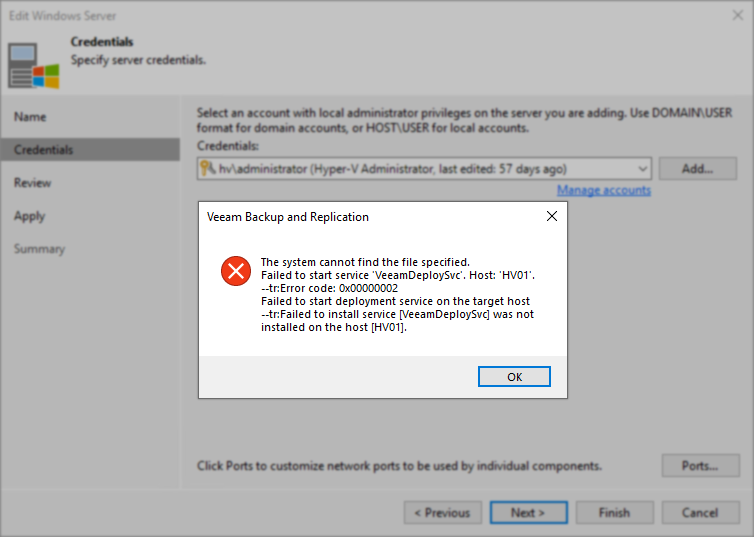
When attempting to add, edit, or rescan a Windows or Hyper-V server, or rescan a Protection Group that contains a Windows machine, the following error occurs:
The system cannot find the file specified.
Failed to start service 'VeeamDeploySvc'. Host: '<name>'.
--tr:Error code: 0x00000002
Failed to start deployment service on the target host
--tr:Failed to install service [VeeamDeploySvc] was not installed on the host [<name>].
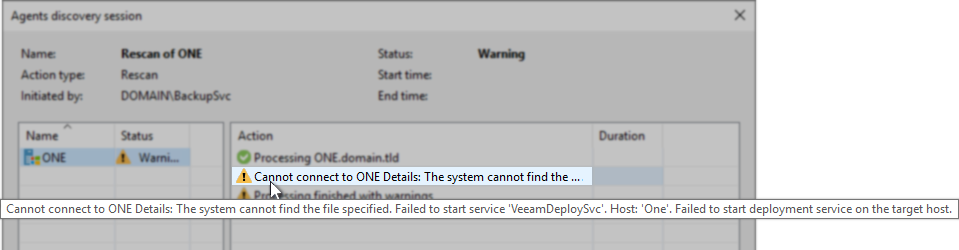
Cannot connect to <name> Details: The system cannot find the file specified. Failed to start service 'VeeamDeploySvc'. Host: '<name>'. Failed to start deployment service on the target host.
Cause
Note: VeeamDeploySvc, Veeam Deployment Service, and Veeam Installer Service are all names for the same service.
When Veeam Backup & Replication attempts to interact with a Windows machine, it will first attempt to contact the Veeam Deployment Service on its default port of 6160. If that fails, it will then connect to the Windows machine via RPC and check if the VeeamDeploySvc is present, and if present, attempt to start the service. If the service is not present, Veeam Backup & Replication will install the Veeam Deployment Service and initiate a connection to that service over port 6160.
The errors discussed in this article occur because the VeeamDeploySvc, also known as Veeam Installer Service, is detected as being present but cannot be started due to an OS-level issue.
Solution
Verify Issue
The following steps are to be performed on the remote machine that Veeam Backup & Replication is failing to connect to.
- Open Services.msc and verify that the Veeam Installer Service (VeeamDeploySvc) is present and in a stopped state.

- Attempt to Start the Veeam Installer Service.
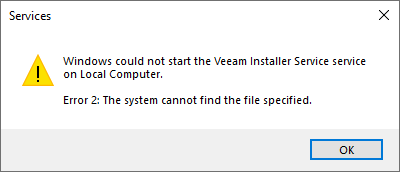
- It should fail with the error:
Windows could not start the Veeam Installer Service service on Local Computer.
Error 2: The system cannot find the file specified.
Resolution
- Open an Administrative Command Prompt on the remote machine.
- Run the following command to delete the Veeam Installer Service (VeeamDeploySvc)
In rare situations, the sc delete command will only mark the service for deletion if an application such as Task Manager, Services.msc, Event Viewer, or any Microsoft Management Console is running. If the service fails to be removed and rerunning the sc delete command displays the message "marked for deletion," try closing all unneeded applications. If the "marked for deletion" situation persists, the machine may need to be rebooted so that the Windows OS can remove the service.
sc delete VeeamDeploySvc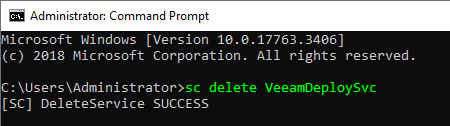
- Return to the Veeam Backup & Replication Console and repeat the action that caused the error to appear.
For Windows/Hyper-V Managed servers, edit the machine's entry and next, next, finish throgh the steps of the Edit Server Wizard. - Veeam Backup & Replication will attempt to reach the remote machine, and now that the VeeamDeploySvc is not present, the software will redeploy the service.
More Information
As noted in the Cause section, when Veeam Backup & Replication first attempts to contact a Windows server, it will do so by attempting to reach the Veeam Installer Service on port 6160. If that port cannot be reached, or the service is not started on the remote machine, some tasks may fail with a different error:
RPC function call failed. Function name: [GetSvcVersion]. Target machine: [:6160].
If this KB article did not resolve your issue or you need further assistance with Veeam software, please create a Veeam Support Case.
To submit feedback regarding this article, please click this link: Send Article Feedback
To report a typo on this page, highlight the typo with your mouse and press CTRL + Enter.
