- Veeam Support Knowledge Base
- "No destination network for IP address" error during SureBackup
"No destination network for IP address" error during SureBackup
| KB ID: | 4070 |
| Product: | Veeam Backup & Replication | 6.5 | 7.0 | 8.0 | 9.0 | 9.5 | 10 | 11 | 12 | 12.1 | 12.2 | 12.3 | 12.3.1 | 12.3.2 | 13 | 13.1 |
| Published: | 2020-12-01 |
| Last Modified: | 2025-08-05 |

Cheers for trusting us with the spot in your mailbox!
Now you’re less likely to miss what’s been brewing in our knowledge base with this weekly digest

Oops! Something went wrong.
Please, try again later.
Challenge
A Surebackup job fails with the error:
Error: No destination network for IP address
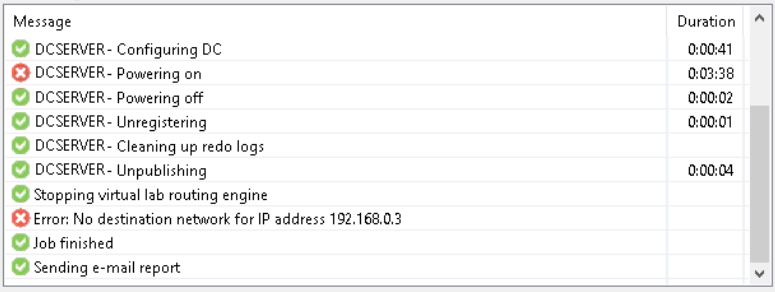
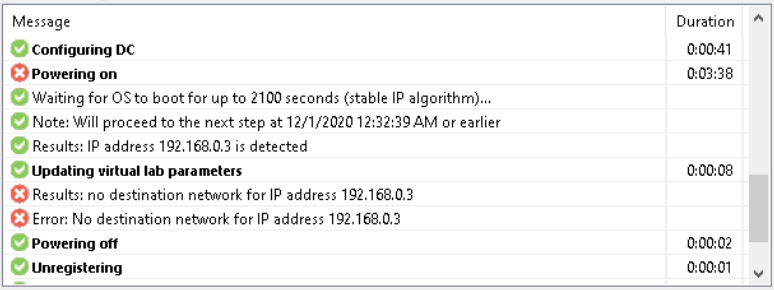
When selecting the individual server from the VM list in the status window, the following error is seen:
Results: no destination network for IP address
Error: No destination network for IP address
Cause
This error occurs if the detected IP address of the VM's guest OS does not match the Virtual Lab's isolated vNIC subnet.
This issue is the direct result of a misconfiguration of the Veeam Backup & Replication software, and must be corrected by updating the Virtual Lab configuration.
Solution
We encourage you to watch this 15 minute video which covers how the Virtual Lab works, and how to configure it.
https://www.veeam.com/videos/virtual-lab-configuration-15466.html
Switch Virtual Lab Configuration to Advanced Mode
If this error occured while using "Basic single-host" on the Networking tab, switch to "Advanced single-host" and manually configure the correct Isolated Networks, and appropriate Network Settings for those Isolated Networks. For more information on configuring SureBackup with "Advanced single-host" please watch the video above, or review the following documentation:
https://helpcenter.veeam.com/docs/backup/vsphere/create_vlab.html
Review Virtual Lab Configuration
To resolve this issue review the Network Settings of the Isolated Networks within the Virtual Lab. The IP address in the Network Settings must match the gateway IP that the VM being powered on by the SureBackup job is expecting.
If the IP in Network Settings is correct, make sure that the Mask also matches production as this could cause the wrong subnet to be specified.
Example of Issue and Configuration Correction
For example, to reproduce the error show at the begining of this KB article, the Virtual NIC used by the Virtual Lab was configured with the following settings:
- IP address: 192.168.148.1
- Mask: 255.255.255.0
- Masquerade IP: 192.168.255.D
This Virtual NIC configuration would match a VM whose static IP falls somewhere in the 192.168.148.0/24 subnet, and uses the gateway IP of 192.168.148.1.
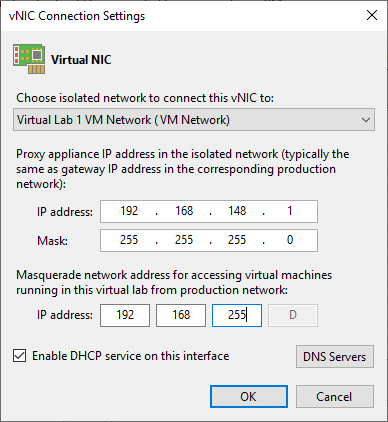
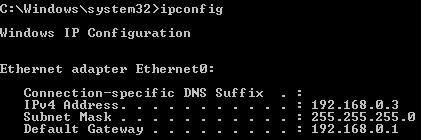
This misalignment of the network settings used by the machine being tested and the virtual lab vNIC configuration causes the error, "No destination network for IP address 192.168.0.3" to occur.
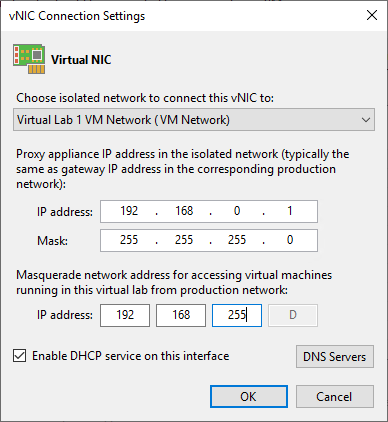
To corect this issue, the Virtual Lab's Virtual NIC must be reconfigured to use the correct IP address matching the Gateway IP the machine being tested is expecting and the same Subnet Mask. The masquerade IP does not need to changed, as it simply needs to be a subnet that is not presently used by any other subnet in the environment.
Therefore, the correct settings would be:
- IP address: 192.168.0.1
- Mask: 255.255.255.0
- Masquerade IP: 192.168.255.D
If this KB article did not resolve your issue or you need further assistance with Veeam software, please create a Veeam Support Case.
To submit feedback regarding this article, please click this link: Send Article Feedback
To report a typo on this page, highlight the typo with your mouse and press CTRL + Enter.
Spelling error in text

Thank you!
Your feedback has been received and will be reviewed.
Oops! Something went wrong.
Please, try again later.
You have selected too large block!
Please try select less.
KB Feedback/Suggestion
This form is only for KB Feedback/Suggestions, if you need help with the software open a support case
Thank you!
Your feedback has been received and will be reviewed.
Oops! Something went wrong.
Please, try again later.