- Veeam Support Knowledge Base
- How to Connect to an Object Storage Repository via AWS Privatelink / Direct Connect
How to Connect to an Object Storage Repository via AWS Privatelink / Direct Connect
| KB ID: | 4226 |
| Product: | Veeam Backup & Replication | 12 | 12.1 | 12.2 | 12.3 | 12.3.1 | 12.3.2 | 13 | 13.1 |
| Published: | 2021-10-17 |
| Last Modified: | 2026-08-04 |

Cheers for trusting us with the spot in your mailbox!
Now you’re less likely to miss what’s been brewing in our knowledge base with this weekly digest

Oops! Something went wrong.
Please, try again later.
Purpose
This article documents the configuration of Veeam Backup & Replication for using AWS PrivateLink or AWS Direct Connect. These services enable the following connections without the use of public endpoints:
- Scale-Out Backup Repository offload to Capacity Tier or Archive Tier
- Backup and Backup Copy jobs targeting an Object Storage Repository
- Backup to Veeam Data Cloud Vault (AWS edition)
The configuration described in this article is applied per AWS region and is not specific to a job type.
Solution
Prepare the AWS Environment
Note: Customers using Veeam Data Cloud Vault (AWS edition) must have their own AWS account, where they will configure the S3 Interface Endpoint through which Veeam Backup & Replication will route S3 traffic. They must also ensure that the AWS region of the S3 Interface Endpoint matches the AWS region used by their VDC Vault.
- (If using AWS Direct Connect, skip to step 2.)
For AWS PrivateLink, configure a VPN connection to the VPC where you plan to deploy the PrivateLink Endpoint. One way to do this is to create a tunnel on the VM gateway using AWS Client VPN. - Create Endpoints in VPC:
- Create an S3 Interface Endpoint in your VPC. It will be assigned a DNS name that you can see in the AWS Console under VPC - Endpoints when selecting the corresponding Endpoint.
- If you intend to use the Scale-Out Backup Repository Archive Tier, an EC2 Endpoint must also be created.
Prepare the Veeam Backup & Replication Environment
- Disable automatic updating of the AmazonS3Regions.xml file by configuring the following setting on the Veeam Backup Server.
This will prevent Veeam Backup & Replication from overwriting the changes you'll make in the next section of this guide.- For Windows-based Veeam Backup & Replication Deployment, add this registry value:
Value Name: CloudRegionsDisableUpdate
Key Location: HKLM\SOFTWARE\Veeam\Veeam Backup and Replication\
Value Type: DWORD (32-Bit) Value
Value Data: 1 - For Veeam Software Appliance (Veeam Backup & Replication on Linux), add this value to the configuration settings:
Configuration file: /etc/veeam/veeam_backup_and_replication.conf
Section: [root]
Setting: CloudRegionsDisableUpdate=1
For more information on applying custom settings on the Veeam Storage Appliance, please review KB4779.
- For Windows-based Veeam Backup & Replication Deployment, add this registry value:
The 'CloudRegionsDisableUpdate' registry value only disables Veeam Backup & Replication performing its daily check and update of the AmazonS3Regions.xml file.
This registry value does not prevent that file from being overwritten by an updated version of that file contained within and deployed by a product update.
You should keep a copy of your modified AmazonS3Regions.xml in a safe place so that you can restore it if a product update reverts the custom changes you make.
- Disable certificate revocation checks by creating the following setting on the machine that is assigned as the Gateway server within the Object Storage Repository settings:
- For Windows-based Gateway servers, add this registry value:
Key Location: HKLM\SOFTWARE\Veeam\Veeam Backup and Replication\
Value Name: ObjectStorageTlsRevocationCheck
Value Type: DWORD (32-Bit) Value
Value Data: 0 - For Veeam Infrastructure Appliance (JeOS) Gateways, add this value to the configuration settings:
Configuration file: /etc/veeam/veeam_backup_and_replication.conf
Section: [root]
Setting: ObjectStorageTlsRevocationCheck=0 - For Customer-deployed Linux-based Gateway servers, add this entry to the /etc/VeeamAgentConfigIf the /etc/VeeamAgentConfig file is not present, it must be created. file:
ObjectStorageTlsRevocationCheck=0
- For Windows-based Gateway servers, add this registry value:
- To configure the Helper Appliance used for Object Storage Repository Health Checks to use the private IP address, add the following setting on the Veeam Backup Server:
- For Windows-based Veeam Backup & Replication Deployment, add this registry value:
Key Location: HKLM\SOFTWARE\Veeam\Veeam Backup and Replication\
Value Name: ArchiveUsePrivateIpForAmazonHelperAppliance
Value Type: DWORD (32-Bit) Value
Value Data: 1 - For Veeam Software Appliance (Veeam Backup & Replication on Linux), add this value to the configuration settings:
Configuration file: /etc/veeam/veeam_backup_and_replication.conf
Section: [root]
Setting: ArchiveUsePrivateIpForAmazonHelperAppliance=1
- For Windows-based Veeam Backup & Replication Deployment, add this registry value:
- If you plan to use Amazon Glacier for the Archive Tier, review the following:
- Certificate revocation checks must be permitted. The Veeam Backup Server and the VPC where the Archiver Appliance is deployed must have access to the AWS certificate revocation lists over port 80 (*.amazontrust.com).
- The following additional setting values must be created on the Veeam Backup Server:
- For Windows-based Veeam Backup & Replication Deployment, add these registry values:
Key Location: HKLM\SOFTWARE\Veeam\Veeam Backup and Replication\
Value Name: ArchiveFreezingUsePrivateIpForAmazonAppliance
Value Type: DWORD (32-Bit) Value
Value Data: 1
Key Location: HKLM\SOFTWARE\Veeam\Veeam Backup and Replication\
Value Name: ArchiveFreezingSkipProxyValidation
Value Type: DWORD (32-Bit) Value
Value Data: 1 - For Veeam Software Appliance (Veeam Backup & Replication on Linux), add these values to the configuration settings:
Configuration file: /etc/veeam/veeam_backup_and_replication.conf
Section: [root]
Setting: ArchiveFreezingUsePrivateIpForAmazonAppliance=1
Configuration file: /etc/veeam/veeam_backup_and_replication.conf
Section: [root]
Setting: ArchiveFreezingSkipProxyValidation=1
- For Windows-based Veeam Backup & Replication Deployment, add these registry values:
Modify the AmazonS3Regions.xml File
The AmazonS3Regions.xml file contains a list of regions and their respective endpoints. Modifying a region's endpoints forces Veeam Backup & Replication to connect to a specific endpoint when that region is selected in the UI. This modification will cause all tasks that utilize the modified region use the customized S3 and EC2 endpoints.
Each AWS region entry supports only one endpoint configuration. Once a region is configured to use a private connection, public endpoints are no longer available for repositories in that region. Mixing public and private endpoint access for repositories in the same AWS region from a single Veeam Backup & Replication deployment is not supported.
- On the Veeam Backup Server, edit the AmazonS3Regions.xml file.
- For Windows-based Veeam Backup & Replication Deployments, this file can be found in:
C:\Program Files\Veeam\Backup and Replication\Backup\AmazonS3Regions.xml
- For Veeam Software Appliance (Veeam Backup & Replication on Linux), use the Files view to locate the file within:
Linux > This server > public_cloud > AmazonS3Regions.xml
- For Windows-based Veeam Backup & Replication Deployments, this file can be found in:
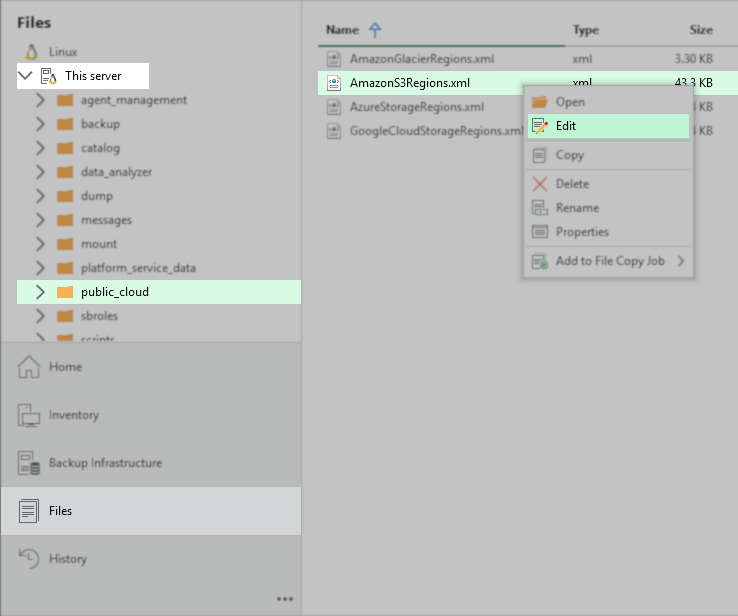
Note: Customers using Veeam Data Cloud Vault (AWS edition) must modify the Region entry in the AmazonS3Regions.xml file that corresponds to the AWS region of their VDC Vault.
- Find the Region with the "Region ID=" value that matches the actual AWS region of your S3 bucket. For example, if your VPC endpoint serves buckets in us-east-1, you must modify the us-east-1 entry. Using a mismatched Region ID will result in an AuthorizationHeaderMalformed error from AWS.
Example:
<Region Id="ap-northeast-1" Name="Asia Pacific (Tokyo)" Type="Global">
- Within that region's section, find the line <Endpoint Type="s3"> and replace the existing DNS value with the S3 Interface Endpoint DNS created in Prepare the AWS Environment > Step 2.
Note: In S3, the AWS console displays a DNS value that starts with an asterisk. When altering the AmazonS3Regions file, replace that asterisk with the word bucket.
Example:
<Endpoint Type="S3">s3-ap-northeast-1.amazonaws.com</Endpoint>
Is changed to:
<Endpoint Type="S3">bucket.vpce-00000000000000000-00000000.s3.ap-northeast-1.vpce.amazonaws.com</Endpoint>
- If multiple lines for <Endpoint Type="S3"> are in the Region section you are altering, remove all but the one you changed.
Example:
<Region Id="ap-northeast-1" Name="Asia Pacific (Tokyo)" Type="Global">
<Endpoint Type="S3">bucket.vpce-00000000000000000-00000000.s3.ap-northeast-1.vpce.amazonaws.com</Endpoint>
<Endpoint Type="S3">s3.dualstack.ap-northeast-1.amazonaws.com</Endpoint> - If you plan to use Archive Tier: Within the same Region section, find the line <Endpoint Type="EC2"> and replace the existing DNS value with the EC2 Endpoint DNS created in Step 2.
Example:
<Endpoint Type="EC2">ec2.ap-northeast-1.amazonaws.com</Endpoint>
Is changed to:
<Endpoint Type="EC2">vpce-00000000000000000-00000000.ec2.ap-northeast-1.vpce.amazonaws.com</Endpoint>
- Save the file.
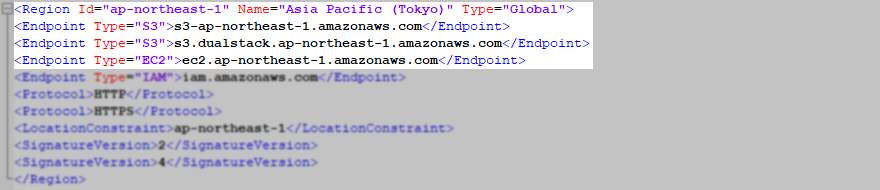
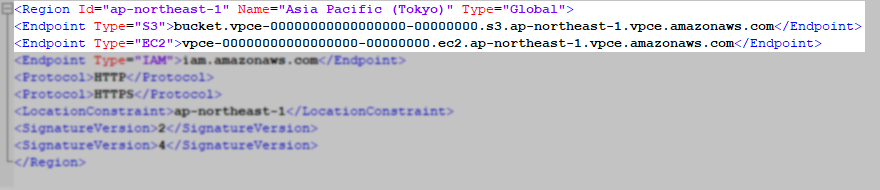
- Stop all tasks within Veeam Backup & Replication and restart the Veeam Backup Service to apply all changes.
For Veeam Software Appliance, log in to the Veeam Host Management Console to manage the services.
Add Object Storage Repository
Now that the AmazonS3Regions.xml file has been modified, when you select the entry you changed within Veeam Backup & Replication, the software will connect to the specified endpoints.
- For Object Storage Repository, Add Amazon S3 Storage repository. On the Bucket tab of the wizard, select the Region that matches the Region name you modified in the AmazonS3Regions.xml file.
- For Capacity Tier, Add Amazon S3 Storage repository. On the Bucket tab of the wizard, select the Region that matches the Region name you modified in the AmazonS3Regions.xml file. Then add Capacity Tier to Scale-Out Backup Repository
- For Archive Tier, Add Amazon S3 Glacier Storage repository. On the Bucket tab of the wizard, select the Data center that matches the Region name you modified in the AmazonS3Regions.xml file. Then, add Archive Tier to the Scale-Out Backup Repository.
More Information
Related Articles:
If this KB article did not resolve your issue or you need further assistance with Veeam software, please create a Veeam Support Case.
To submit feedback regarding this article, please click this link: Send Article Feedback
To report a typo on this page, highlight the typo with your mouse and press CTRL + Enter.
Spelling error in text

Thank you!
Your feedback has been received and will be reviewed.
Oops! Something went wrong.
Please, try again later.
You have selected too large block!
Please try select less.
KB Feedback/Suggestion
This form is only for KB Feedback/Suggestions, if you need help with the software open a support case
Thank you!
Your feedback has been received and will be reviewed.
Oops! Something went wrong.
Please, try again later.