- Veeam Support Knowledge Base
- How to Reset Worker Root Password
How to Reset Worker Root Password
| KB ID: | 4271 |
| Product: | Veeam Backup & Replication | 13 | 13.1 |
| Published: | 2022-01-07 |
| Last Modified: | 2026-11-11 |

Cheers for trusting us with the spot in your mailbox!
Now you’re less likely to miss what’s been brewing in our knowledge base with this weekly digest

Oops! Something went wrong.
Please, try again later.
Purpose
This article documents how to set or reset the password for the root account on a Veeam Worker appliance. The Worker is a Rocky Linux-based virtual machine deployed as a backup infrastructure component by the following Veeam Plug-ins:
- Veeam Plug-in for Nutanix AHV
- Veeam Plug-in for Proxmox VE
- Veeam Plug-in for HPE Morpheus VM Essentials
- Veeam Plug-in for oVirt KVM
- Veeam Plug-in for Scale Computing HyperCore
- Veeam Plug-in for Xen (XenServer and XCP-ng)
- Veeam Plug-in for Sangfor aSV
- Veeam Plug-in for Universal Hypervisor API
Setting the root password allows local login at the Worker's console to run commands for troubleshooting, either independently or when working with a Veeam Support engineer. On Workers deployed with Veeam Backup & Replication 13.1 and later, a temporary administrative account is created for the same purpose.
Solution
Select the procedure for your Worker version:
Ensure that no backup or restore jobs using this Worker are running before beginning.
Workers in 13.1 and Later
Starting with Veeam Backup & Replication 13.1, Worker appliances use a password-protected bootloader and SELinux, so the root password cannot be set using the procedure for earlier Workers. A temporary administrative account is created instead.
The bootloader credentials below only protect changes to the GRUB configuration. They are not the credentials of the root account. A Worker does not retain persistent data, so a Worker can be deleted and redeployed without losing important data.
- Open the console for the Worker VM via your virtualization platform's management interface, then reboot the appliance.
- When the GRUB menu appears during boot, select the top entry and press the e key to edit the boot parameters.
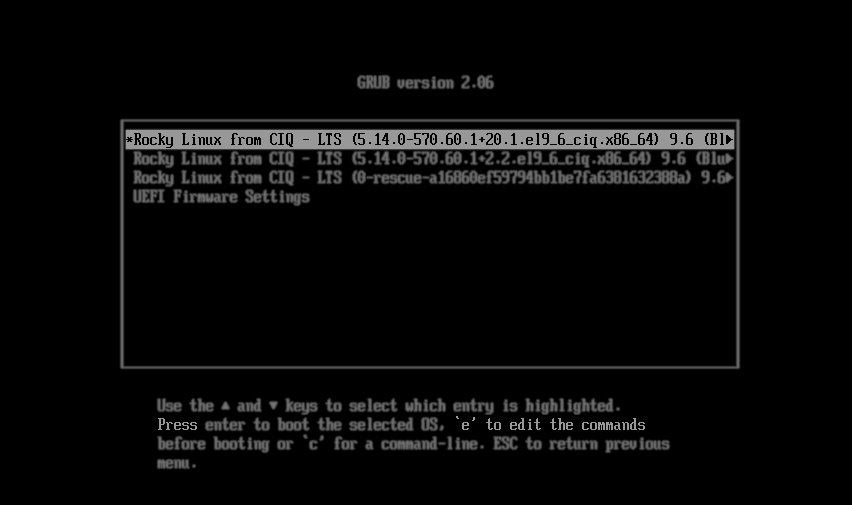
- When prompted, enter the following bootloader credentials:
- Username:
veeamadmin - Password:
Veeam123qweASD!
- Username:
- Find the line that starts with linux, press the End key to jump to the end of this line, and add: rd.break
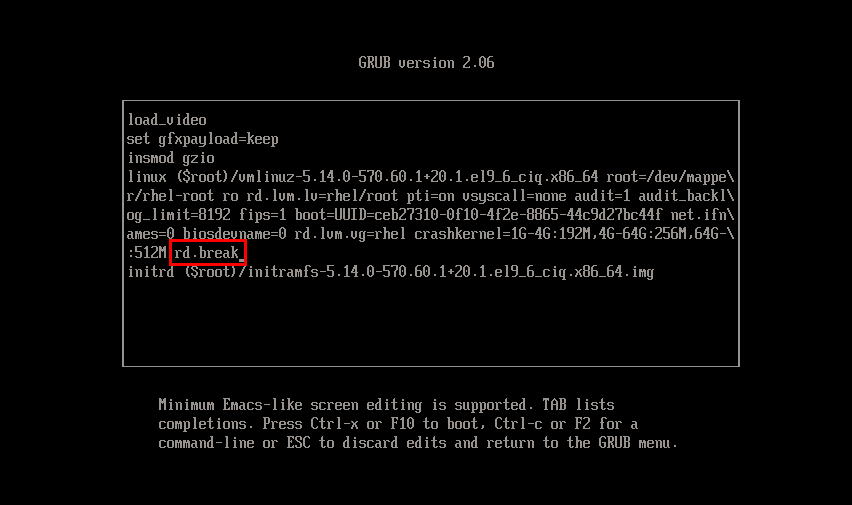
- Press CTRL+X to boot with the modified parameters.
- The VM will now boot and enter emergency mode. Execute the following commands in the provided order to mount the required file systems and chroot into the system:
mount -o remount,rw /sysrootchroot /sysrootmount -t proc proc /procmount -t sysfs sys /sysmount -t devtmpfs dev /devmount -a- Create a temporary administrative account and add it to the wheel group. When prompted, enter a password that meets the same complexity requirements as the Veeam Software Appliance Host Administrator account:
adduser workeruserpasswd workeruserusermod -aG wheel workeruser- Configure sudo for the account to use the unconfined SELinux role and type. Ensure that the command ends with two double quotes and uses two > characters:
echo "alias sudo=\"sudo -r unconfined_r -t unconfined_t\"" >> /home/workeruser/.bashrc- Add the account to the SELinux user mapping. Ensure that the command uses two > characters:
echo 'workeruser:staff_u:s0-s0:c0.c1023' >> /etc/selinux/targeted/seusers- Configure SELinux to relabel the file system on the next boot:
touch /.autorelabel- Exit the chroot environment, and then exit the emergency shell to continue booting the Worker:
exitexitA Worker modified using this procedure must be removed once troubleshooting is complete. After the Worker is removed, a new Worker is deployed automatically when the next backup or restore session starts. For instructions, see Removing Workers in the User Guide for:
Workers Before 13.1
- Open the console of the Worker VM through your virtualization platform's management interface, and reboot the appliance.
- As the VM boots, hold [Shift] or tap [ESC] to open the GRUB menu.
- When the GRUB menu appears, select the top entry and press the e key to edit the boot parameters.
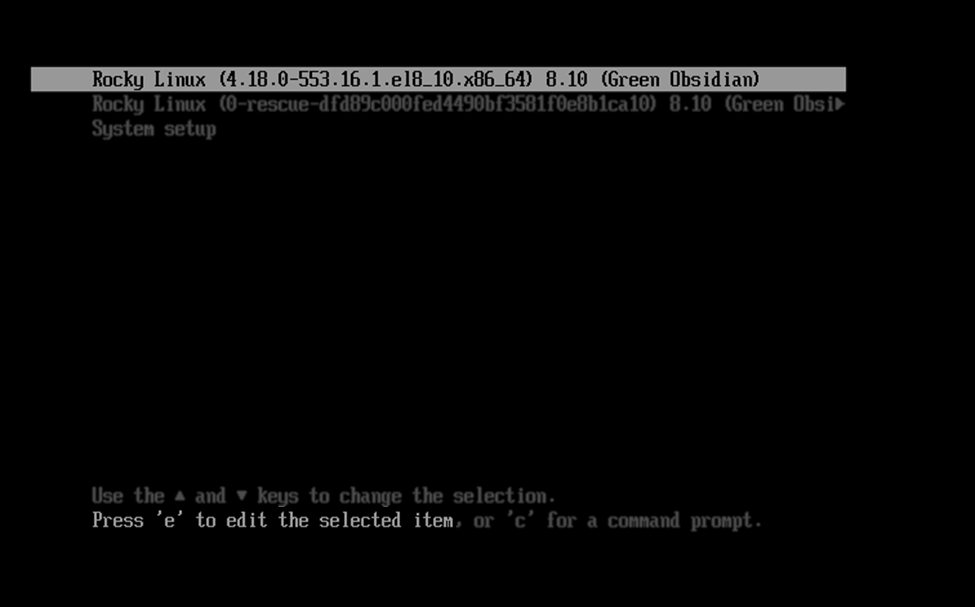
- Find the line that starts with linux
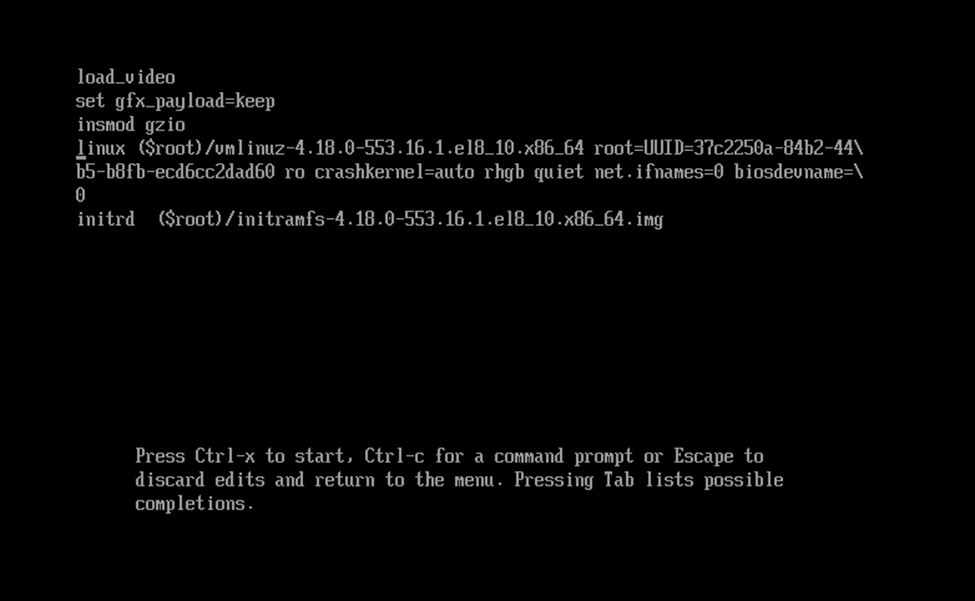
- Press the End key on your keyboard to jump to the end of this line.
- At the end of the line, add: rd.break
- Press CTRL+X to boot with the modified parameters.
- The VM will now boot and enter emergency mode.
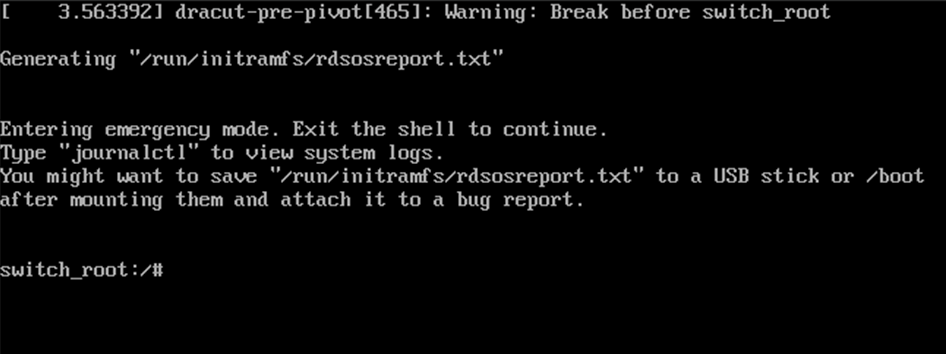
- Use the following commands to mount the system, chroot into it, and reset the password for the root account:
mount -o remount,rw /sysrootchroot /sysrootpasswd rootexit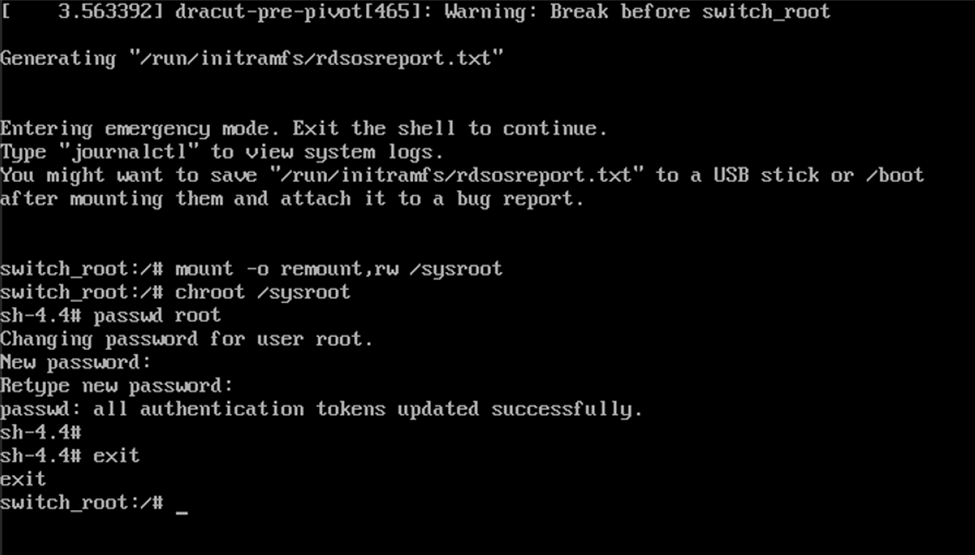
- Once the password is updated successfully, reboot the Worker appliance.
rebootIf this KB article did not resolve your issue or you need further assistance with Veeam software, please create a Veeam Support Case.
To submit feedback regarding this article, please click this link: Send Article Feedback
To report a typo on this page, highlight the typo with your mouse and press CTRL + Enter.
