How to Reinstall the Veeam Transport Service on a Linux Server
| KB ID: | 4298 |
| Product: | Veeam Backup & Replication | 11 | 12 | 12.1 | 12.2 | 12.3 | 12.3.1 | 12.3.2 | 13 | 13.1 |
| Published: | 2022-04-07 |
| Last Modified: | 2026-08-19 |


The steps outlined in this article are used as a troubleshooting step when an issue occurs with a Customer-deployed Linux server, and the Veeam Transport service needs to be manually reinstalled.
When phasing out a Linux server, these steps are not necessary; In such a scenario, simply removing the Linux server from Veeam Backup & Replication will cause the Veeam Transport Service to be uninstalled from the Linux server.
Purpose
Solution
The uninstall procedure will cause all Veeam Backup & Replication tasks currently utilizing the Linux server to fail. As such, it is highly recommended to ensure that either no tasks are occurring within Veeam Backup & Replication or that the Linux server is not currently being used by Veeam Backup & Replication.
Generally speaking, if the Linux server is being used by a Veeam Backup & Replication task, there will be a 'veeamagent' process active. Use the following command to check for active 'veeamagent' processes:
ps -e | grep veeamagent
Uninstall Veeam Transport Service
The following commands are to be executed on the Linux server.
Expand the section that aligns with the version of Veeam Backup & Replication that deployed the transport service on the Linux server.
Starting with Veeam Backup & Replication (VBR) v12.1.2, the VDDK libraries are deployed as a separate package from veeamtransport. This change ensures that the VDDK libraries are only installed on managed servers that need to interact directly with VMware ESXi.
On Linux-based VMware Backup Proxies, if the veeamtransport package is removed, the VDDK libraries (vmware-vddk) will be removed as well due to their dependency on the veeamtransport package.
You can force VBR to check for and deploy the vmware-vddk package by editing the proxy entry under Backup Proxies in the Backup Infrastructure view and then proceed through the wizard steps.
Redeploy Veeam Transport Service to Linux Server
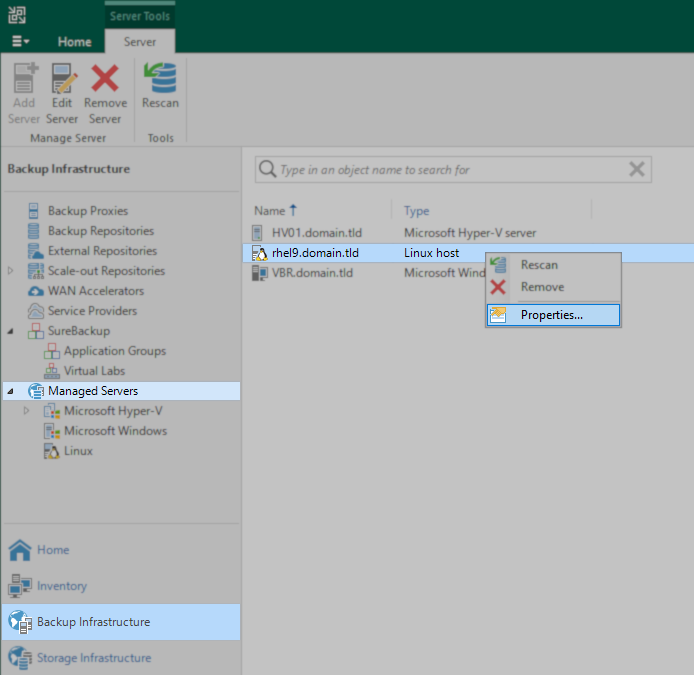
- Open the Veeam Backup & Replication Console.
- Within the view selector in the bottom-left corner, select Backup Infrastructure.
- Within the tree in the Backup Infrastructure navigation pane, select Managed Servers.
- Within the working area, identify and edit the entry for the Linux server.
- In the Edit Linux Server wizard, click the Finish button.
Veeam Backup & Replication will notice that the Veeam Transport service is missing and redeploy the Veeam Data Mover.
More Information
If this KB article did not resolve your issue or you need further assistance with Veeam software, please create a Veeam Support Case.
To submit feedback regarding this article, please click this link: Send Article Feedback
To report a typo on this page, highlight the typo with your mouse and press CTRL + Enter.
Spelling error in text

KB Feedback/Suggestion
This form is only for KB Feedback/Suggestions, if you need help with the software open a support case