"Database connection settings for the Microsoft Entra ID backup repository cannot be found."
| KB ID: | 4653 |
| Product: | Veeam Backup & Replication | 12.3 |
| Published: | 2024-12-03 |
| Last Modified: | 2024-12-16 |


If you are encountering this error after recently upgrading to Veeam Backup & Replication 12.3, and that upgrade failed on the first attempt, and you attempted the upgrade a second time, please review the section discussing "For Customers Who Ran the Upgrade a Second Time and It Succeeded" on KB4698.
As described below, if the Veeam Backup & Replication installer detects that during the upgrade Veeam Backup & Replication is not storing its configuration database on a local PostgreSQL instance, the installer will attempt to install PostgreSQL. The installer's attempted deployment of PostgreSQL can fail if the Windows Script Host is disabled. This is what can cause the initial failure described in KB4698.
Challenge
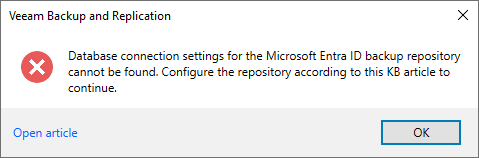
When attempting to add a Microsoft Entra ID Tenant to Veeam Backup & Replication a pop-up error is shown:
Database connection settings for the Microsoft Entra ID backup repository
cannot be found. Configure the repository according to this KB article to
continue.
Cause
Solution
Overview
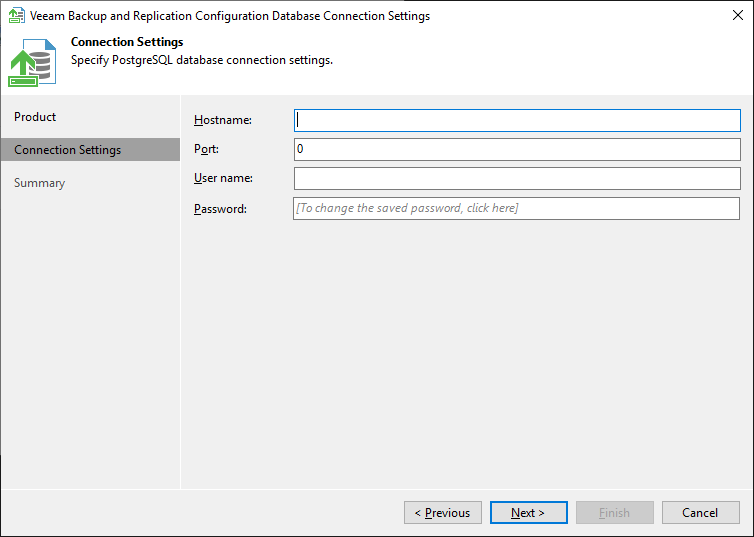
To resolve this issue, you must ensure that a valid PostgreSQL instance is specified within the database connection settings for the Microsoft Entra ID backup repository.
Possible Solutions
As explained in the cause section, this issue occurs when there is an existing PostgreSQL 15 instance on the Veeam Backup Server that is not being used to host the Veeam Backup & Replication Configuration Database. The most common resolution options are presented below:
- If the existing PostgreSQL 15 instance on the machine is not in use by any non-Veeam software, you may configure the Microsoft Entra ID backup repository to use the existing local PostgreSQL instance.
- If Veeam Backup & Replication is configured to use a dedicated remote PostgreSQL instance, consider configuring the Microsoft Entra ID backup repository to use the same remote PostgreSQL instance.
- If no existing PostgreSQL instance is available to be dedicated to acting as the Microsoft Entra ID backup repository, you are advised to create a dedicated PostgreSQL 15 instance on a remote machine to act as the Microsoft Entra ID backup repository.
Note: When deploying a new PostgreSQL instance, follow the instructions in the user guide to adjust the PostgreSQL instance configuration.
Limitations and Considerations of Changing Connection Settings
- When you launch the Configuration Database Connection Settings utility, ensure that you select the Microsoft Entra ID backup repository option. Don't accidentally reconfigure Veeam Backup & Replication or Veeam Backup Enterprise Manager.
- Microsoft Entra ID backup repository connection settings are only validated when the Backup Job runs.
- After changing the Microsoft Entra ID backup repository connection settings, the Veeam Backup & Replication Console must be restarted.
- Critical: The Veeam Backup for Entra ID backup jobs utilizes the PostgreSQL-based Microsoft Entra ID backup repository to store backup data. If the Microsoft Entra ID backup repository connection settings are changed after successful Entra ID backups have been created, access to that previous backup data will be impacted.
More Information
The installer logic of whether to configure the Microsoft Entra ID backup repository is as follows:
For a New Veeam Backup & Replication Deployment
Is there an existing PostgreSQL 15 instance present on the machine?
- No — Deploy a new PostgreSQL 15 instance and configure Veeam Backup & Replication and the Microsoft Entra ID backup repository to use it.
- Yes — Switch the installer to advanced mode and prompt the user to specify PostgreSQL connection information.
- If the user provides connection details for the existing local PostgreSQL instance, configure Veeam Backup & Replication and the Microsoft Entra ID backup repository to use it.
- If the user does not provide credentials to connect to the existing local PostgreSQL instance and instead provides connection details for a local Microsoft SQL Server instance or a remote PostgreSQL or Microsoft SQL Server instance, configure VBR to use that instance but leave the Microsoft Entra ID backup repository settings blank.
For Veeam Backup & Replication Upgrades from a Previous Version
Is there an existing PostgreSQL 15 instance present on the machine?
- No — This means the current Veeam Backup & Replication deployment is storing its configuration database in either a local Microsoft SQL Server instanceThis is likely the case for most Veeam Backup & Replication deployment that were first deployed prior to version 12.0. or a remote PostgreSQL or Microsoft SQL Server instance. In that case, deploy a new local PostgreSQL 15 instance and configure the Microsoft Entra ID backup repository to use it.
- Yes — Is Veeam Backup & Replication configured to store its configuration database in that local PostgreSQL instance?
- Yes — Use the known connection details to configure the Microsoft Entra ID backup repository to also use it.
- No — Assume the existing local PostgreSQL instance was not created by Veeam and leave the Microsoft Entra ID backup repository settings blank.
If this KB article did not resolve your issue or you need further assistance with Veeam software, please create a Veeam Support Case.
To submit feedback regarding this article, please click this link: Send Article Feedback
To report a typo on this page, highlight the typo with your mouse and press CTRL + Enter.
Spelling error in text

KB Feedback/Suggestion
This form is only for KB Feedback/Suggestions, if you need help with the software open a support case