#1 Global Leader in Data Resilience

How to use Veeam Live OS ISO

KB ID: 4761
Product: Veeam Backup & Replication | 13
Published: 2025-09-03
Last Modified: 2025-11-19
mailbox
Get weekly article updates
By subscribing, you are agreeing to have your personal information managed in accordance with the terms of Veeam's Privacy Notice.

Cheers for trusting us with the spot in your mailbox!

Now you’re less likely to miss what’s been brewing in our knowledge base with this weekly digest

error icon

Oops! Something went wrong.

Please, try again later.

Purpose

This article documents utilizing the Veeam Live OS ISO to gain local root access to the Veeam Backup & Replication Veeam Software Appliance when the Host Management Console is unavailable or inaccessible.

Solution

Downloading Veeam Live OS ISO

Download VeeamLIVE ISO

Release date: 2025-11-19

MD5: 4942A657705C4B57E73A24845A65CC84
SHA1: 9D9DC45CE5A0A1492726620B2FCF642CC78B4386

Booting Veeam LiveOS ISO

If the Host Manager is unavailable and you require root access to the Veeam Software Appliance OS, you can regain access to the system using Veeam LiveOS as a last resort.

  1. Mount the Veeam LiveOS ISO to the Veeam Software Appliance machine.
  2. Reboot the machine and boot from the ISO.
  3. Start the Veeam Live Environment.
  4. Log in with the following credentials:
    • Username: root
    • Password: veeam
    After successfully logging in, you'll be asked to set a new root password for the booted live environment.

Useful Commands in Veeam Live Environment

  • To start the SSH server, execute the following command:

    Note: This is optional and only needed if access to the Veeam Live Environment via SSH from a remote system is desired.
systemctl start sshd
  • To mount the Veeam Software Appliance filesystem for access in the Veeam Live environment, execute the following command:
veeam_mount_system
  • To chroot into the mounted Veeam Software Appliance filesystem, execute the following command:

    Note: The filesystem must be mounted using veeam_mount_system first!
veeam_chroot_system

Common Veeam Live Environment Tasks

Dump Appliance Hardware Configuration Information
To dump hardware information to /tmp/hardware.txt, run the following command:
veeam_hw_collect
Unlock User Account

If any Host Admin account is still accessible, other user accounts can be unlocked using the Veeam Host Management Console.

The instructions provided in this article are intended to be used if no other Host Admin account is available.

  1. Boot into the Veeam Live Environment.
  2. Mount the Veeam Software Appliance filesystem.
  3. Chroot into the mount Veeam Software Appliance filesystem.
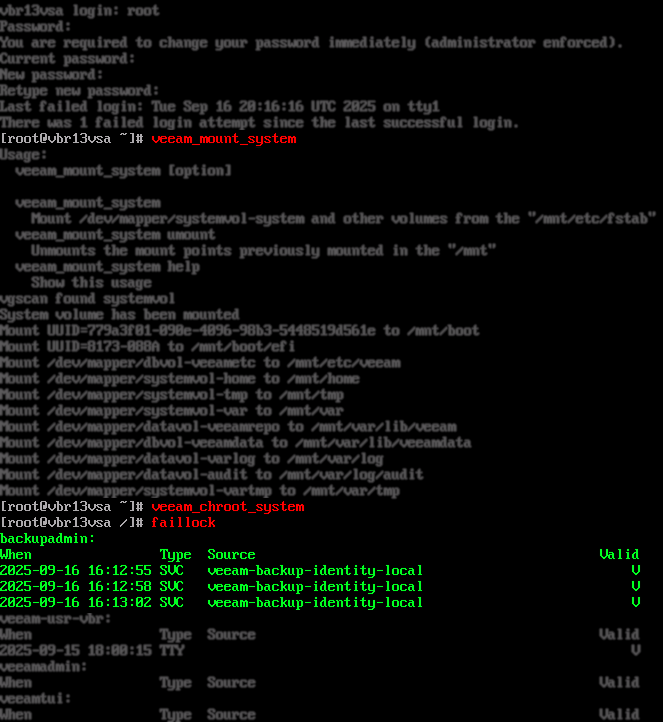
  4. To review which accounts are impacted by faillock, execute the following command:
faillock
Linux terminal window showing login as root, password change prompt, use of veeam_mount_system and veeam_chroot_system commands, and the output of the faillock command listing recent failed logins by the user "backupadmin".
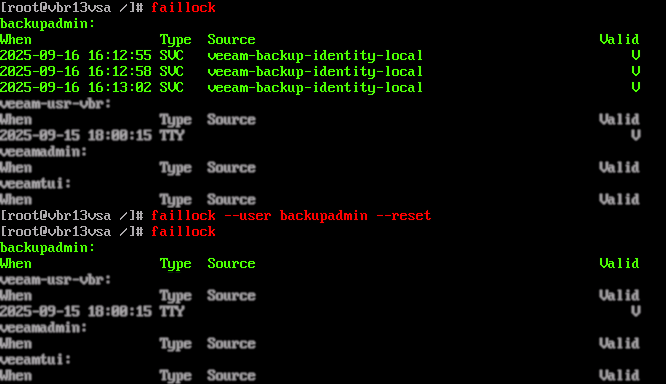
  1. To reset faillock status for an account, execute the following command specifying the account that is locked:
faillock --user <username> --reset
Linux terminal showing the faillock command output for user "backupadmin" with 3 failed logins, followed by the command faillock --user backupadmin --reset, and then faillock showing no recent login records for "backupadmin."
  1. With the user account now unlocked, exit the chroot and reboot the system into the Veeam Software Appliance OS.
Change User Password

If any other Host Admin account is still accessible, other user account passwords can be reset using the Veeam Host Management Console. The instructions provided in this article are intended to be used if no other Host Admin account is available.

Using the LiveCD, the password for any local account can be reset. However, this does not reset MFA. MFA can only be reset using the Host Management Console while logged in as a Host Administrator account. MFA for the veeamadmin account can only be reset using the LiveCD with direct assistance from Veeam support.

MFA for the Veeam Security Officer account can only be reset using the recovery token. If MFA access is lost to the Veeam Security Officer account, and the recovery token is also lost, it is not possible to recover the Veeam Security Officer account, and access may be lost permanently.

  1. Boot into the Veeam Live Environment.
  2. Mount the Veeam Software Appliance filesystem.
  3. Chroot into the mount Veeam Software Appliance filesystem.
  4. To update the password for an account, execute the following command specifying the account:
passwd <username>
Linux terminal window showing password reset for an account named backupadmin using the command passwd backupadmin.
  1. With the user account password update, exit the chroot and reboot the system into the Veeam Software Appliance OS.

If this KB article did not resolve your issue or you need further assistance with Veeam software, please create a Veeam Support Case.

To submit feedback regarding this article, please click this link: Send Article Feedback
To report a typo on this page, highlight the typo with your mouse and press CTRL + Enter.

Spelling error in text

Thank you!

Thank you!

Your feedback has been received and will be reviewed.

Oops! Something went wrong.

Please, try again later.

You have selected too large block!

Please try select less.

KB Feedback/Suggestion

This form is only for KB Feedback/Suggestions, if you need help with the software open a support case

By submitting, you are agreeing to have your personal information managed in accordance with the terms of Veeam's Privacy Notice.
Verify your email to continue your product download
We've sent a verification code to:
  • Incorrect verification code. Please try again.
An email with a verification code was just sent to
Didn't receive the code? Click to resend in sec
Didn't receive the code? Click to resend
Thank you!

Thank you!

Your feedback has been received and will be reviewed.

error icon

Oops! Something went wrong.

Please, try again later.