How-to Restore Lost Access to Cache Database After Using Custom SSL Certificate
| KB ID: | 4804 |
| Product: | Veeam ONE | 13 |
| Published: | 2025-12-15 |
| Last Modified: | 2026-03-04 |


This article is relevant only if the Veeam ONE deployment uses a custom SSL certificate, and not the one generated by the Veeam ONE installer.
The error shown in the challenge section can also occur if the Veeam ONE Caching Service cannot access the PostgreSQL instance that hosts the Cache Database. For more information on that issue, please review KB4829.
Challenge
When a custom SSL certificate (not generated by Veeam ONE) is installed and configured in both Veeam ONE Server Settings and IIS, an issue may be encountered with the new Veeam Caching Service introduced in Veeam ONE v13.
In the Veeam ONE Web Client, under Configuration > Database > Reporting database, the following error may be displayed:
Veeam.Reporter.CachingService.Collector.Auxiliary.ReporterStateProvider not initialized. Status: 500
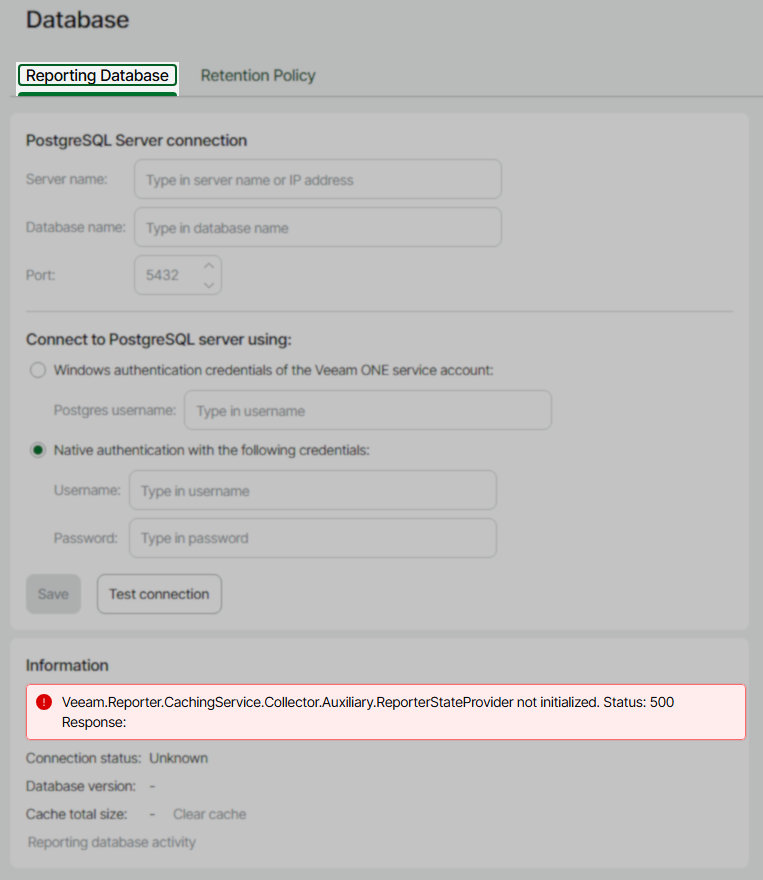
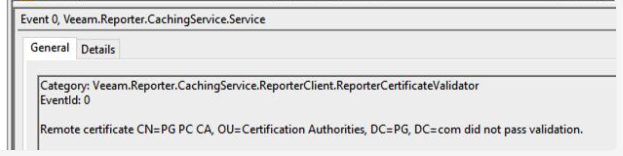
When this occurs, an error within Windows Event Logs will occur:
Event 0, Veeam.Reporter.CachingService.Service
Category: Veeam.Reporter.CachingService.ReporterClient.ReporterCertificateValidator
EventId: 0
Remote certificate CN=PG PC CA, OU=Certification Authorities, DC=PG, DC=com did not pass validation.
Solution
To resolve this issue:
- Navigate to:
C:\Program Files\Veeam\Veeam ONE\Veeam ONE Caching Server\ - Locate the file named
appsettings.overrides.jsonand make a copy in case it needs to be reverted. - Open
appsettings.overrides.jsonin a simple text editor (e.g., Notepad, Notepad++, Sublime Text). - Identify the
CertificateThumbprintvalue underAuthorization > RegisteredReporters.
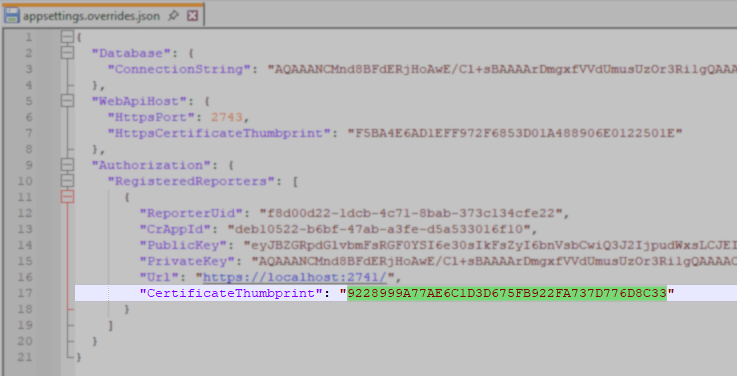
- Update the
CertificateThumbprintto match the thumbprint from the new SSL certificate you installed on Veeam ONE Web Client and IIS.
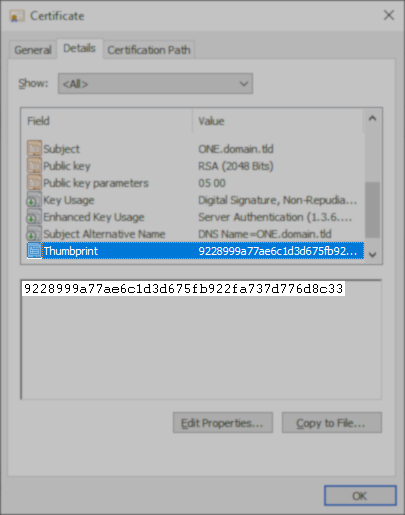
- Save the
appsettings.overrides.jsonfile. - Restart the Veeam ONE Caching Service service and the Veeam ONE Reporting Service service.
If this KB article did not resolve your issue or you need further assistance with Veeam software, please create a Veeam Support Case.
To submit feedback regarding this article, please click this link: Send Article Feedback
To report a typo on this page, highlight the typo with your mouse and press CTRL + Enter.
Spelling error in text

KB Feedback/Suggestion
This form is only for KB Feedback/Suggestions, if you need help with the software open a support case