- Veeam Support Knowledge Base
- All Aliases Have Failed
All Aliases Have Failed
| KB ID: | 2560 |
| Product: | Veeam Cloud Connect | 12 | 12.2 | 12.3 |
| Published: | 2018-03-30 |
| Last Modified: | 2025-10-01 |

Cheers for trusting us with the spot in your mailbox!
Now you’re less likely to miss what’s been brewing in our knowledge base with this weekly digest

Oops! Something went wrong.
Please, try again later.
Challenge
A Tenant's Backup Job or Backup Copy Job targeting a Cloud Repository fails with the following message:
Target gate has rejected connection. Unable to establish target connection. All aliases have failed.
The wording of the error might differ, but the root error "All Aliases Have Failed" will be the same.
Cause
Connectivity Reference Diagram
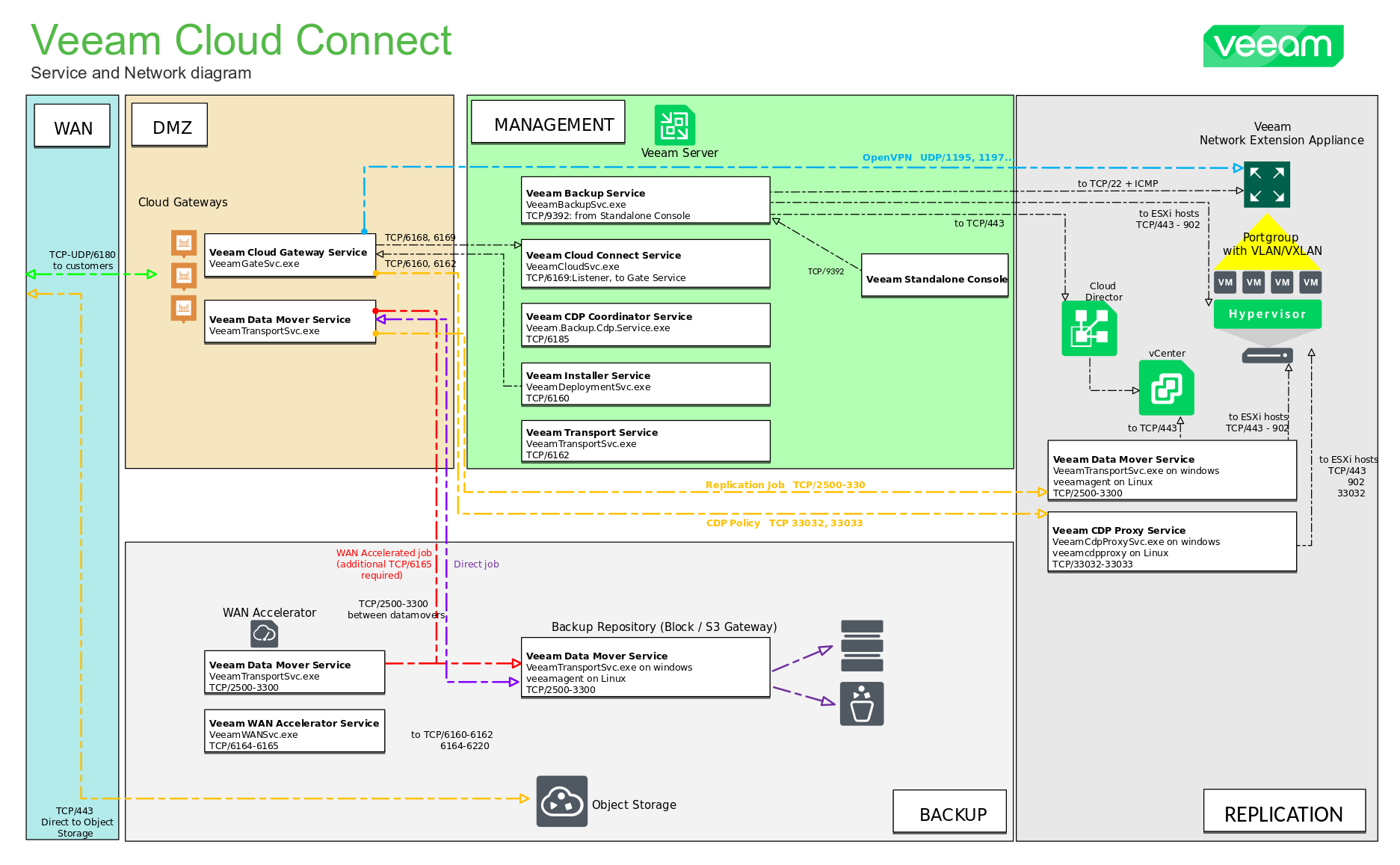
More information can be found in Reference Architecture, Cloud Gateways Settings, and Used Ports.
Troubleshooting involves a connectivity check between different components:
- Tenant and Veeam Cloud Connect Gateway.
- Cloud Connect Gateway and Cloud Connect Repository.
- Main Cloud Connect server and Cloud Connect Repository.
Solution
Basic Troubleshooting Steps
- Reapply the certificate on the Veeam Cloud Connect side.
This action will restart specific Veeam services and reinitialize OS-level endpoints involved in certificate processing, which may help restore communication between components and resolve the connection error. - Check firewall and antivirus exclusions.
Ensure Veeam infrastructure components are not being blocked by firewalls or antivirus software. Both the tenant and service provider sides must be properly configured. - Test throttling configuration.
Check whether throttling is currently enabled for the tenant. The goal is to test whether changing this setting has any effect on the connection issue.- If it is disabled, try enabling it and then running the job.
- If it is enabled, try disabling it and running the job again.
Advanced Troubleshooting Steps
If the basic checks do not resolve the issue, more in-depth troubleshooting is required.
Collect Environmental Information
To ensure that the environment is configured in accordance with the Veeam User Guide, it's important to gather the following information before proceeding. This will help you navigate between components and run connectivity or configuration tests more effectively.
Please collect the following data:
- From the Cloud Connect Server
- Hostname
- Internal IP address(es)
- From each Cloud Gateway
- Hostname
- FQDN (Fully Qualified Domain Name)
- External IP address(es)
- Internal IP address(es)
- From each Cloud Connect Repository(ies)
- Hostname
- Internal IP address(es)
- From each Cloud Connect Gateway Pool: (If configured)
including Gateways present in the pools- Gateway Pool settings: Select Cloud Gateways
- Gateway Pool tenant assignment: Assigning Pools to Tenants
It is recommended to create a table listing each component’s role (e.g., Gateway, Repository, Server) along with its hostname, FQDN, internal IP address, and external IP address. This will make it easier to identify mismatches, validate configurations, and troubleshoot connectivity issues.
Example Environmental Layout Table
| Component | Hostname | FQDN | Internal IP | External IP |
| Veeam Cloud Connect | vcc.cloud.local | — | 10.10.10.10 192.168.24.5 |
— |
| Cloud Gateway 1 | gw1.cloud.local | cgw1.mycloudorg.com | 10.120.11.20 | 203.0.113.21 |
| Cloud Gateway 2 | gw2.cloud.local | cgw2.mycloudorg.com | 10.120.11.30 | 198.51.100.22 |
| Cloud Repository | repo5.cloud.local | — | 10.20.1.55 | — |
| Tenant VBR Server | vbr.prem.local | — | 192.168.60.10 | — |
| Tenant Repository | repo1.prem.local | — | 192.168.60.11 | — |
Executing Tests
The following tests should be performed to help isolate communication issues between Veeam components. If any of these tests fail, it may indicate a communication problem between components, possibly due to the environment they are running in. In such cases, the issue should be escalated to your system or network administrator for further investigation.
Test 1: Connection from Cloud Gateways to Cloud Connect Server
On each Cloud Gateway, run the following PowerShell command to test connectivity to the Cloud Connect server:
Note: Replace <VCC_server_hostname> with the actual hostname of your Cloud Connect Service.
Test-NetConnection <VCC_server_hostname> -Port 6169Test 2: Connection from Cloud Connect Server to each Cloud Gateway
On the Cloud Connect server, run the following PowerShell commands to test connectivity to each Cloud Gateway:
Note: Replace <CGW_server_hostname> with the actual hostnames or IP addresses of each Cloud Gateway.
Test-NetConnection <CGW_server_hostname> -Port 6168Test 3: Connection from Cloud Gateway to Cloud Repository
- On the Cloud Repository server, manually start the Veeam Agent by running the following executable:
- Windows Repository:
C:\Program Files (x86)\Veeam\Backup Transport\x64\VeeamAgent.exe
- Windows Repository:
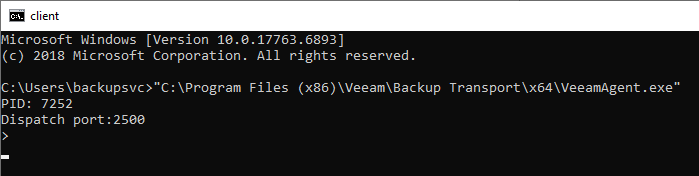
- Linux Repository:
/opt/veeam/transport/veeamagent
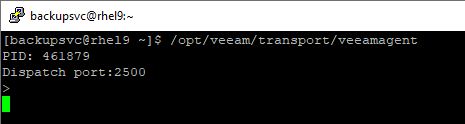
- SMB/NFS Repository — Check the repository settings:
- If the Gateway server on the Share tab is set to a specific server, test from that server using the commands above, depending on whether the dedicated Share Gateway is running Windows or Linux.
- If the Gateway server setting on the Share tab is set to Automatic, we recommend temporarily assigning a dedicated Gateway server to make testing easier (remember to return it to Automatic after testing).
- After running the
VeeamAgent.exeorveeamagentexecutable, the process will start and display a Dispatch port. Take note of the Dispatch port; you'll need that for testing in the next step. - On each Cloud Gateway server, run the following PowerShell command to test connectivity to the repository using the noted dispatch port:
Test-NetConnection <VCC_repo_server_hostname> -Port <Dispatch_port>- When connection testing to the repository is complete, terminate the agent started in Step 1 by passing the command "exit" to close.
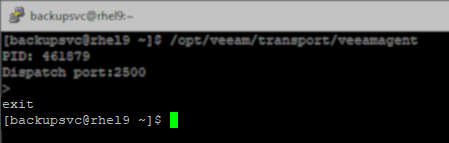
Test 4: Connection from Tenant Site to Service Provider's Cloud Gateways
The tests in this section should be run from the tenant's Veeam Backup Server and any associated Proxy or Repository servers that send data off-site to the Service Provider.
This tests:
- Can the Tenant's DNS resolve the Service Provider's Cloud Gateway's FQDN to the correct IP?
- Can the Tenant's DNS resolve the Service Provider's Cloud Gateway's IP to the correct FQDN?
- Can the Tenant's Veeam Backup Server, Proxies, and Repositories reach the Service Provider's Cloud Gateway?
nslookup <CGW_FQDN>
nslookup <CGW_External_IP_address>
Test-NetConnection <CGW_FQDN> -Port 6180Test 5: Test if the Tenant can pull the Service Provider's Certificate
- Verify Service Provider TLS Certificate from Tenant’s Veeam Backup & Replication Console: VBR Connecting to Service Provider.
- Verify Service Provider TLS Certificate on proxy or repository servers of the Tenant using the following Veeam-approved script:
https://github.com/VeeamHub/powershell/tree/master/BR-GetVccCertificate
Involving Veeam Technical Support
If the steps above did not resolve the issue, or if you need further clarification from a support engineer, please contact Veeam technical support and provide the following:
- A complete set of log files from both the Tenant and Service Provider sides: KB2096
- A list of conducted steps you have performed, along with the results.
If this KB article did not resolve your issue or you need further assistance with Veeam software, please create a Veeam Support Case.
To submit feedback regarding this article, please click this link: Send Article Feedback
To report a typo on this page, highlight the typo with your mouse and press CTRL + Enter.
Spelling error in text

Thank you!
Your feedback has been received and will be reviewed.
Oops! Something went wrong.
Please, try again later.
You have selected too large block!
Please try select less.
KB Feedback/Suggestion
This form is only for KB Feedback/Suggestions, if you need help with the software open a support case
Thank you!
Your feedback has been received and will be reviewed.
Oops! Something went wrong.
Please, try again later.