Rescan of Windows Machine in Protection Group Fails With "The network path was not found."
| KB ID: | 4495 |
| Product: |
Veeam Backup & Replication Veeam Agent for Microsoft Windows |
| Published: | 2023-09-21 |
| Last Modified: | 2026-05-14 |


This article addresses situations in which credential-based authentication is used to add a Windows machine to a Veeam Agent for Microsoft Windows protection group. The troubleshooting steps below address connectivity failures that occur when Veeam Backup & Replication attempts to deploy the Veeam Installer Service over the network via the remote guest's admin$ share.
As an alternative to this remote deployment of services, the Veeam Deployment Kit can be installed on the Windows machine before adding it to Veeam Backup & Replication, enabling the use of certificate-based authentication. This eliminates the need for credential-based connectivity and bypasses the admin$ share access requirements documented in this article.
For situations involving the use of local credentials to connect to the remote Windows machine, refer to KB4185.
Challenge
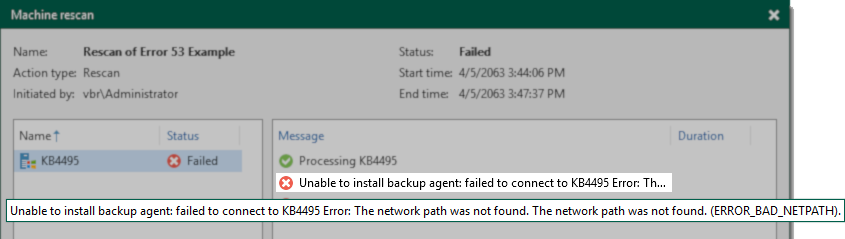
During the rescan of a Protection Group or individual Windows machine, the rescan fails with the error:
Unable to install backup agent: failed to connect to <machine_name> Error: The network path was not found. The network path was not found. (ERROR_BAD_NETPATH).
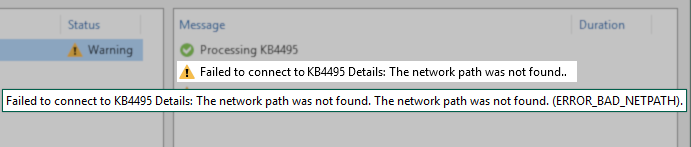
A warning similar to the one shown above will occur if the credentials provided are incorrectly formatted. However, it will state "Failed to connect" and be a warning. Credentials must be formatted with a username specified in the down-level logon name format (e.g., either domain\username or hostname\Administrator) and not with a dot slash (i.e., .\Administrator).
Note: Use of a local account other than Administrator will likely fail; see KB4185.
Failed to connect to <name> Details: The network path was not found. The network path was not found. (ERROR_BAD_NETPATH).
The topics discussed in this article also apply to the error:
The specified network name is no longer available. Failed to connect to share '\\x.x.x.x\ADMIN$'.
Cause
This error occurs when the Administrative share (admin$) of the Windows machine being rescanned cannot be reached.
The error code (0x00000035 or 53 in decimal) is relayed by Veeam Backup & Replication from the underlying Windows OS error "Error 53: The network path was not found."
Possible causes include, but are not limited to:
- The machine is powered off.
- DNS is not resolving the hostname or FQDN to the correct IP.
- A firewall is blocking the connection to the ADMIN$ share.
- The Windows machine's Server service may be turned off, disabling File and Printer Sharing.
- File and Print Sharing for Microsoft Networks is disabled within the NIC configuration.
- The ADMIN$ share is not present.
Solution
Ensure the Machine is Powered On
Ensure that the Windows machine failing to be rescanned is powered on.
Ensure DNS Resolution is Correct
Note: This stage can be skipped if the Windows machine was added to the Protection Group via IP address.
From the Veeam Backup Server, use nslookup to check the IP of the Windows machine that is failing to rescan. Make sure to use the hostname or FQDN precisely as it was added to the Protection Group. Then, run ipconfig from within the Windows machine and compare the results. If they do not match, resolve the DNS issue.
Ensure Access to Port 445
From the Veeam Backup Server, check if port 445 (default SMB port) can be reached on the Windows machine failing to rescan.
PowerShell example:
Ensure That the Server Service Is Running
Connect to the Windows machine that is failing to rescan. Open the Services management console (services.msc) and ensure that the Server service is running.
Ensure That the NIC is Configured to use File and Printer Sharing
Connect to the Windows machine that is failing to rescan. Review the network adapter properties (ncpa.cpl) and confirm that "File and Printer Sharing for Microsoft Networks" is enabled.
Ensure that the ADMIN$ Share Is Active
Note: By default, the ADMIN$ share is automatically created when the Server service starts. However, this behavior may be disabled if the AutoShareServer value is set to 0 in the HKLM\SYSTEM\CurrentControlSet\Services\LanmanServer\Parameters key.
Connect to the Windows machine that is failing to rescan and check in Computer Management under Shared Folders > Shares to see if the ADMIN$ share entry is present.
Or use PowerShell to check:
- If the ADMIN$ is present, check the other troubleshooting sections.
- If the ADMIN$ is missing, restart the Server service. If the ADMIN$ share is not automatically created when the Server service is started, open the Registry Editor and navigate to HKLM\SYSTEM\CurrentControlSet\Services\LanmanServer\Parameters. If the AutoShareServer value is present and set to 0, remove it and restart the Server service again.
If this KB article did not resolve your issue or you need further assistance with Veeam software, please create a Veeam Support Case.
To submit feedback regarding this article, please click this link: Send Article Feedback
To report a typo on this page, highlight the typo with your mouse and press CTRL + Enter.
