The provided one-time code is incorrect. Check if the backup server time is correct.
| KB ID: | 4739 |
| Product: | Veeam Backup & Replication | 13 |
| Published: | 2025-09-03 |
| Last Modified: | 2026-06-03 |


Challenge
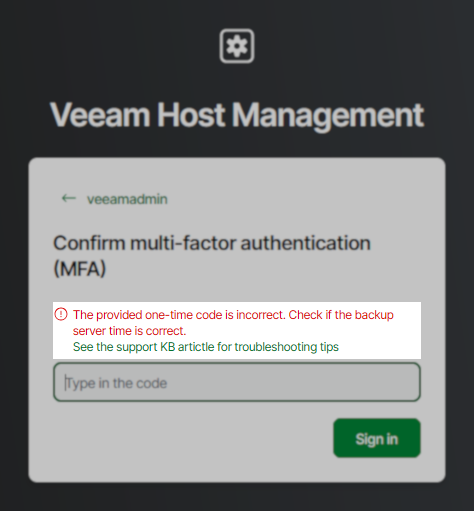
When attempting to connect to the Veeam Host Management Console, after entering the MFA TOTP code, the following error occurs:
The provided one-time code is incorrect. Check if the backup server time is correct.
Solution
There are two potential causes for time mismatch:
Cause 1: Hypervisor Time Synchronization Is Overriding Guest Time
When the Veeam Backup & Replication Veeam Software Appliance is deployed on a VM within a Virtual Environment, if the VM is configured to synchronize its time with the hypervisor, the hypervisor may override the system time the guest OS pulls from the NTP server.
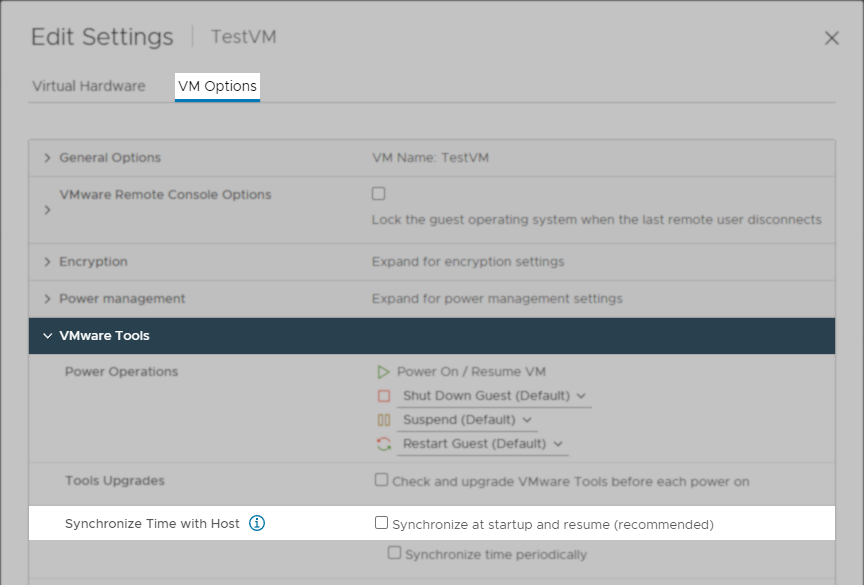
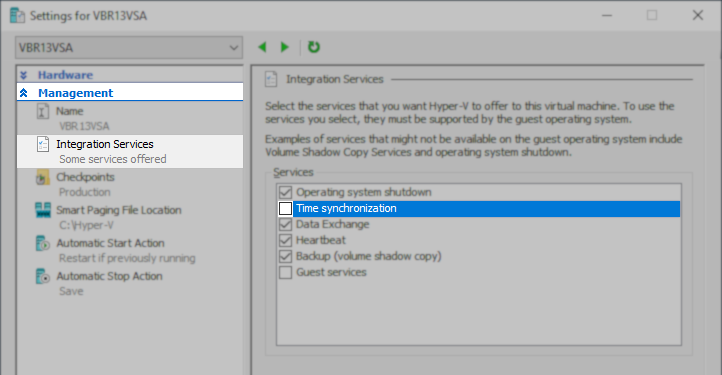
It is recommended to disable time synchronization between the hypervisor and the Veeam Software Appliance VM.
This may look different in different hypervisors. For example, in VMware, this option is available in the VM Options:
Cause 2: The NTP Server Cannot be Contacted or Provides an Invalid Time
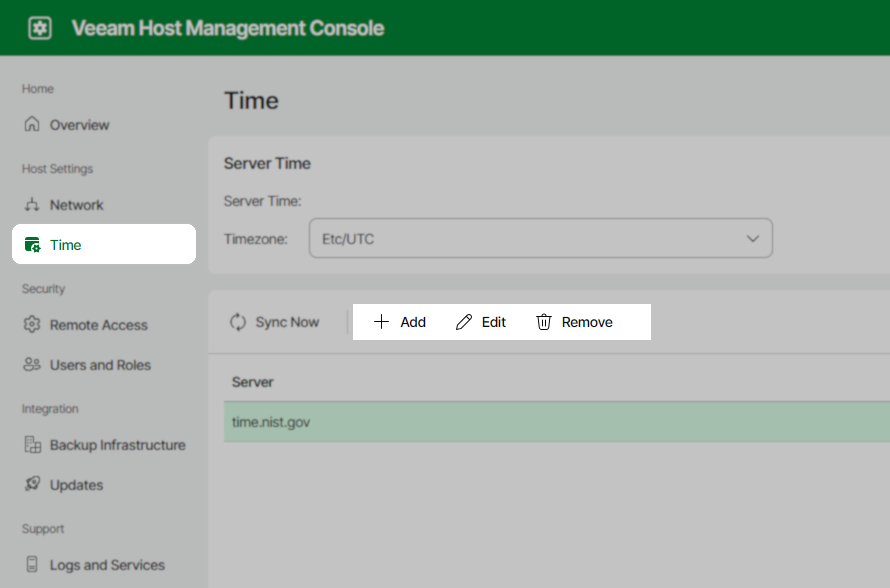
Update NTP via Veeam Host Management Console WebUI
If access to the Veeam Host Management Console is possible (e.g., the issue is intermittent or another Host Admin has MFA disabled for their account), the NTP servers can be configured using the web UI.
Update NTP via Veeam Live OS ISO
If there is no access to the Veeam Host Management Console, then the configuration of the Veeam Software Appliance must be modified using the Veeam Live OS ISO.
- Mount the Veeam Live OS ISO.
- Restart the host.
- Boot from the Veeam Live OS ISO.
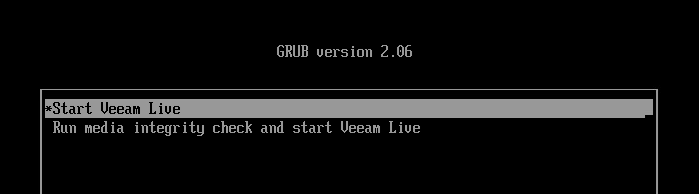
- Log in with the root / veeam credentials.
- Run the following command to mount the VSA system:
- Run the following command to enter the chroot of the main system:
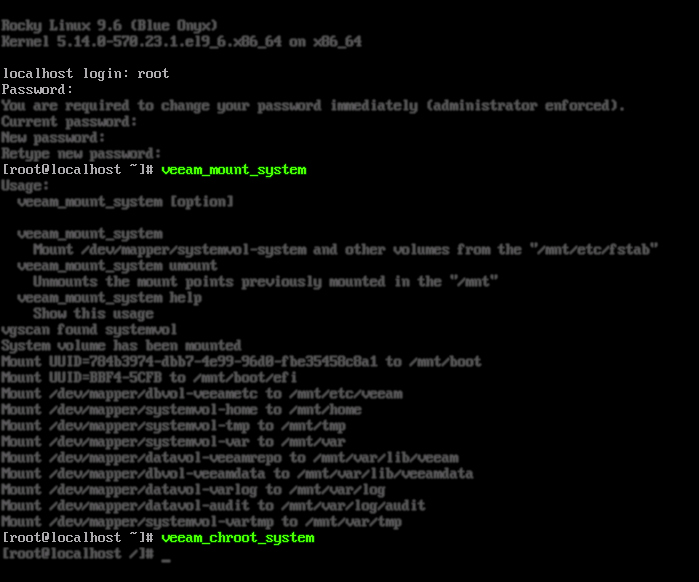
- Using vi, edit the
/etc/chrony.conffile and specify the correct NTP server for synchronization.
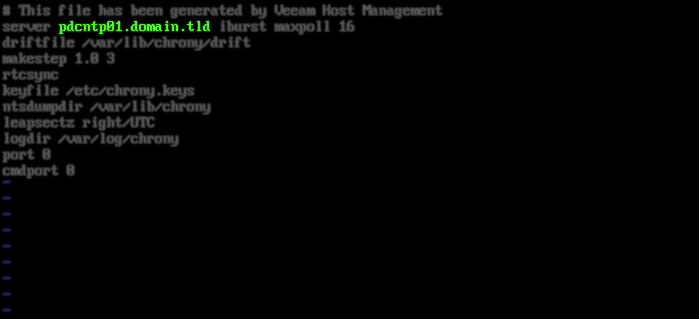
- Manually set the system time so that it is close enough for
chronydto maintain.
The configured time-synchronization policy preventschronydfrom stepping the clock in large jumps, so the time must be corrected manually first.
Running the date command displays the active timezone abbreviation (for example, CEST). Enter the new time in that same timezone. There is no need to adjust for daylight saving time.
- Run the command
exitto exit the chroot, and thenrebootthe system.

If this KB article did not resolve your issue or you need further assistance with Veeam software, please create a Veeam Support Case.
To submit feedback regarding this article, please click this link: Send Article Feedback
To report a typo on this page, highlight the typo with your mouse and press CTRL + Enter.
Spelling error in text

KB Feedback/Suggestion
This form is only for KB Feedback/Suggestions, if you need help with the software open a support case