Impact of Domain name or Hostname Change on Veeam Appliances
| KB ID: | 4781 |
| Product: | Veeam Backup & Replication | 13 |
| Published: | 2025-11-13 |
| Last Modified: | 2026-04-13 |


Challenge
Solution
SAML Authentication May Stop Working
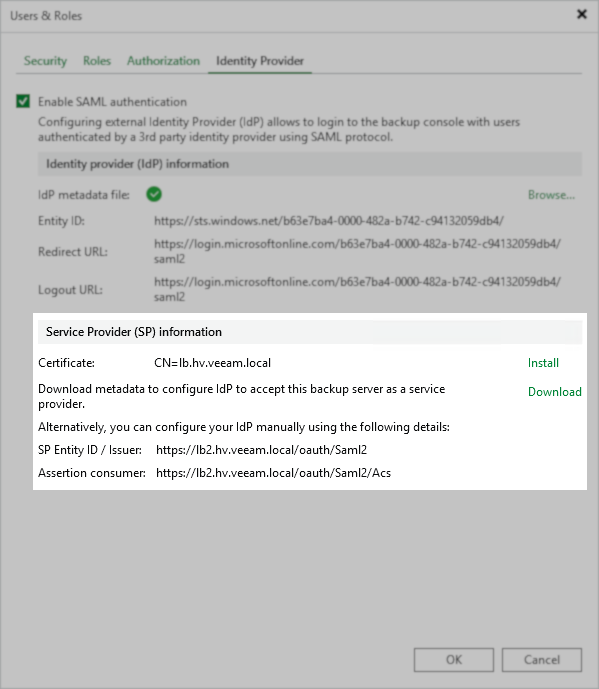
After the host name of the Veeam Software Appliance is changed, the Service Provider (SP) information will change.
There will be a new SP Entity ID and Assertion Consumer Service URL. These should be updated on the Identity Provider side, either manually or by using the Download option within the Veeam Backup & Replication console to then upload the new SP metadata.
Host Connectivity to Deployer Breaks
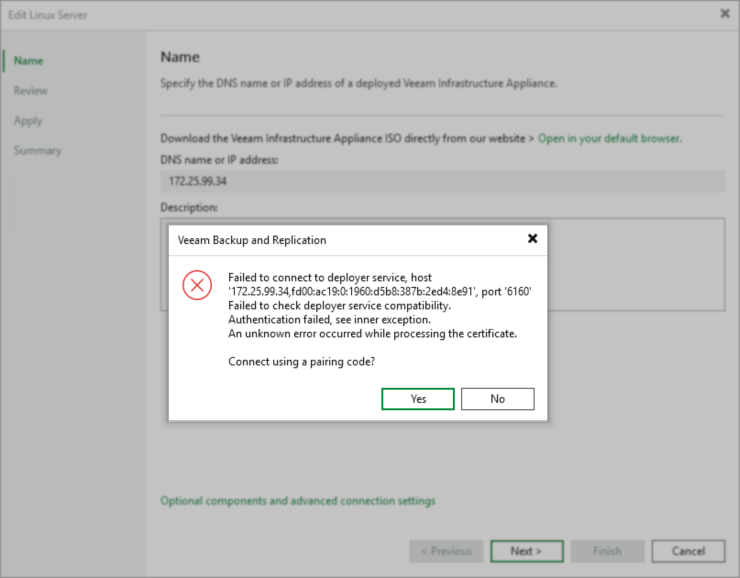
After changing the hostname or FQDN of a Veeam Infrastructure Appliance or Veeam Hardened Repository, the deployer certificate will be regenerated. To reinitialize the connection between Veeam Backup & Replication and the appliance, you must re-run the JeOS host wizard to restore connectivity with the deployer.
- Update the Managed Server's entry within the Veeam Backup & Replication Console using KB1905.
- With the entry within the Veeam Backup & Replication Console now updated so that the software will attempt to reach the Veeam Appliance using the correct hostname or FQDN, you must reinitialize the connection to the managed server.
- Reset the pairing code on the Infrastructure Appliance.
- Open the Veeam Backup & Replication Console and edit the Managed Server for the JeOS host whose hostname or FQDN was changed.
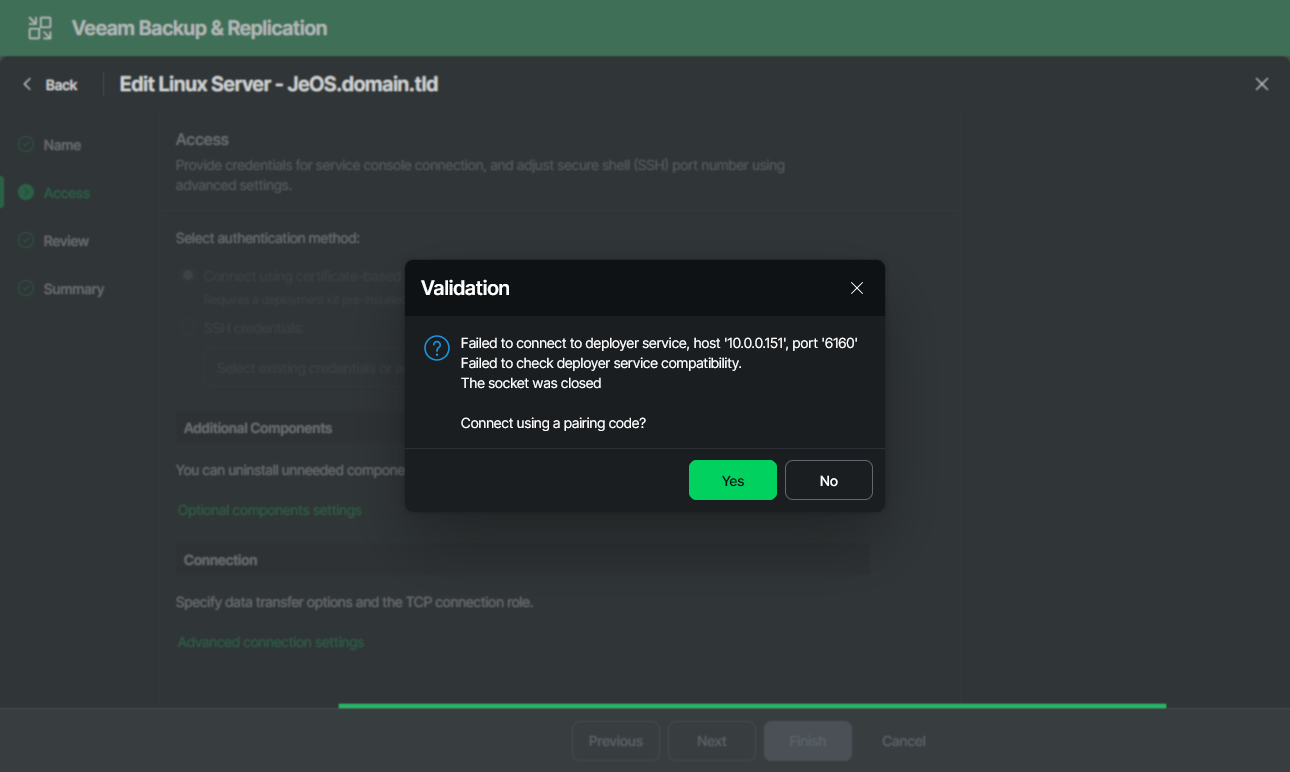
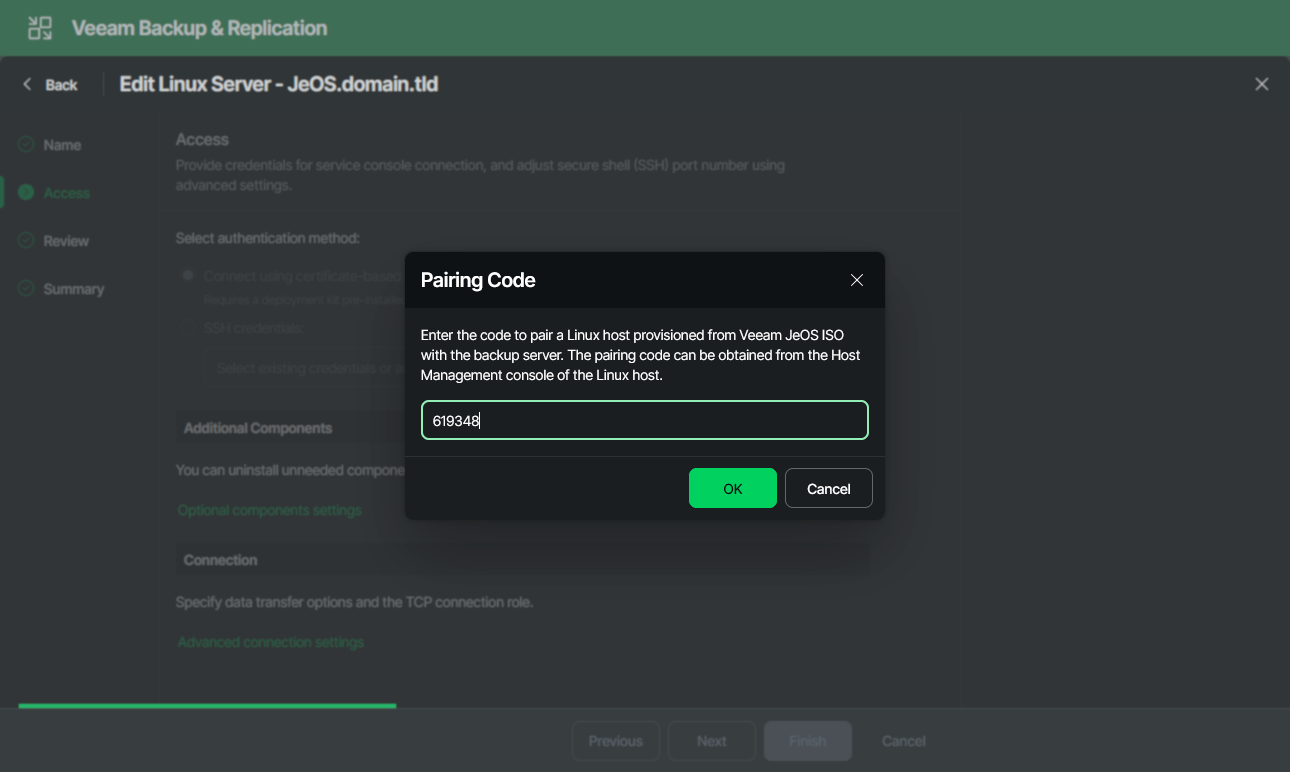
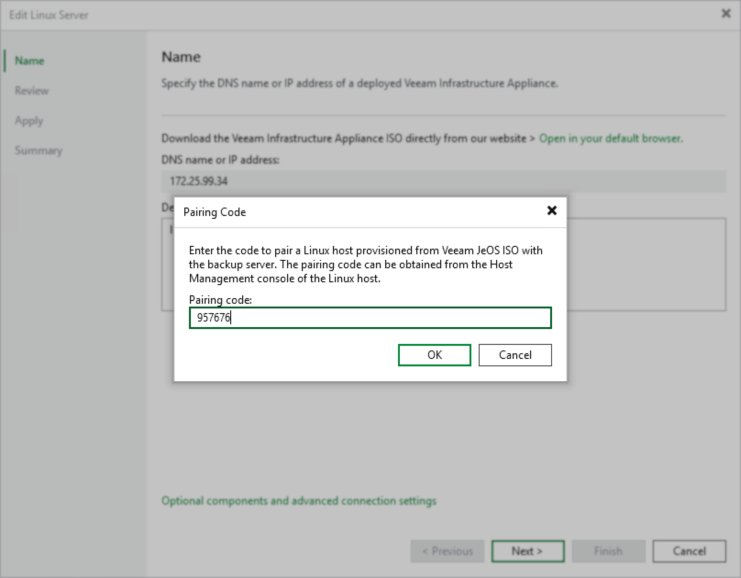
- Click Next through each step, and when prompted to "Connect using a pair code?" select Yes, and provide the Pairing Code.
Note: The pairing code remains valid for 30 minutes.
Veeam Backup & Replication Web UI Example:
If this KB article did not resolve your issue or you need further assistance with Veeam software, please create a Veeam Support Case.
To submit feedback regarding this article, please click this link: Send Article Feedback
To report a typo on this page, highlight the typo with your mouse and press CTRL + Enter.
Spelling error in text

KB Feedback/Suggestion
This form is only for KB Feedback/Suggestions, if you need help with the software open a support case